
App shortcuts
Slack keyboard shortcuts for Mac
Slack is a keyboard app pretending to be a mouse app. The people who look fast in it are mostly just using the sidebar shortcuts.
Moving between conversations
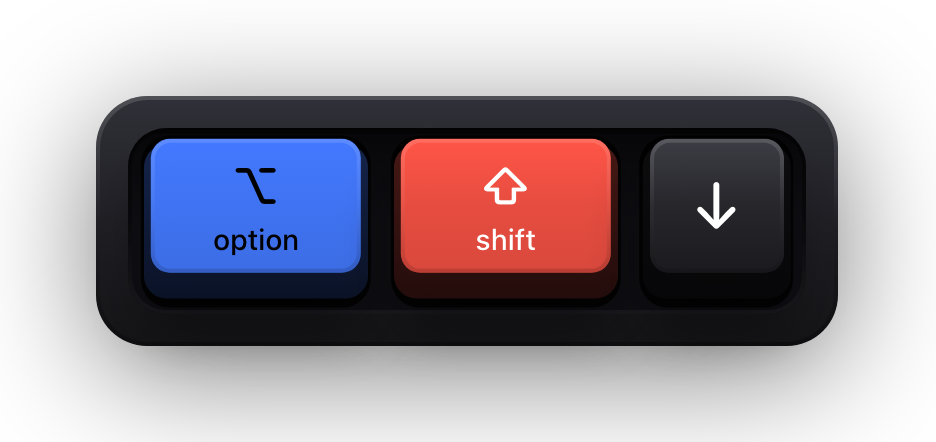
Slack's real speed comes from never touching the sidebar with a mouse. The four arrow-key chords below cover moving between conversations and skipping straight to the unread ones, and between them they replace most of the clicking an average day contains.
One absence is worth flagging, because you will find it on every other list: ⌘K, usually described as jump-to-conversation, does not appear in Slack's own Mac reference. Slack documents ⌘G for search and ⌘⇧K for browsing DMs. We have left ⌘K out rather than repeat a chord we cannot source, and the two that are documented cover the same ground.
| Shortcut | What it does |
|---|---|
| ⌘G | Start a search |
| ⌘F | Search in the current conversation |
| ⌥↑ | Jump to the previous channel or DM in the sidebar |
| ⌥↓ | Jump to the next channel or DM in the sidebar |
| ⌥⇧↑ | Jump to the previous unread channel or direct message |
| ⌥⇧↓ | Jump to the next unread channel or direct message |
| ⌘J | Jump to the most recent unread message in a conversation |
| ⌘[ | Go back in history |
| ⌘] | Go forward in history |
| ⌘⇧K | Browse DMs |
| ⌘⇧L | Browse channels |
Views, panes and focus
Slack's named views each have a chord, and they are worth learning as a set rather than one at a time — the pattern is ⌘⇧ plus a letter from the view's name in most cases.
The last four rows are the ones that make Slack usable without a pointer. F6 and ⇧F6 cycle focus between the sidebar, the message list and the composer, which is what the single-letter message actions further down this page depend on. ⌥ and a click on any sidebar section header expands or collapses all of them at once.
| Shortcut | What it does |
|---|---|
| ⌘⇧T | Open the Threads view |
| ⌘⇧M | Open the Activity view |
| ⌘⇧A | Open the All unreads view |
| ⌘⇧E | Open the People view |
| ⌘⇧I | Open conversation details |
| ⌘. | Hide the right sidebar |
| ← or → | Resize the left sidebar |
| ⌥ and click | Expand or collapse all sidebar sections |
| F6 | Move focus to the next section |
| ⇧F6 | Move focus to the previous section |
Unread messages and reading state
The two Escape shortcuts are the ones to learn first. Esc clears the unread state in the conversation you are looking at; ⇧Esc clears it everywhere, which is the fastest honest way to start a morning. The last three rows apply inside the All unreads view.
| Shortcut | What it does |
|---|---|
| Esc | Mark all messages in the current conversation as read |
| ⇧Esc | Mark all messages as read |
| ⌥ and click a message | Mark a message as unread |
| ↑ or ↓ | Move between messages in the All unreads view |
| Esc | Mark a group of messages as read in the All unreads view |
| ← or → | Open or collapse a group of messages in the All unreads view |
Composing, files and canvases
Everything that creates something rather than navigates to it. ⌘⇧Enter for a snippet is the one worth knowing if you paste code or logs into Slack regularly, because it stops a long paste from flooding a channel.
⌘⇧N creates a canvas rather than a message, and canvases have an entirely separate shortcut set of their own further down this page. ⌘O uploads a file from disk; ⌘⇧J opens the list of everything you have downloaded out of Slack, which is where an attachment goes when you cannot find it again.
| Shortcut | What it does |
|---|---|
| ⌘N | Compose a new message |
| ⌘O | Upload a file |
| ⌘⇧Enter | Create a new snippet |
| ⌘⇧N | Create a new canvas |
| ⌘⇧J | View all downloaded files |
| ⌘⇧Y | Set your status |
| ⌘, | Open your preferences |
Formatting a message as you type
These apply to selected text in the message box. ⇧Enter is the one non-formatting entry in the group and the one people most often want: it starts a new line instead of sending the message.
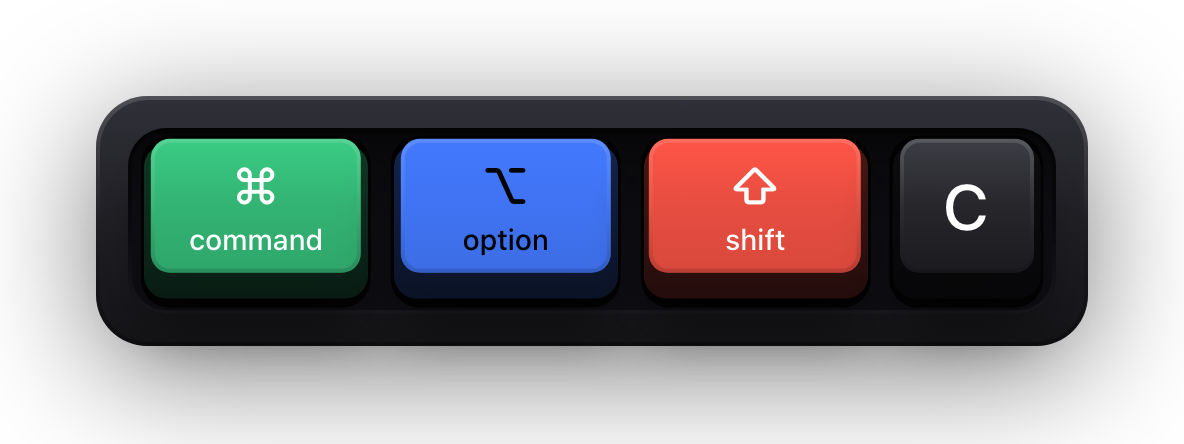
⌘⇧C and ⌘⌥⇧C are the pair worth getting right: the first wraps a short span in inline code, the second turns a selection into a fenced block. ⌘⇧F toggles Slack's formatting behaviour itself, so if your asterisks have stopped becoming bold, that is the switch that changed.
| Shortcut | What it does |
|---|---|
| ⇧Enter | Create a new line |
| ⇧↑ | Select text to the beginning of the current line |
| ⇧↓ | Select text to the end of the current line |
| ⌘B | Bold selected text |
| ⌘I | Italicise selected text |
| ⌘U | Underline selected text |
| ⌘⇧X | Strikethrough selected text |
| ⌘⇧U | Hyperlink selected text |
| ⌘⇧C | Format selected text as code |
| ⌘⌥⇧C | Format selected text as a code block |
| ⌘⇧9 | Quote selected text |
| ⌘⇧8 | Format selected text as a bulleted list |
| ⌘⇧7 | Format selected text as a numbered list |
| ⌘⇧F | Apply markdown formatting |
| ⌘Z | Undo formatting |
Actions on the message in focus
The single-letter shortcuts only fire when a message is in focus — hover over it, or move to it with the arrow keys — which is why they can be single letters at all. With a cursor in the message box they simply type. They are the fastest way to reply in a thread or save something for later without reaching for the hover toolbar.
| Shortcut | What it does |
|---|---|
| T or → | Open or reply to a thread |
| E | Edit a message you sent |
| Delete | Delete a message you sent |
| F | Forward a message |
| P | Pin or unpin a message |
| A | Save a message, or remove it from Later |
| M | Create a reminder about a message |
| R | Add an emoji reaction to a message |
| U | Mark all messages above the one in focus as unread |
Huddles, workspaces and windows
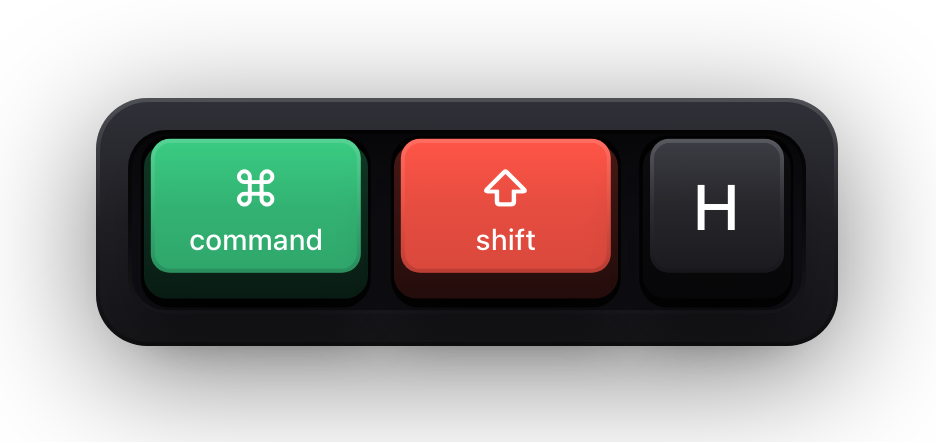
The two huddle chords are worth having ready before a call rather than during one. Everything below them moves between workspaces, tabs and windows, and most of it is built on ⌃ rather than ⌘ so it stays clear of the message shortcuts.
| Shortcut | What it does |
|---|---|
| ⌘⇧H | Start, join, leave or end a huddle |
| ⌘⇧Space | Toggle mute on a huddle |
| ⌘⇧S | Expand or collapse the workspace switcher |
| ⌃Tab | Switch to the next workspace |
| ⌃⇧Tab | Switch to the previous workspace |
| ⌘ and a number | Switch to a specific workspace |
| ⌃Page down | Switch to the next tab |
| ⌃Page up | Switch to the previous tab |
| ⌃ and a number | Switch to a specific tab |
| ⌃⌘F | Toggle full screen view |
| ⌘W | Close window |
| ⌘⇧W | Reopen last closed window |
| F1 | Open Help |
| ⌘Q | Quit Slack |
Canvases
Canvases are a separate editing surface with their own shortcut set, and several chords mean something different there than they do in a channel — ⌘⇧H opens find and replace in a canvas but starts a huddle everywhere else.
| Shortcut | What it does |
|---|---|
| ⌘⌥0 | Format selected text as paragraph |
| ⌘⌥1 | Format selected text as a big heading |
| ⌘⌥2 | Format selected text as a medium heading |
| ⌘⌥3 | Format selected text as a small heading |
| ⌘⇧0 | Format selected text as a checklist |
| ⌘⇧8 | Format selected text as a bulleted list |
| ⌘⇧7 | Format selected text as a numbered list |
| ⌃` | Toggle heading and list styles |
| ⌘⌥↑ | Move an item in a formatted list up |
| ⌘⌥↓ | Move an item in a formatted list down |
| ⌘⌥T | View comment thread |
| ⌘⌥R | Show reader or edit view |
| ⌘⇧/ | Open the context menu |
| ⌘F | Find text in the canvas |
| ⌘G | Find next |
| ⌘⇧G | Find previous |
| ⌘⇧H | Find and replace |
| ⌃⌥Q | Copy an anchor link to a section |
| ⌘Z | Undo the last action |
| ⌘⇧Z | Redo the last action |
Show Slack shortcuts on screen
Slack shortcuts are hard to demonstrate for the same reason they are worth learning: the app moves without anything visibly happening. You skip three channels with ⌥⇧↓ and the person watching your huddle sees the sidebar teleport. Onboarding a team into Slack, or recording a workflow walkthrough, means narrating every chord out loud and hoping your voice keeps pace with your hands.
Show KeyPress is a paid macOS menu bar app, for macOS 14 Sonoma or later, that draws each key you press as a keycap on top of everything else. It does not integrate with Slack, installs nothing into it, and does not record video — a huddle screen share or a screen recorder simply captures the display, and the overlay is on the display.
- Shortcuts Only mode draws ⌥⇧↓ and ⌘⇧L but stays quiet while you type an actual message.
- Stacked History groups continuous typing into readable fragments when the message itself is the point.
- The overlay is click-through, so it never swallows a click meant for Slack underneath it.
- One Display pins it to the screen you are sharing instead of following your pointer to a second monitor.
- All six global shortcuts are rebindable in Settings, which matters here — the default ⌘⇧K collides with Slack's Browse DMs.
Sources and further reading
Product details and guidance were checked against these first-party pages on August 5, 2026. Re-check current listings before making an install or high-stakes decision.
- Keyboard shortcuts in Slack
Slack
Slack's own shortcut reference, split by platform, including the Mac chords.
- Control access to input monitoring on Mac
Apple
Apple's guide to the Input Monitoring privacy permission and how to grant or revoke it.
- Secure Keyboard Entry
Apple
How macOS Secure Keyboard Entry stops other apps from receiving key events.
FAQ
Questions people ask
What is the shortcut to search in Slack on a Mac?
⌘G starts a search across your workspace, and ⌘F searches within the conversation you are currently reading. Both are listed in Slack's own Mac shortcut reference. Inside a canvas, ⌘F searches the canvas instead.
Why do single-letter Slack shortcuts like E and P do nothing?
They act on the message that is in focus, so nothing happens until one is. Hover over a message, or move to it with the arrow keys, then press the letter. With the cursor in the message box, those keys just type a letter.
Can I change Slack's keyboard shortcuts?
Slack's built-in chords are fixed and cannot be remapped inside the app. What you can change is what surrounds them: macOS lets you assign shortcuts to menu items under System Settings, Keyboard, Keyboard Shortcuts, App Shortcuts, and you can rebind any other app that is claiming a combination Slack needs.
Are Slack shortcuts different on Windows?
Yes, and Slack publishes the two lists separately. The Windows chords use Ctrl and Alt where the Mac ones use ⌘ and ⌥, and a few differ beyond the modifier swap. Every chord on this page comes from the Mac section rather than a translation of the Windows one.
Does Show KeyPress conflict with Slack's shortcuts?
One default does: ⌘⇧K toggles Show KeyPress globally, and Slack uses the same chord to browse DMs. All six of the app's global shortcuts can be reassigned in its Shortcuts settings, so pick something Slack does not claim.
Can people in a Slack huddle see which keys I press?
Only if something draws them on your screen. A huddle screen share transmits the display, not your keyboard. With a keystroke overlay running on the display you are sharing, the keycaps travel with the picture like anything else on it.