
App shortcuts
Google Chrome keyboard shortcuts for Mac
Chrome is the app most Mac users spend the most hours in, which makes it the app where a dozen memorised chords pay back the fastest.
Tabs and windows
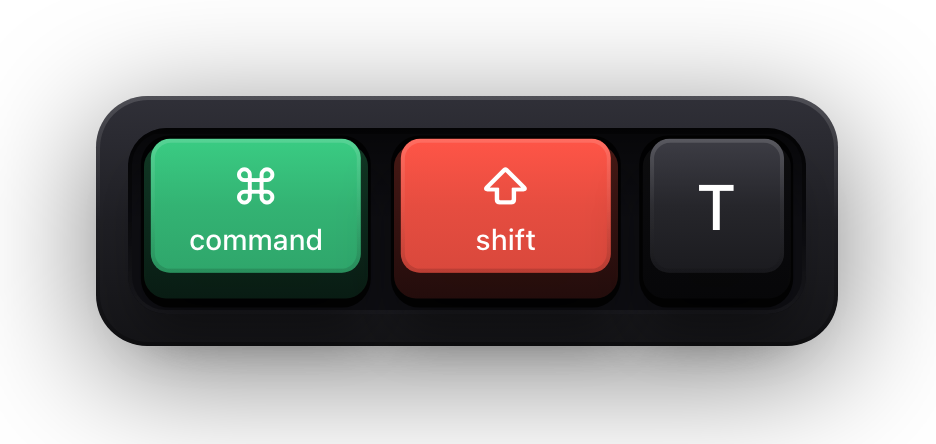
This is where the time goes. Chrome's tab shortcuts are the most-used keyboard commands on most Macs, and the two people most often do not know are ⌘⇧T, which reopens closed tabs in the order you closed them, and ⌘9, which jumps to the last tab no matter how many are open.
⌘1 through ⌘8 are positional rather than by history, so they land on whatever is sitting in that slot right now. That makes them reliable only if your leftmost tabs are pinned. Note also that Chrome's own full-screen chord is Fn and F, which is separate from the green window button and from macOS full screen — pressing and holding Esc gets you back out either way.
| Shortcut | What it does |
|---|---|
| ⌘T | Open a new tab, and jump to it |
| ⌘N | Open a new window |
| ⌘⇧N | Open a new window in Incognito mode |
| ⌘W | Close the current tab or pop-up |
| ⌘⇧W | Close the current window |
| ⌘⇧T | Reopen previously closed tabs in the order they were closed |
| ⌘⌥→ | Jump to the next open tab |
| ⌘⌥← | Jump to the previous open tab |
| ⌘1 to ⌘8 | Jump to a specific tab |
| ⌘9 | Jump to the last tab |
| ⌘[ or ⌘← | Open the previous page in your browsing history for the current tab |
| ⌘] or ⌘→ | Open the next page in your browsing history for the current tab |
| ⌃⇧PgUp or ⌃⇧PgDn | Move tabs right or left |
| Fn F | Turn full-screen mode on, and off again |
| Esc (press and hold) | Turn off full-screen mode |
| ⌘M | Minimise the window |
| ⌘H | Hide Google Chrome |
| ⌘Q | Quit Google Chrome |
Chrome's own features
These open the parts of Chrome that live outside a web page — bookmarks, history, downloads, settings and the developer tools. All of them open in a tab, so they behave like any other tab once they are there.
The last five rows are the focus and accessibility shortcuts most published lists omit. They are the ones that make Chrome navigable without a pointer at all.
| Shortcut | What it does |
|---|---|
| ⌘⇧B | Show or hide the Bookmarks Bar |
| ⌘⌥B | Open the Bookmark Manager |
| ⌘, | Open the Settings page in a new tab |
| ⌘Y | Open the History page in a new tab |
| ⌘⇧J | Open the Downloads page in a new tab |
| ⌘⇧Delete | Open the Delete Browsing Data options |
| ⌘F | Open the Find Bar to search the current page |
| ⌘G | Jump to the next match to your Find Bar search |
| ⌘⇧G | Jump to the previous match to your Find Bar search |
| ⌘E | When the Find Bar is open, search for the selected text |
| ⌘⌥I | Open Developer Tools |
| ⌘⌥N | Open split view in the active tab |
| ⌘⇧M | Log in as a different user, browse as a Guest, or access payment and password info |
| ⌘⌥⇧I | Open a feedback form |
| ⌃F2 | Jump to the main menu bar |
| ⌘⌥↑ or ⌘⌥↓ | Cycle focus to an unfocused dialog, if showing, and all toolbars |
| ⌘⌥⇧A | Focus on inactive dialogs |
| F7 | Turn on caret browsing |
The address bar
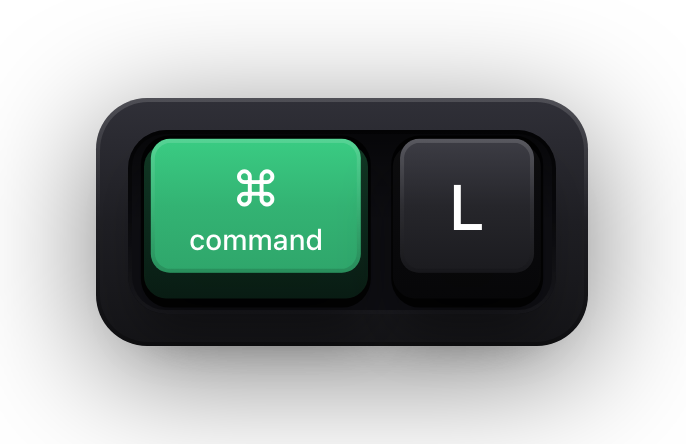
Chrome's address bar is a command line that most people use as a text box. The two entries that change how it feels are ⌘L, which focuses it from anywhere without touching the mouse, and typing a search engine name followed by Tab, which searches that specific site instead of your default engine.
Google documents ⌃F5 as a second route to the address bar, which exists for screen reader and keyboard-only navigation rather than as an alternative to ⌘L. The last row is the one worth committing to memory if your address bar keeps suggesting a URL you no longer want: highlight the prediction with the down arrow, then ⇧Fn Delete removes it for good.
| Shortcut | What it does |
|---|---|
| ⌘L | Jump to the address bar |
| ⌃F5 | Move the cursor to the address bar |
| Search term, then Return | Search with your default search engine |
| Search engine name, then Tab | Search using a different search engine |
| Site name, then ⌃Return | Add www. and .com to a site name, and open it in the current tab |
| Site name, then ⌃⇧Return | Add www. and .com to a site name, and open it in a new window |
| Web address, then ⌘Return | Open the website in a new background tab |
| ↓ to highlight, then ⇧Fn Delete | Remove predictions from your address bar |
Reading and moving around a page
⌘⇧R is the one worth singling out here: it reloads while ignoring cached content, which is the difference between seeing your change and staring at yesterday's stylesheet. The last three rows are text-field editing shortcuts, and they work in any field on any page.
| Shortcut | What it does |
|---|---|
| ⌘⇧R | Reload the current page, ignoring cached content |
| Esc | Stop the page loading |
| Space | Scroll down a webpage, a screen at a time |
| ⇧Space | Scroll up a webpage, a screen at a time |
| ⌘ and + | Make everything on the page bigger |
| ⌘ and - | Make everything on the page smaller |
| ⌘0 | Return everything on the page to the default size |
| Tab | Browse clickable items moving forward |
| ⇧Tab | Browse clickable items moving backward |
| ⌘⇧H | Open your home page in the current tab |
| ⌘⌥F | Search the web |
| ⌥← | Move your cursor to the beginning of the previous word in a text field |
| ⌥→ | Move your cursor to the back of the next word in a text field |
| ⌥Delete | Delete the previous word in a text field |
Saving, printing and viewing source
Everything that takes a page out of the browser and turns it into something else: a bookmark, a print job, a file on disk, an email, or the markup underneath.
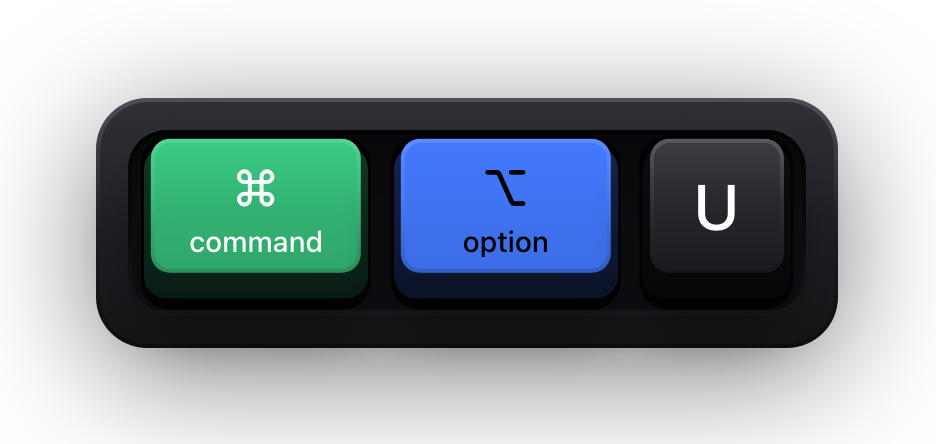
⌘P and ⌘S are worth distinguishing, because the print dialog is also how you produce a PDF on macOS, while ⌘S saves the page's actual assets to disk. The last two rows are the developer entries: ⌘⌥U shows the source as the server sent it, and ⌘⌥J opens the console directly rather than going through the full Developer Tools panel.
| Shortcut | What it does |
|---|---|
| ⌘D | Save your current webpage as a bookmark |
| ⌘⇧D | Save all open tabs as bookmarks in a new folder |
| ⌘P | Open options to print the current page |
| ⌘S | Open options to save the current page |
| ⌘⌥P | Open the Page Setup dialog |
| ⌘O, then select a file | Open a file from your computer in Google Chrome |
| ⌘⇧I | Compose a new email message with a link to the current page |
| ⌘⌥U | Display non-editable HTML source code for the current page |
| ⌘⌥J | Open the JavaScript Console |
Mouse and trackpad shortcuts
Google documents these alongside the keyboard ones, and they are the half of the reference almost nobody reads. Several are modifier-plus-click combinations, which makes them a natural fit for the same muscle memory as the chords above.
The difference between ⌘ and ⌘⇧ on a link is the one to internalise: the first opens it quietly behind what you are reading, the second opens it and takes you there. Esc while dragging a tab is the undo nobody knows exists — it returns the tab to where it started instead of leaving you with a stray window.
| Shortcut | What it does |
|---|---|
| ⌘ and click a link | Open a link in a new background tab |
| ⌘⇧ and click a link | Open a link, and jump to it |
| ⇧ and click a link | Open a link in a new window |
| ⌥ and click a link | Download the target of a link |
| Drag a link to a tab | Open a link in a current tab |
| Drag a link to a blank area of the tab strip | Open a link, and jump to it |
| Drag the tab out of the tab strip | Open a tab in a new window |
| Drag the tab into an existing window | Move a tab to a current window |
| Esc while dragging | Return a tab to its original position |
| Drag the web address to the Bookmarks Bar | Save the current webpage as a bookmark |
| Right-click Back or Next, or click and hold either | Display your browsing history |
| Double-click a blank area of the tab strip | Increase the window to full height |
Show Chrome shortcuts on screen
Browser shortcuts are unusually hard to teach, because the result of pressing one is almost always a change to the browser itself. A tab appears, the address bar takes focus, a panel opens. To someone watching a recording or a shared screen, the browser simply reorganised itself for no visible reason, and every viewer following along on their own Mac quietly falls out of step.
Show KeyPress is a paid macOS menu bar app, for macOS 14 Sonoma or later, that draws each press as an on-screen keycap so the cause arrives at the same moment as the effect. It does not record video, has no browser extension and no integration with Chrome — it is a window drawn above your other windows, so any recorder or conferencing tool capturing that display picks it up.
- Latest mode shows one combination at a time, which suits shortcut-by-shortcut teaching.
- Horizontal History keeps a row of recent keycaps when the sequence matters more than a single press.
- Stacked History groups continuous typing into readable fragments — the right choice when the URL or the query is the lesson.
- Shortcuts Only keeps the overlay quiet while you type into the address bar or a form.
- ⌃⌥M switches the content mode, and ⌃⌥= and ⌃⌥- change the overlay size without opening Settings.
Sources and further reading
Product details and guidance were checked against these first-party pages on August 5, 2026. Re-check current listings before making an install or high-stakes decision.
- Chrome keyboard shortcuts
Google
Google's reference for Chrome keyboard shortcuts, with a dedicated Mac column.
- Control access to input monitoring on Mac
Apple
Apple's guide to the Input Monitoring privacy permission and how to grant or revoke it.
- Secure Keyboard Entry
Apple
How macOS Secure Keyboard Entry stops other apps from receiving key events.
FAQ
Questions people ask
Can I customise Chrome keyboard shortcuts on a Mac?
Not inside Chrome for its own commands. macOS lets you assign a shortcut to any menu item under System Settings, Keyboard, Keyboard Shortcuts, App Shortcuts, and extensions can define their own chords — but Chrome ships no general remapping panel of its own.
Are Chrome shortcuts different on Windows?
Yes. Google publishes a separate list per platform. The Windows chords are built on Ctrl and Alt where the Mac ones use ⌘ and ⌥, and several actions differ beyond the modifier swap. Every chord on this page is from the Mac column.
What is the shortcut for a hard reload in Chrome on a Mac?
⌘⇧R reloads the current page while ignoring cached content. Google documents that one specifically; a plain reload has no entry of its own in the Mac list, which is why it is absent from the tables above.
Why does one of these shortcuts do nothing for me?
Usually because macOS or another app claimed the combination first — a system-wide shortcut always wins before Chrome sees the key. The other common cause is context: ⌘E only works while the Find Bar is open, and the text-field chords only work with a cursor in a field.
How do I show which Chrome shortcut I pressed in a screen recording?
Run a keystroke overlay while you record. Show KeyPress draws each press on screen, and because it is an ordinary window rather than a plugin, any display-level capture includes it. Capture scoped to a single window is the one case that can leave it out.