
App shortcuts
Zoom keyboard shortcuts for Mac
Every chord below comes from Zoom's own hot key reference for macOS. Nothing here is invented, and nothing is a Windows shortcut in a Mac costume.
Meeting essentials
These are the shortcuts that start, join and steer a meeting rather than change what you are transmitting. Zoom lets you edit any of them under Settings, Accessibility, Keyboard Shortcuts, and it marks some as eligible to run as global shortcuts, meaning they fire while Zoom is in the background.
That distinction is the one that catches people out during a presentation. A shortcut that only works while Zoom has focus is no use at all when you are demonstrating something in another app, which is exactly when you most need to mute yourself.
| Shortcut | What it does |
|---|---|
| ⌘J | Join meeting |
| ⌘⌃V | Start meeting |
| ⌘D | Schedule meeting |
| ⌘I | Open invite window |
| ⌘⇧I | Copy invite link |
| ⌘U | Show or hide the participants panel |
| ⌥Y | Raise hand or lower hand |
| ⌘2 | Read the active speaker name |
| ⌃\ | Toggle the Always Show meeting controls option in General settings |
| ⌃⌥⌘H | Show or hide the floating meeting controls |
Audio and video
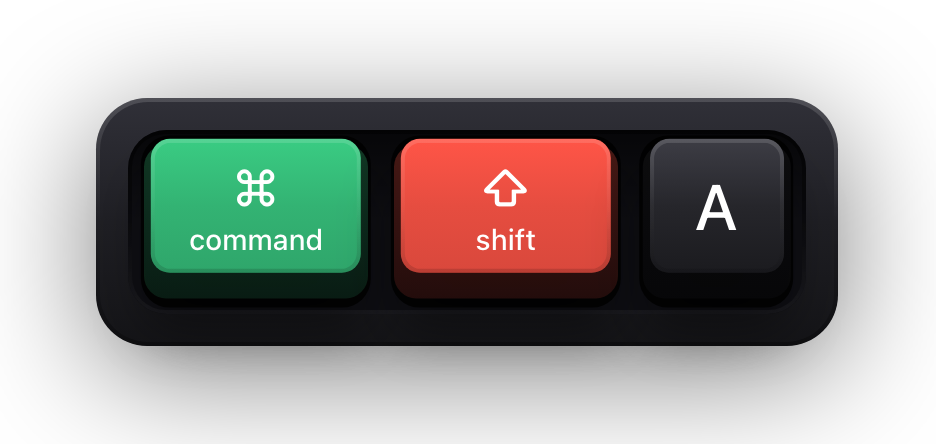
The mute chord is the single most valuable thing on this page. ⌘⇧A toggles your microphone outright, and holding Space unmutes you only for as long as you hold it — a push-to-talk that costs nothing to learn and prevents the two most common meeting failures at once.
The last two rows are host-only. If you are a participant they do nothing at all, which accounts for most reports that a Zoom shortcut is broken. ⌘⇧N switching cameras is the sleeper of the group: on a Mac with a continuity camera and a built-in one, it is faster than any menu.
| Shortcut | What it does |
|---|---|
| ⌘⇧A | Mute or unmute your own audio |
| Space | Press and hold to temporarily unmute |
| ⌘⇧V | Start or stop video |
| ⌘⇧N | Switch camera |
| ⌘⌃M | Mute audio for everyone except the host (host only) |
| ⌘⌃U | Unmute audio for everyone except the host (host only) |
Layout, views and windows
Zoom's window arrangements sit behind a small control in the corner of the meeting window, which moves the moment anything else changes. These six chords reach all of them without hunting.
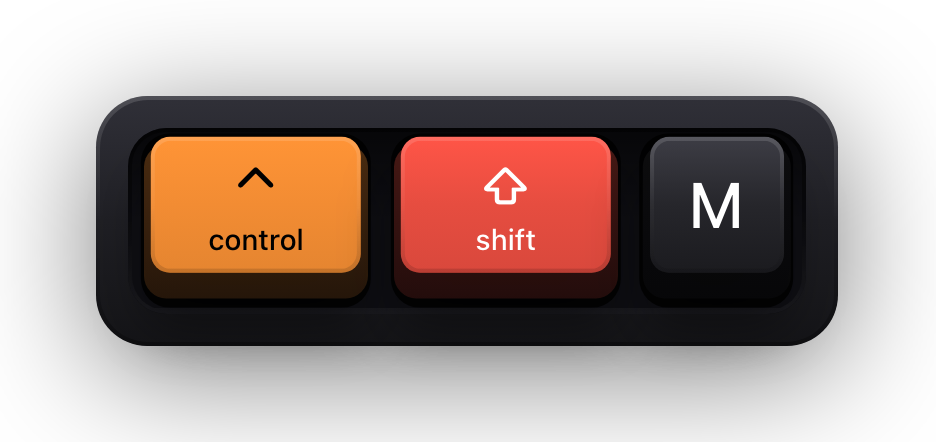
⌘⇧M is the one to reach for when Zoom needs to get out of the way — minimal window shrinks the meeting to a strip you can park in a corner while you demonstrate something else. ⌘⇧D toggles dual monitor mode, which is a preference rather than a view, so expect the whole meeting layout to rearrange when you press it.
| Shortcut | What it does |
|---|---|
| ⌘⇧W | Switch between speaker view, multi-speaker view and gallery view |
| ⌃P | View the previous page of video participants in gallery view |
| ⌃N | View the next page of video participants in gallery view |
| ⌘⇧F | Enter or exit full screen |
| ⌘⇧M | Switch to minimal window |
| ⌘⇧D | Enable or disable dual monitor mode |
Screen sharing, recording and remote control
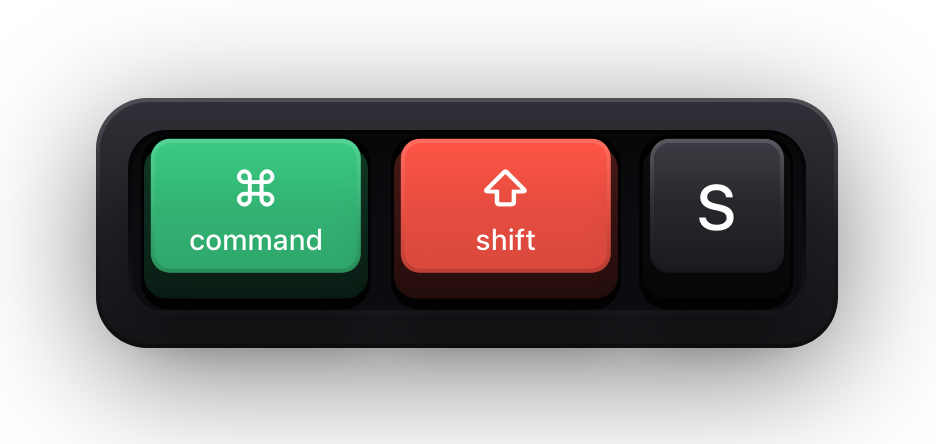
Sharing is where the shortcuts earn their keep, because the share controls relocate to a different part of the screen the moment sharing starts. Learning ⌘⇧S and ⌘⇧T means never hunting for a toolbar that has moved itself above the window you are presenting.
| Shortcut | What it does |
|---|---|
| ⌘⇧S | Start or stop screen share |
| ⌘⌃S | Screen share using direct share |
| ⌘⇧T | Pause or resume screen share |
| ⌘⇧R | Start or stop computer recording |
| ⌘⇧C | Start or stop cloud recording |
| ⌘⇧P | Pause or resume recording |
| ⌃⇧R | Begin remote control |
| ⌃⇧G | Revoke or give up the remote control permission |
| ⇧⌘C | Record a new clip |
In-meeting chat and reactions
Reactions are the quietest way to participate in a meeting you are not speaking in, and they all sit on ⌥⌘ plus a number. The three focus shortcuts below only work while the in-meeting chat panel is open, which is what ⌘⇧H is for.
| Shortcut | What it does |
|---|---|
| ⌘⇧H | Show or hide the in-meeting chat panel |
| ⇧⌘E | Focus the chat input field (chat panel only) |
| ⇧⌘U | Focus the last received parent message (chat panel only) |
| ⌘N | Create a new chat with meeting participants (chat panel only) |
| ⇧⌘Y | Open the meeting reactions panel |
| ⌥⌘4 | Send a meeting reaction: clapping hands |
| ⌥⌘5 | Send a meeting reaction: thumbs up |
| ⌥⌘6 | Send a meeting reaction: love |
| ⌥⌘7 | Send a meeting reaction: haha |
| ⌥⌘8 | Send a meeting reaction: wow |
| ⌥⌘9 | Send a meeting reaction: celebrate |
| ⇧⌘O | Open the AI chat panel in a meeting |
Zoom Team Chat
Team Chat is a separate surface from the in-meeting chat panel and has its own shortcuts, several of which collide with the meeting ones by design — ⌘N composes a message here and creates a participant chat there.
⌘F is the other overlap worth holding in mind: in Team Chat it searches the current chat or channel, while ⌘E searches everything across the client. ⌘⇧U and ⌘⌃N both move you to unread content but from different directions — the latest message, or the point where the new ones begin.
| Shortcut | What it does |
|---|---|
| ⌘N | New message |
| ⌘F | Search in a chat or channel |
| ⌘[ | Back in chat history |
| ⌘] | Forward in chat history |
| ⌘⇧L | Focus the keyboard on the list of all chats and channels |
| ⌘⌃N | Jump to the start of new messages in the current group chat or channel |
| ⌘⇧U | Focus the latest message in the current group chat or channel |
| ⌘⌥I | Add a member to the current group chat or channel |
| ⌥⌘0 | Collapse all |
| ⌘T | Screenshot |
Zoom Phone
Every Zoom Phone shortcut lives on ⌃⇧, which keeps them clear of the meeting chords. They are worth knowing if calls arrive while you are already sharing a screen.
⌃⇧ is also the busiest modifier pair on macOS, so this is the group most likely to be intercepted by something else you have installed. If a call shortcut silently does nothing, check what else has claimed the combination before assuming Zoom is at fault.
| Shortcut | What it does |
|---|---|
| ⌃⇧C | Call the highlighted phone number, or search the directory |
| ⌃⇧A | Accept an inbound call |
| ⌃⇧D | Decline an inbound call |
| ⌃⇧E | End the current call |
| ⌃⇧M | Mute or unmute the call |
| ⌃⇧H | Hold or unhold the call |
| ⌃⇧T | Transfer the call |
Show Zoom shortcuts on screen
A shortcut you press on a Zoom call is invisible to everyone else on it. The panel opens, the layout changes, the recording starts — and the room sees the effect with no idea what caused it. If you are teaching Zoom itself, running an onboarding session, or demonstrating any other app while sharing, that gap is the whole problem, and narrating every chord out loud only works if your voice keeps perfect pace with your hands.
Show KeyPress is a paid macOS menu bar app, for macOS 14 Sonoma or later, that closes the gap by drawing each key you press as a keycap on top of everything else on screen. It has no Zoom integration and no plugin to install — it is a window drawn above your other windows, which is precisely why a whole-screen share carries it. A share scoped to a single application window is the exception, because the overlay is not part of that window's content.
- Shortcuts Only content mode draws combinations like ⌘⇧S and stays quiet while you type in the chat box.
- One Display pins the overlay to the screen you are actually sharing instead of letting it follow your pointer.
- Eight edge presets and a full-screen drag editor keep it clear of Zoom's floating controls and share border.
- The overlay is click-through, so it never intercepts a click meant for the Zoom window underneath.
- ⌘⇧K toggles the whole thing between demos, and ⌃⌥= and ⌃⌥- resize it without opening Settings.
Sources and further reading
Product details and guidance were checked against these first-party pages on August 5, 2026. Re-check current listings before making an install or high-stakes decision.
- Using hot keys and keyboard shortcuts
Zoom
Zoom's own list of macOS hot keys for meetings, chat, sharing and reactions.
- Sharing your screen in a Zoom meeting
Zoom
Zoom's screen share options, including sharing a whole desktop versus one window.
- Control access to input monitoring on Mac
Apple
Apple's guide to the Input Monitoring privacy permission and how to grant or revoke it.
FAQ
Questions people ask
Do Zoom keyboard shortcuts work when Zoom is in the background?
Only the ones you enable as global shortcuts. Zoom marks certain shortcuts as eligible under Settings, Accessibility, Keyboard Shortcuts, and you tick the option beside each one you want to fire while another app has focus. Doing this for mute and screen share before you present is the highest-value five seconds you can spend.
Can I change a Zoom shortcut on a Mac?
Yes. Open Settings from your profile picture in the Zoom desktop client, choose Accessibility, then Keyboard Shortcuts, click the shortcut you want to change, and press the combination you would rather use.
Are Zoom shortcuts different on Windows?
Substantially. Zoom maintains separate lists per platform, and the Windows chords are built on Alt and Ctrl where the Mac ones use ⌘, ⌥ and ⌃. Every chord on this page is taken from the macOS list rather than translated from the Windows one.
Why does one of these shortcuts do nothing for me?
Three usual causes: the shortcut belongs to a surface that is not open, such as the in-meeting chat panel or Team Chat; it is host-only, as the mute-everyone chords are; or another app has claimed the same combination system-wide, in which case that app wins and Zoom never sees the press.
Will the audience see which shortcuts I press on a Zoom call?
Not on their own. Zoom transmits your screen, not your keyboard. An on-screen keystroke overlay such as Show KeyPress draws the keys onto the display you are sharing, and a whole-screen share then carries them to everyone watching.
Does Show KeyPress plug into Zoom?
No. There is nothing to install on the Zoom side and no integration of any kind. It is an ordinary macOS overlay window, which is why it behaves identically in Zoom, Google Meet, Teams or a screen recorder.