
App shortcuts
Linear keyboard shortcuts for Mac
Linear is built around single letters acting on whatever is in focus. Once that clicks, the mouse becomes optional almost everywhere in the app.
How Linear's keyboard model works
Almost every shortcut in Linear is a single letter, and that is only possible because of a rule worth stating before any table: the letters act on the issue that is highlighted or selected. Highlighting is what the arrow keys and J and K do; selecting is what X does. With nothing in focus, or with a cursor in a text field, the same letters simply type.
Two-key sequences carry the rest. G followed by a letter goes to a page, O followed by a letter opens a picker for a thing, and M followed by a letter marks a relationship. They are sequences rather than chords — press one key, release, press the next.
⌘K is the escape hatch for everything else. It opens a command menu whose contents depend on what is in focus, so any action that has a shortcut can also be reached by name, and any action that does not have one can be reached at all. Pressing ? brings up Linear's own searchable list of shortcuts, which is the authority for whatever version you are running.
Getting around: G, O and search
The G sequences move you to a page and the O sequences open a picker over whatever page you are on. They cover the sidebar entirely, which is the point — Linear's sidebar exists mostly for people who have not learned these.
Search splits three ways and the split matters. / searches the whole workspace across issues, projects and documents; ⌘F searches only the titles in the view you are looking at, behaving more like a temporary filter; and O then I opens recent issues, where you can also search by issue ID.
| Shortcut | What it does |
|---|---|
| G then I | Go to your Inbox |
| G then M | Go to My Issues |
| G then T | Go to Triage |
| G then A | Go to your team's active issues |
| G then B | Go to your team's backlog |
| G then X | Go to your team's archives |
| G then Q | Open the full customer list |
| O then I | Open recent issues, and search by title or issue ID |
| O then D | Open the document list in a project view |
| O then F | Open your favourites |
| O then U | Open a user profile |
| O then T | Open another team |
| O then Q | Open a customer page |
| / | Search issues, projects and documents across the workspace |
| ⌘F | Search titles within the current view, board, list or Inbox |
| ⌘K | Open the command menu for whatever is in focus |
| ? | Open Linear's own keyboard shortcut list |
Creating issues
C is the shortcut Linear is known for: it opens the issue composer from anywhere in the app. V does the same in full screen, which is the one to use when the description is going to be more than a sentence. If you have text highlighted when you press either, it becomes the issue title.
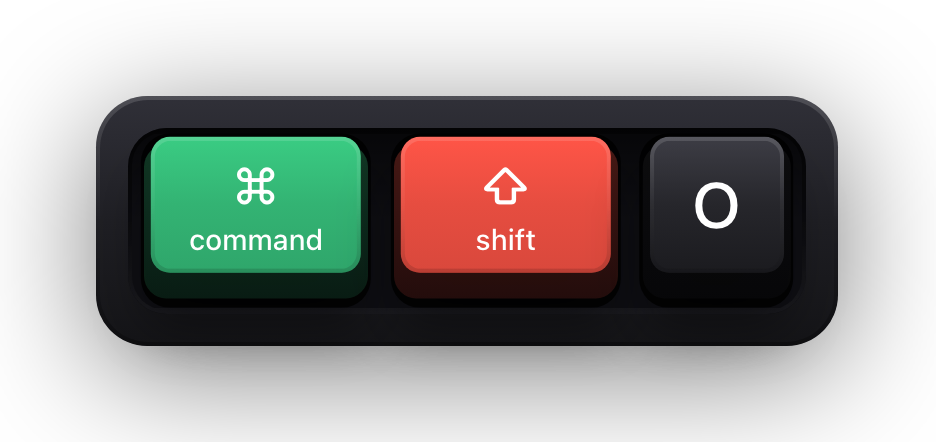
⌘⇧O is the sub-issue equivalent, and it does more than open an editor. Select a bulleted or numbered list in a description and press it, and each line becomes a sub-issue — which is the fastest route from a rough checklist to actual tracked work.
| Shortcut | What it does |
|---|---|
| C | Open the issue creation modal |
| V | Create an issue in full screen mode |
| ⌥C | Create an issue from a template |
| ⌘⇧O | Open the sub-issue editor, or convert a selected list into sub-issues |
| ⌘⇧⏎ | Save and immediately create another with the same values |
| Esc | Close the composer, with the option to save it as a draft |
| ⌘⌫ | Delete the selected issue |
| ⌘Z | Undo — including restoring an issue you just deleted |
| # | Restore a selected issue from the archives |
Setting properties on an issue
This is the group that replaces the right-hand sidebar. Each letter opens the picker for one property on whatever is in focus, and pressing it again changes or clears what you set. They work on a single issue and on a multi-issue selection identically, which is what makes bulk editing in Linear feel like editing one thing.
I is the one people miss. It assigns the issue to you outright, with no picker in between, and it is the single fastest keystroke in a triage session.
| Shortcut | What it does |
|---|---|
| S | Change the status |
| A | Open the assignment menu |
| I | Assign the issue to yourself |
| L | Apply labels |
| P | Set the priority |
| ⇧D | Set the due date |
| ⇧E | Add, edit or remove the estimate |
| ⇧P | Add the issue to a project, or move it between projects |
| ⇧S | Subscribe to or unsubscribe from the issue |
| ⌘⇧S | Manage the subscribers |
| ⌘⇧M | Move the issue to another team |
| M then R | Relate this issue to another |
| M then B | Mark the issue as blocked by another |
| M then X | Mark the issue as blocking another |
| M then M | Mark the issue as a duplicate |
Selecting issues and acting in bulk
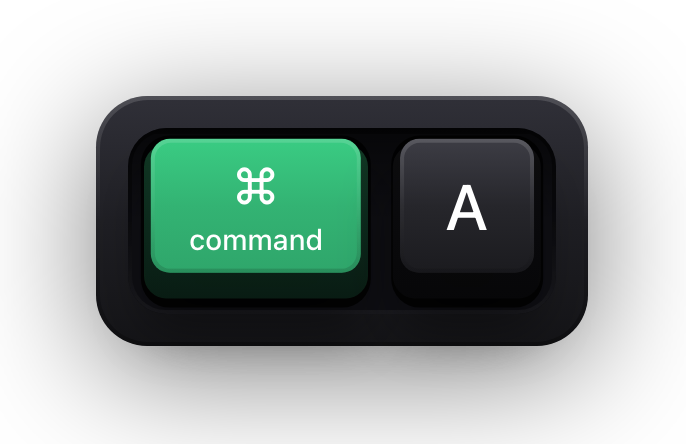
X selects the highlighted issue, and everything else in this group builds on that. Hold ⇧ while moving with the arrow keys to extend the selection an issue at a time; ⌘A takes everything in the current list or board, which combines with a filter into a precise bulk edit — filter to no priority, ⌘A, then P.
The reordering chords only apply on a view ordered manually. ⌥⇧↑ and ⌥⇧↓ send the selection to the top or bottom, and ⌥↑ and ⌥↓ move it one position at a time.
| Shortcut | What it does |
|---|---|
| ↑ / ↓, or J / K | Highlight the previous or next issue |
| X | Select the highlighted issue |
| ⇧ and click | Select several issues at once |
| ⇧↑ / ⇧↓ | Extend the selection one issue at a time |
| ⌘A | Select every issue in the current list or board |
| Esc | Clear the selection |
| ⌘K | Open the command menu for the selection |
| ⌥⇧↑ / ⌥⇧↓ | Move the selected issues to the top or bottom |
| ⌥↑ / ⌥↓ | Move the selected issues one position at a time |
Views, layout and peek
⌘B flips any view between list and board, and ⇧V opens the display options behind it — grouping, ordering, and which properties are shown. ⌥V saves whatever you have filtered into a custom view, which is how a one-off filter becomes a page you can come back to.
Space is the one nobody finds by accident. Linear calls it peek, and it previews the focused issue the way Quick Look previews a file in the Finder. Tap it to keep the preview open and step through issues with the arrow keys; hold it to peek only for as long as you hold.
| Shortcut | What it does |
|---|---|
| ⌘B | Switch between list and board layout |
| ⇧V | Open the display options |
| F | Open the filter menu |
| ⌥V | Save the filtered view as a custom view |
| ⌘I | Toggle the details sidebar on a project or cycle |
| Space | Peek at the focused issue or project |
| Esc | Close peek, or clear an in-view search |
The Inbox
The Inbox has its own small set, and it is the one part of Linear where reading through with the keyboard genuinely beats clicking. J and K walk the list, U toggles read state, and H snoozes — the same key that sets a reminder on an issue elsewhere in the app.
⌥U is the morning shortcut: it marks every notification as read at once. ⇧⌫ is the harder version, deleting all the read ones.
| Shortcut | What it does |
|---|---|
| G then I | Go to the Inbox from anywhere |
| J / K, or ↑ / ↓ | Scroll through the notifications |
| U | Mark the selected notification as read or unread |
| ⌥U | Mark all notifications as read |
| H | Snooze the notification, or set a reminder on an issue or document |
| ⌫ | Delete the selected notification |
| ⇧⌫ | Delete all read notifications |
| ⌘F | Open the quick search bar over the notifications |
| ⇧S | Unsubscribe from the issue you have opened |
Writing: the editor and its markdown triggers
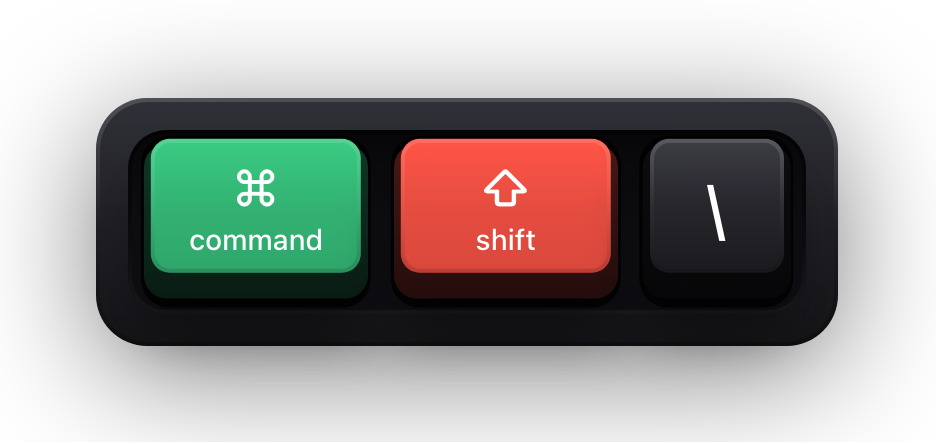
The editor takes the chords your hands already know, with two Linear-specific ones worth learning: ⌘E for inline code and ⌘⇧\ for a fenced code block. ⌘K turns a selection into a link, and pasting an issue URL over selected text does the same thing without the chord.
Everything in the second list is a typed trigger rather than a shortcut, and for creating a block from scratch they beat any combination — you are already typing. They also read as ordinary typing on a recording, which is worth knowing when you are demonstrating Linear to someone.
- Wrap text in ** for bold, in _ for italics and in ~~ to strike it through.
- Type #, ##, ### or #### followed by a space for headings one to four.
- Start a line with *, - or + and a space for a bulleted list, 1. for a numbered one, and [] for a checklist.
- Start a line with > and a space for a blockquote, or >>> and a space for a collapsible section.
- Type /code for a code block, or /diagram to turn a mermaid code block into a rendered diagram.
- Press / at any point to open the full formatting menu.
| Shortcut | What it does |
|---|---|
| ⌘B / ⌘I / ⌘U | Bold, italicise or underline the selection |
| ⌘⇧S | Strike through the selection |
| ⌘E | Format the selection as inline code |
| ⌘⇧\ | Insert a code block |
| ⌘K | Turn the selection into a link |
| ⌘⇧8 | Format as a bulleted list |
| ⌘⇧9 | Format as a numbered list |
| ⌘⇧7 | Format as a checklist |
| ⌘⇧U | Upload a file |
| ⌘A | Select all the content in an issue |
| ⌘Z / ⌘⇧Z | Undo or redo your typing |
| ⇧⏎ | Insert a line break |
| ⏎ twice | Break out of a code block or blockquote |
| ⌘⌥M | Leave an inline comment on the selection |
Show your Linear shortcuts on screen
Linear is the hardest kind of app to demonstrate, precisely because it is the best kind to use. The shortcuts are single letters with no modifier to see or hear, and the effect is a property changing somewhere in a dense list. A new teammate watching you triage sees a queue empty itself and learns nothing transferable — the whole lesson was in your hands.
Show KeyPress is a paid macOS menu bar app, for macOS 14 Sonoma or later, that draws each key you press as a mechanical keycap on top of everything else on screen. It has no Linear integration, nothing to install and no access to your workspace — it is a window drawn above your other windows, so any screen recorder or full-display share carries it.
- All Keys content mode matters more here than in most apps: Linear's shortcuts are bare letters, and Shortcuts Only mode would draw almost none of them.
- Horizontal History keeps a row of recent keycaps, which is the mode that makes a two-key sequence like G then T legible.
- The overlay is click-through, so it never intercepts a click meant for the issue list underneath.
- One Display pins it to the screen you are sharing rather than letting it follow your pointer to a second monitor.
- ⌃⌥M switches content mode mid-demo, and ⌃⌥= and ⌃⌥- resize the overlay without opening Settings.
Sources and further reading
Product details and guidance were checked against these first-party pages on August 5, 2026. Re-check current listings before making an install or high-stakes decision.
- Create issues
Linear
Linear's own documentation for issue creation, including the single-key and template shortcuts.
- Select issues
Linear
How highlighting and selection work in Linear, which is what every single-letter shortcut depends on.
- Editor
Linear
Linear's editor reference, listing the formatting chords and the markdown triggers that stand in for them.
- Search
Linear
Linear's search documentation, covering workspace search, in-view search and the recent-issues shortcut.
- Control access to input monitoring on Mac
Apple
Apple's guide to the Input Monitoring privacy permission and how to grant or revoke it.
FAQ
Questions people ask
Why do Linear's single-letter shortcuts do nothing for me?
Because nothing is in focus. Linear's letters act on the issue that is highlighted or selected, so highlight one with the arrow keys or J and K first, or select it with X. With the cursor in a text field, those keys just type a letter.
How do I see the full list of Linear shortcuts in the app?
Press ? to open Linear's own keyboard shortcuts window, which is searchable. It is also reachable from Help and Feedback at the bottom of the sidebar. That list is the authority for the version you are actually running.
Are Linear's Mac shortcuts different from the Windows ones?
Barely. Linear documents its chords as Cmd/Ctrl and Option/Alt, so the difference is the modifier name rather than the binding — the single-letter shortcuts, which are most of them, are identical on both. Every chord on this page has already been resolved to the Mac side.
What is the difference between / and ⌘F in Linear?
/ searches the whole workspace and returns issues, projects and documents. ⌘F searches only the titles in the view you are currently looking at and behaves like a temporary filter — as you type, non-matching issues disappear from the list or board. Esc clears it.
Can I remap Linear's keyboard shortcuts?
Linear's own bindings are not exposed for general remapping in the app. What you can change is what surrounds them: macOS lets you assign shortcuts to menu commands under System Settings, Keyboard, Keyboard Shortcuts, App Shortcuts, and you can rebind any other app that is claiming a combination Linear needs.
Does Show KeyPress connect to my Linear workspace?
No. There is no integration, no OAuth app and no API access — it never sees your workspace at all. It is a separate macOS menu bar app that draws the keys you press on your own screen, and it has no network access of any kind.