
Product demos
Keyboard overlay for product demos
The prospect is not evaluating your product. They are evaluating whether they could do that.
Fast demos lose deals for a specific reason
A sales engineer who knows the product moves through it at a speed no customer will ever match on day one. Panels open, filters apply, records save, and the person on the other end of the call sees a sequence of state changes with no visible cause. The unspoken conclusion is not "that is fast", it is "that looks like it takes six months to learn".
The fix is not to slow down. Slowing down makes the product look sluggish and wastes the twenty minutes you were given. The fix is to make the cause visible at the speed you are already going, so what the buyer sees is a keyboard-driven workflow rather than an unexplained one.
This matters most in exactly the demos worth winning. Power-user features, bulk operations, anything where the pitch is "your team will do this fifty times a day" — those live or die on whether the buyer believes their own people can get there.
Configure it for a customer call
- 01
Shortcuts Only, always
A demo involves typing into search boxes, name fields and filters that the customer does not need read back to them character by character. Shortcuts Only draws the combinations and leaves ordinary typing alone. This is a stricter default than for a tutorial, because a customer call has no rewind.
- 02
Latest, with a generous timeout
One chord at a time, replaced by the next, held long enough for you to finish the sentence that explains it. The history modes are for demonstrating a chain deliberately; on a sales call they read as clutter.
- 03
Somewhere the product is not
The overlay must never sit on the part of the UI you are selling. Pick an edge preset away from the product's own chrome — bottom-left is often clear where bottom-centre is not — and use ⌃⌥P to open the full-screen drag editor if the app has an unusual layout.
- 04
One Display, not Follow Pointer
You are almost certainly running the demo on one screen and your notes, the CRM and the call itself on another. One Display keeps the overlay where the customer can see it, and off the screen where your notes are.
- 05
Dial the size to the worst connection in the meeting
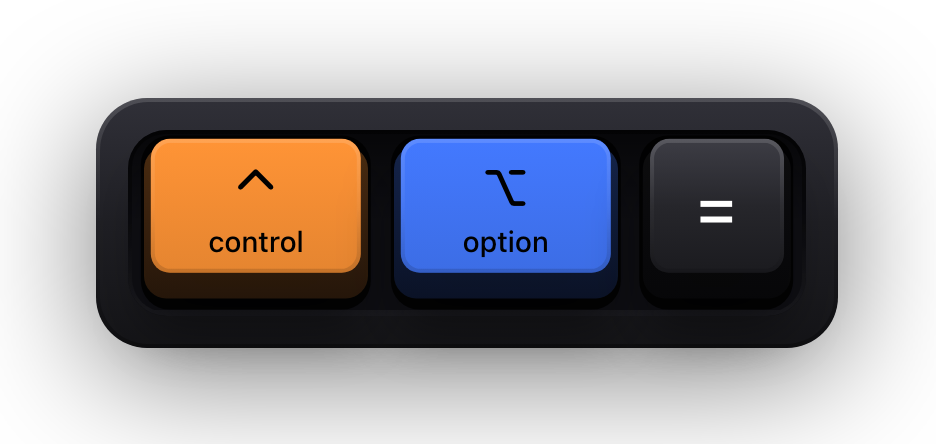
Your share is being re-encoded and watched in a tile on someone's laptop. Set the size one step larger than looks right locally; ⌃⌥= and ⌃⌥- adjust it live if the customer says the keys are hard to read.
Live call and recorded demo are different jobs
| Live customer call | Recorded demo or leave-behind | |
|---|---|---|
| Content mode | Shortcuts Only — the customer is listening as much as watching | Shortcuts Only, switched to All Keys for the one part where exact input matters |
| Reading mode | Latest, so nothing accumulates on screen | Latest, or Stacked History if the demo includes real typing |
| Placement | An edge that clears both your product's chrome and the conferencing toolbar | An edge that survives the crop and the aspect ratio you export at |
| The pet and the halo | Halo on if the customer keeps losing your cursor; the cat off | Your call — a personality element that fits a marketing video rarely fits a procurement one |
| Failure mode to avoid | Sharing a single window, which can leave the overlay out of the call entirely | Cropping the export past the overlay after the fact |
What it does not do, so nobody is surprised
Show KeyPress is a display, and only a display. It does not record the call, does not integrate with your conferencing tool or your CRM, and has no network entitlement of any kind — nothing about your demo, your keystrokes or your customers goes anywhere. There is no plugin to install and nothing for a customer's IT department to review on their side, because it runs entirely on your Mac.
There is one caveat that costs demos if you learn it live: an overlay drawn above your windows is not part of any single window, so a share scoped to one application window can carry the product and leave the keys behind. Share the whole screen or a full display.
Sources and further reading
Product details and guidance were checked against these first-party pages on August 5, 2026. Re-check current listings before making an install or high-stakes decision.
- Sharing your screen in a Zoom meeting
Zoom
Zoom's screen share options, including sharing a whole desktop versus one window.
- Control access to input monitoring on Mac
Apple
Apple's guide to the Input Monitoring privacy permission and how to grant or revoke it.
- Show KeyPress on the Mac App Store
Apple
The listing, with the current price, system requirements and version history.
FAQ
Questions people ask
Will an overlay make our product look like it needs a manual?
The reverse, in practice. Buyers already see the effects; the question is whether they can attribute them. Naming the chord turns speed into something reproducible instead of something only the demo person can do.
Can I turn it off partway through a demo?
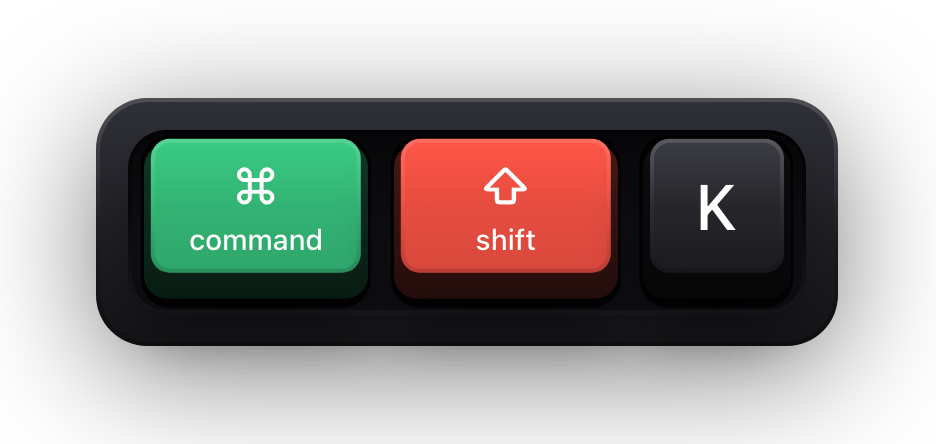
Yes. ⌘⇧K is a global toggle for the whole visualization — useful when you move from a workflow segment to a pricing screen. It is the master switch, so the cursor halo and the pet go with it.
Does it work on a demo recorded for a website or ad?
Yes, in the only sense that applies: it draws on your screen, so any display-level capture picks it up. It does not record video itself and does not integrate with your recorder or editor.
What happens if I log into a demo account on the call?
While macOS Secure Input is active the keyboard visualization is cleared, so the password produces no keycaps. A short Keyboard hidden — Secure Input banner appears instead, and that banner can be switched off under General.