
App shortcuts
VS Code keyboard shortcuts for Mac
Every chord below is the macOS binding VS Code itself publishes. Nothing is translated from the Windows list, and nothing was written from memory — each one was read from the editor's own keybindings reference.
Editing lines and text
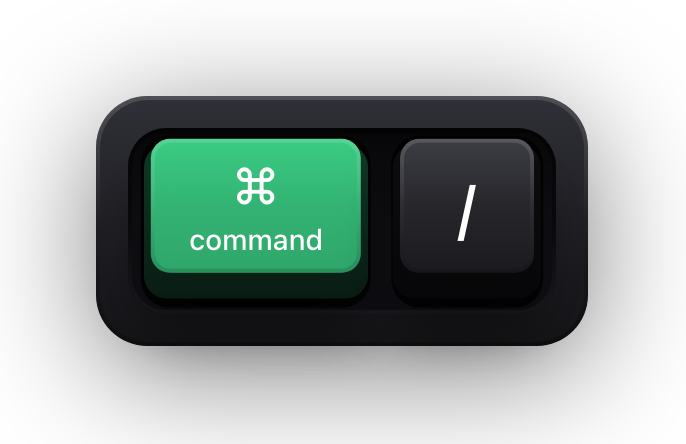
VS Code's line commands work on the current line when nothing is selected, which is what makes them worth learning: ⌘X with an empty selection cuts the whole line rather than nothing at all. That one behaviour removes most of the selecting people do before they edit.
The chords marked with two parts, such as ⌘K ⌘C, are chords in the musical sense — press the first pair, release, then press the second. VS Code shows a pending-chord indicator in the status bar while it waits for the second half, so a chord that appears to do nothing usually means the second press missed.
| Shortcut | What it does |
|---|---|
| ⌘X | Cut the current line when nothing is selected |
| ⌘C | Copy the current line when nothing is selected |
| ⇧⌘K | Delete the current line |
| ⌘Enter | Insert a line below and move the cursor to it |
| ⇧⌘Enter | Insert a line above and move the cursor to it |
| ⌥↓ | Move the current line down |
| ⌥↑ | Move the current line up |
| ⇧⌥↓ | Copy the current line down |
| ⇧⌥↑ | Copy the current line up |
| ⌘] | Indent the line |
| ⌘[ | Outdent the line |
| ⌘/ | Toggle a line comment |
| ⇧⌥A | Toggle a block comment |
| ⇧⌘\ | Jump to the matching bracket |
| ⌥Z | Toggle word wrap |
Multiple cursors and selection
Multi-cursor editing is the single largest difference between someone who is fast in VS Code and someone who is not, and it starts with one chord. ⌘D selects the word under the cursor, and each further press adds the next occurrence to the selection — so a rename becomes typing the new name once with six cursors down the file.
⌘K ⌘D is the escape hatch for the occurrence you did not want: it moves the last selection on to the next match instead of adding to it. ⌘U undoes the most recent cursor operation without undoing the edit, which is what you want when one press of ⌘D went one match too far.
| Shortcut | What it does |
|---|---|
| ⌘D | Add the next match of the selection as another cursor |
| ⌘K ⌘D | Move the last selection to the next match instead of adding it |
| ⇧⌘L | Select every occurrence of the current selection at once |
| ⌘F2 | Select every occurrence of the current word |
| ⌥⌘↓ | Insert a cursor on the line below |
| ⌥⌘↑ | Insert a cursor on the line above |
| ⇧⌥I | Insert a cursor at the end of every selected line |
| ⌘U | Undo the last cursor operation |
| ⌘L | Select the current line |
| ⌃⇧⌘→ | Expand the selection to the next syntax node |
| ⌃⇧⌘← | Shrink the selection to the previous syntax node |
| ⌥Enter | Select all occurrences of the current find match |
Moving around a project
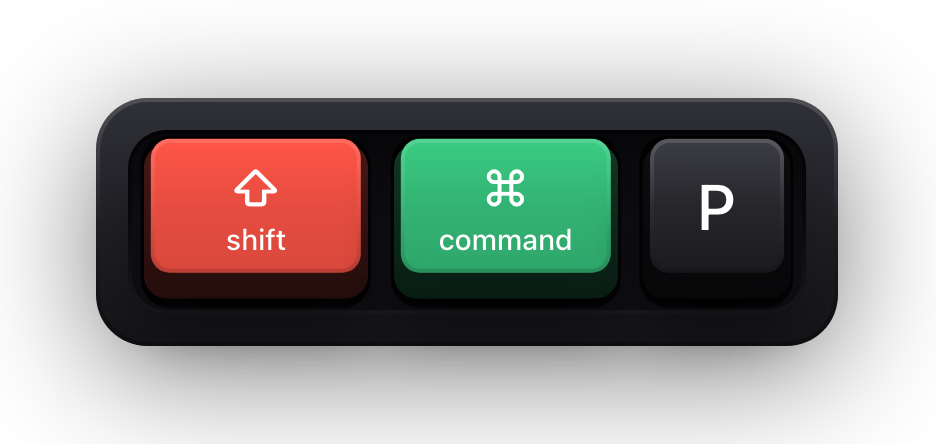
Quick Open and the Command Palette are the same widget wearing two hats, which is why ⌘P and ⇧⌘P feel identical. ⌘P searches file names; typing a > into it turns it into the Command Palette, and ⇧⌘P simply starts you there.
The two history chords are the ones people miss. ⌃- steps back to where you were before the last jump to a definition, and ⌃⇧- steps forward again — the browser back button for code, and the reason you can chase a call chain four files deep and still find your way home.
| Shortcut | What it does |
|---|---|
| ⌘P | Go to File, and Quick Open generally |
| ⇧⌘P | Show all commands in the Command Palette |
| ⌘T | Show all symbols across the workspace |
| ⇧⌘O | Go to a symbol in the current file |
| ⌃G | Go to a line number |
| ⇧⌘M | Show the Problems panel |
| F8 | Go to the next error or warning |
| ⇧F8 | Go to the previous error or warning |
| ⌃- | Go back to the previous location |
| ⌃⇧- | Go forward again |
| ⌃Tab | Cycle through the editor group's history |
| ⇧⌘; | Focus the breadcrumbs |
| ⌘↑ | Go to the beginning of the file |
| ⌘↓ | Go to the end of the file |
Finding and replacing
There are two search surfaces in VS Code and they take different chords: ⌘F searches the file you are in, ⇧⌘F searches every file in the workspace. The three toggle chords — case, whole word, regular expression — work in both, and they are worth learning because clicking those small buttons in the find widget is fiddly at any window size.
Search Editor is the third surface and the least known. ⌘Enter from the search view opens the results as an editable document you can scroll, annotate and keep, rather than a panel that vanishes the moment you search for something else.
| Shortcut | What it does |
|---|---|
| ⌘F | Find in the current file |
| ⌥⌘F | Replace in the current file |
| Enter | Find the next match, from the find widget |
| ⇧Enter | Find the previous match, from the find widget |
| ⌥⌘C | Toggle case-sensitive matching |
| ⌥⌘W | Toggle whole-word matching |
| ⌥⌘R | Toggle regular expression matching |
| ⇧⌘F | Search across every file in the workspace |
| ⇧⌘H | Replace across every file in the workspace |
| ⇧⌘J | Toggle the search details, including include and exclude globs |
| F4 | Focus the next search result |
| ⇧F4 | Focus the previous search result |
| ⌘Enter | Open the search results in an editor |
| ⇧⌘R | Run the search again, from a search editor |
Language features and folding
These are the chords that make an editor an IDE. ⌘. is the most valuable of them: it opens the Quick Fix menu for whatever the cursor is sitting on, which is where imports get added, protocols get stubbed and lint rules get silenced, all without reaching for the mouse.
F12 jumps to a definition and ⌥F12 peeks at it inline instead — the difference matters when you want to read a function signature without losing your place. ⌘K F12 splits the difference by opening the definition beside your current file.
| Shortcut | What it does |
|---|---|
| ⌃Space | Trigger the suggestion list |
| ⇧⌘Space | Trigger parameter hints |
| ⇧⌥F | Format the whole document |
| ⌘K ⌘F | Format the current selection |
| F12 | Go to the definition |
| ⌥F12 | Peek the definition inline |
| ⌘K F12 | Open the definition in a side editor |
| ⇧F12 | Go to references |
| ⌘K ⌘I | Show the hover documentation |
| ⌘. | Open the Quick Fix menu |
| F2 | Rename the symbol everywhere |
| ⌥⌘[ | Fold the region at the cursor |
| ⌥⌘] | Unfold the region at the cursor |
| ⌘K ⌘0 | Fold every region in the file |
| ⌘K ⌘J | Unfold every region in the file |
Files, editors and the workbench
VS Code arranges editors into groups rather than plain tabs, and the numbered chords focus a group rather than a document. ⌘1 through ⌘3 move between the first three, which covers almost every split anyone actually works in.
⇧⌘T is the chord to remember after a mis-click: it reopens the editor you just closed, as many times as you need to walk back. ⌘K Z drops into Zen Mode for a screenshot or a demo, and two presses of Escape leave it again.
| Shortcut | What it does |
|---|---|
| ⌘N | New file |
| ⌘O | Open a file |
| ⌘S | Save |
| ⌥⌘S | Save all |
| ⇧⌘S | Save as |
| ⌘W | Close the editor |
| ⇧⌘T | Reopen the editor you just closed |
| ⌘\ | Split the editor |
| ⌘1 | Focus the first editor group |
| ⌘B | Toggle the sidebar |
| ⌘K Z | Enter Zen Mode; Escape twice to leave |
| ⌃⌘F | Toggle full screen |
| ⇧⌘E | Show the Explorer, or toggle focus into it |
| ⇧⌘X | Show the Extensions view |
| ⌘K ⌘S | Open the Keyboard Shortcuts editor |
The integrated terminal
The terminal has its own keyboard universe, and the first thing to know is that ⌘\ splits the terminal when the terminal has focus and splits the editor when the editor does. Same chord, different pane, decided entirely by where the cursor is.
The two command-navigation chords depend on shell integration being active. When it is, ⌘↑ and ⌘↓ jump between the commands you have run rather than scrolling by line — which is how you find the output of the build from four commands ago without dragging a scrollbar.
| Shortcut | What it does |
|---|---|
| ⌃` | Toggle the terminal panel |
| ⌃⇧` | Create a new terminal |
| ⌘\ | Split the terminal, when the terminal has focus |
| ⌥⌘← | Focus the previous terminal pane in the group |
| ⌥⌘→ | Focus the next terminal pane in the group |
| ⇧⌘] | Focus the next terminal group |
| ⇧⌘[ | Focus the previous terminal group |
| ⌘F | Find in the terminal |
| ⌘↑ | Scroll to the previous command, with shell integration |
| ⌘↓ | Scroll to the next command, with shell integration |
| ⌥⌘PageUp | Scroll up one line |
| ⌥⌘PageDown | Scroll down one line |
| ⌘Home | Scroll to the top of the buffer |
| ⌘End | Scroll to the bottom of the buffer |
| ⇧⌘C | Open an external terminal at the current folder |
Debugging
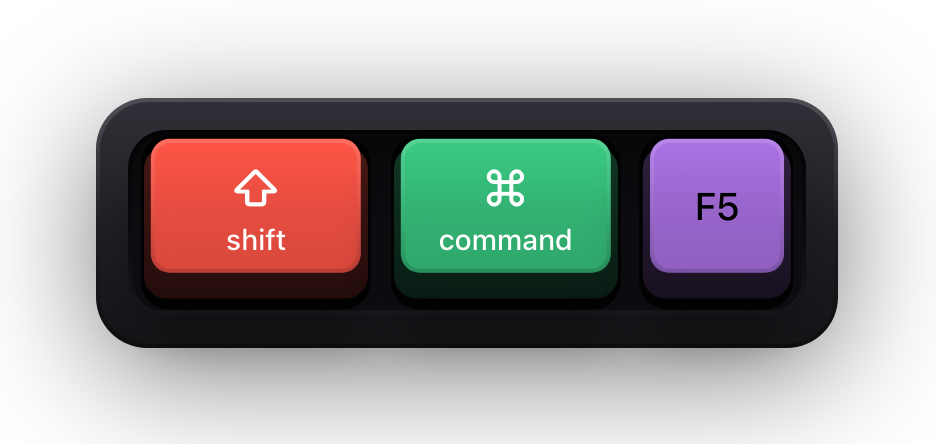
Debugging is the one group built on function keys, which is a problem on a Mac laptop: unless you have turned on the option to use F1, F2 and so on as standard function keys, F5 needs an fn press to reach VS Code at all. Turning that setting on is the single change that makes this table usable.
F5 does double duty — it starts a session and continues a paused one — while ⌃F5 runs without attaching the debugger at all. ⇧F5 stops and ⇧⌘F5 restarts, which is the pair you will wear out.
| Shortcut | What it does |
|---|---|
| F5 | Start debugging, or continue a paused session |
| ⌃F5 | Run without debugging |
| ⇧F5 | Stop the session |
| ⇧⌘F5 | Restart the session |
| F6 | Pause |
| F10 | Step over the next call |
| F11 | Step into the next call |
| ⇧F11 | Step out of the current call |
| F9 | Toggle a breakpoint on the current line |
| ⇧F9 | Set an inline breakpoint |
| ⇧⌘D | Show the Run and Debug view |
| ⇧⌘Y | Open the Debug Console |
| ⌥⌘F | Filter the Variables view by name or value |
Show VS Code shortcuts on screen while you demo
A shortcut pressed in VS Code is invisible to whoever is watching. The Command Palette opens, six cursors appear, the terminal splits — and the audience sees the result with no idea what caused it. In a recorded tutorial or a pairing session that gap is the whole problem, and narrating every chord out loud only works if your voice keeps perfect pace with your hands, which it does not once you are typing quickly.
Show KeyPress is a paid macOS menu bar app, for macOS 14 Sonoma or later, that closes the gap by drawing each key you press as a keycap on top of everything else on screen. It has no VS Code integration, no extension to install and no video recording of its own — it is a window drawn above your other windows, which is exactly why any recorder or conferencing tool capturing a display picks it up.
- Shortcuts Only content mode draws combinations like ⇧⌘P and stays quiet while you type actual code.
- Three reading modes: Latest for one combination at a time, Horizontal History for a row of recent keycaps, Stacked History for continuous typing grouped into fragments.
- One Display pins the overlay to the screen you are capturing instead of letting it follow your pointer between monitors.
- The overlay is click-through, so it never intercepts a click meant for the editor underneath.
- ⌘⇧K toggles the whole thing between takes, and ⌃⌥= and ⌃⌥- resize it without opening Settings.
Sources and further reading
Product details and guidance were checked against these first-party pages on August 5, 2026. Re-check current listings before making an install or high-stakes decision.
- Default keyboard shortcuts reference
Microsoft
VS Code's own default keybindings, rendered with the macOS chord beside every command id.
- Terminal Basics
Microsoft
The integrated terminal's own documentation, including its macOS keyboard shortcuts.
- Debug code with Visual Studio Code
Microsoft
The debug toolbar actions and the function keys that drive them, from VS Code's debugging guide.
FAQ
Questions people ask
Where does VS Code list all of its Mac keyboard shortcuts?
In two places. The Keyboard Shortcuts editor inside VS Code, at ⌘K ⌘S, is the authoritative list for your installation because it includes bindings added by extensions. The published default keybindings reference covers the built-in commands with the macOS chord for each one.
How do I change a VS Code keyboard shortcut on macOS?
Open the Keyboard Shortcuts editor with ⌘K ⌘S, search for the command by name or by its current chord, then double-click the binding and press the combination you would rather use. Everything you change is written to a keybindings.json file you can move between machines.
What does a chord like ⌘K ⌘C mean?
Press ⌘K, release, then press ⌘C. VS Code shows a pending indicator in the status bar while it waits for the second half of the chord. If nothing happens, the second press usually arrived after the chord timed out or another binding claimed it first.
Why does F5 do nothing when I press it?
On most Mac keyboards the top row sends media keys unless you press fn as well, or turn on the option to use F1, F2 and so on as standard function keys in System Settings under Keyboard. The debugging shortcuts are the group this affects most.
Will an overlay show my keys when I record a VS Code tutorial?
Yes, provided your recorder captures a display rather than a single application window. An overlay is a separate window drawn above VS Code, so it is not part of VS Code's own window content and a window-scoped capture can leave it out.