
Onboarding
Onboarding developers to your stack's keyboard shortcuts
Every team has a shortcut nobody wrote down and everybody uses. New hires learn it by seeing it or not at all.
Why the shortcuts wiki page does not work
Every engineering team has one. A page in the internal wiki, a table of chords, last edited fourteen months ago by someone who has since left. New hires skim it in week one, retain four rows, and never open it again — and the four they retain are the ones they were going to discover anyway.
The failure is not laziness, it is that a table has no context. Command-Shift-R is a string; watching a colleague hit it the moment a test fails, three times in ten minutes, is a habit. The chord matters far less than knowing when a person who is good at this reaches for it.
So the real onboarding artefact is not a document, it is a session: someone experienced doing ordinary work while the new person watches. The only thing missing from that session over a screen share is the one detail a wiki page does have — which keys were pressed.
Run the session so it sticks
- 01
Demonstrate real work, not a curated tour
Pick a ticket you were going to do anyway and do it while they watch. A tour of your editor's features teaches features; doing the actual work teaches the order you reach for them in, which is the part that cannot be written down.
- 02
Turn the overlay on before you start talking
Grant Input Monitoring ahead of time — it is the only privacy permission the app asks for, and the prompt drops you into System Settings, which is a bad look at the start of someone's first week.
- 03
Start in Shortcuts Only
The new developer does not need a keycap for every character of the commit message. Shortcuts Only draws combinations and skips plain typing, so the commands are the only thing moving on screen. ⌃⌥M switches to All Keys for the stretches where the exact input matters.
- 04
Use Latest and let each chord land
Latest shows one combination at a time and replaces it on the next press. That pace matches speech — you say what the shortcut does while it is still on screen — which is what turns watching into remembering.
- 05
Narrate the why, let the overlay handle the what
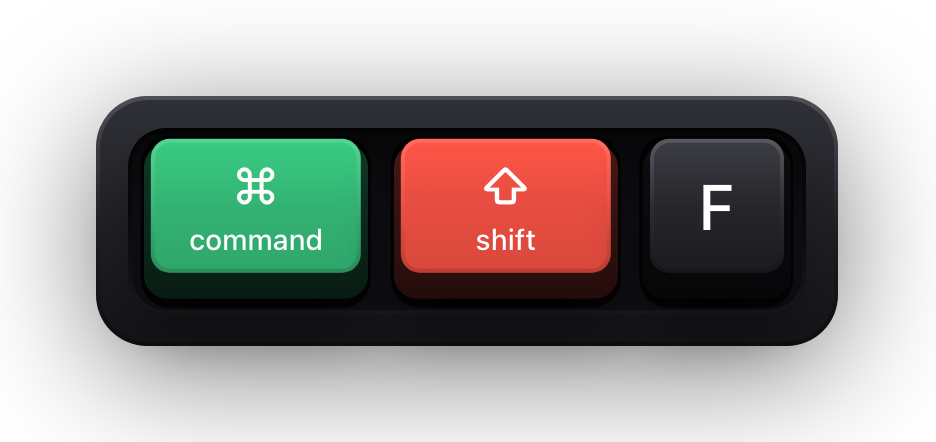
Stop reciting key names. The screen already says ⌘⇧F; your job is to say why you searched the whole project instead of the file. Handing the mechanical half to the overlay frees the half only you can supply.
- 06
Then swap and watch them drive
Have them share their screen with their own overlay running. You will see immediately which shortcuts have not landed — they will be the ones replaced by three menu clicks — and you can correct in the moment rather than in a review comment.
What to teach in which week
Dumping forty chords on someone in one sitting produces the same retention as the wiki page. Sequencing them against what the new developer is actually doing that week is what makes them stick.
| When | What to make visible | Overlay setting that suits it |
|---|---|---|
| Day one — getting around | Quick-open, go-to-symbol, back and forward navigation, terminal toggle | Latest with Shortcuts Only; standalone modifiers off so half-reaches do not flicker |
| Week one — the edit loop | Multi-cursor, rename symbol, format, run the last test | Latest, with the timeout long enough to finish the sentence explaining each one |
| Week two — the team's own tooling | Whatever your CLI aliases, task runner and review workflow expect | All Keys for terminal work, so the typed command is visible alongside the chords |
| Ongoing — recorded reference | The three or four flows every new hire asks about | Record the share once and reuse it; the overlay is on screen, so any display capture keeps it |
Record it once instead of running it eleven times
If you hire more than occasionally, the same walkthrough happens over and over, and it gets a little worse each time. Recording one good pass gives the next hire something better than a live session held by someone who has explained it three times this month.
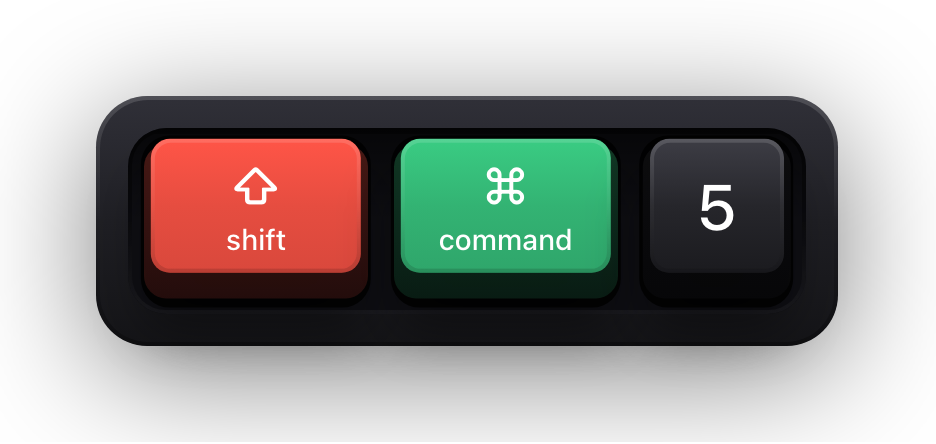
There is nothing to configure for this. The overlay is drawn on your screen, so any recorder that captures a display captures the keycaps along with it — the built-in macOS screen recording tools on ⇧⌘5, OBS, whatever your team already uses. Show KeyPress does not record video and has no plugin for anything that does.
The bit onboarding docs never mention
- New hires log into a lot of things in week one. While macOS Secure Input is active the keyboard visualization is cleared and a brief Keyboard hidden — Secure Input banner appears instead, so a password field produces no keycaps.
- Input Monitoring is the only privacy permission requested — worth saying out loud, because asking a new employee to grant a permission on day one deserves a straight answer about what it covers.
- Nothing is logged, persisted or transmitted; the app has no network entitlement at all. It is a display, not a record of what anyone typed.
- Keys are labelled from the active keyboard layout, which matters on a distributed team where not everyone is on a US layout.
- The app's own interface is localised in English, Russian, German, Spanish and French.
Sources and further reading
Product details and guidance were checked against these first-party pages on August 5, 2026. Re-check current listings before making an install or high-stakes decision.
- Control access to input monitoring on Mac
Apple
Apple's guide to the Input Monitoring privacy permission and how to grant or revoke it.
- Take a screenshot or record your screen on Mac
Apple
Apple's instructions for the built-in screenshot and screen recording tools.
- Show KeyPress on the Mac App Store
Apple
The listing, with the current price, system requirements and version history.
FAQ
Questions people ask
Is this not just a fancier way of reading out key names?
It replaces reading out key names, which is the point. Saying the chord out loud costs you a sentence every time and still arrives out of sync with the screen; the overlay is in the same frame as the effect.
Should the new developer run it too, or only the person teaching?
Both, at different times. Yours teaches; theirs shows you what has actually landed when they drive. Each Mac draws only its own input.
Does it show shortcuts from any app, or only the editor?
Any app. It watches key events at the system level, so terminal, browser, editor and your internal tools all produce the same keycaps. It does not know or care which app has focus.
Can we hand new hires a written list as well?
Of course — the two do different jobs. A list is for looking something up on purpose; the overlay is for the shortcuts nobody would think to look up because they did not know they existed.