
App shortcuts
Keynote keyboard shortcuts for Mac
Half of Keynote's most useful shortcuts only exist while a presentation is playing, which is exactly when you cannot look them up.
Building and managing a presentation
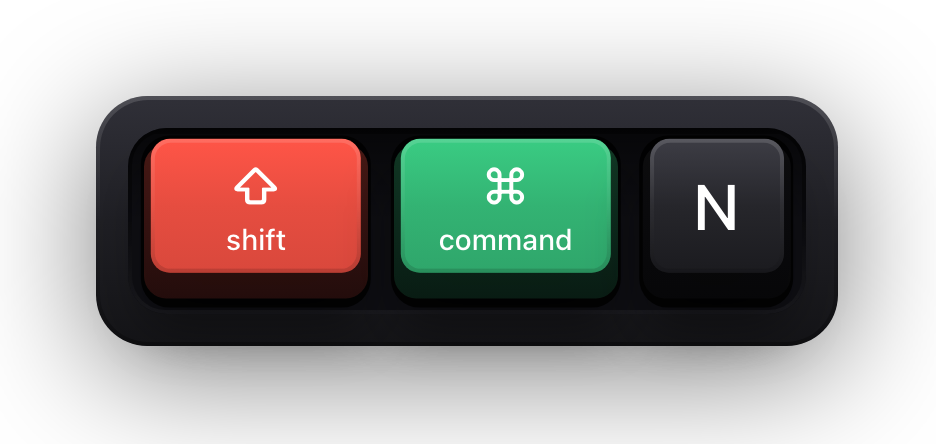
Keynote is an Apple application, so most of this table behaves the way the rest of macOS does — with two exceptions worth knowing before they surprise you. ⌘N opens the theme chooser rather than creating a blank document, and ⇧⌘S duplicates the presentation while ⌥⇧⌘S is the actual Save As.
The zoom row is the other group people reach for a menu to do. ⇧⌘0 zooms to whatever you have selected, ⌥⌘0 fits the slide to the window, and ⌘0 returns to actual size — three chords that replace the zoom control in the corner entirely.
| Shortcut | What it does |
|---|---|
| ⌘N | Open the theme chooser |
| ⌥⌘N | Open the theme chooser with the Language menu |
| ⌘O / ⌘S | Open an existing presentation, or save this one |
| ⌥⇧⌘S | Save As |
| ⇧⌘S | Duplicate the presentation |
| ⌘P | |
| ⌘W / ⌥⌘W | Close the window, or close all windows |
| ⌃⌘F | Enter full-screen view |
| ⇧⌘0 | Zoom to the selection |
| ⌥⇧⌘0 | Zoom to fit the content in the window |
| ⌥⌘0 / ⌘0 | Fit the slide in the window, or return to actual size |
| ⌘R | Show the rulers |
| ⌥⌘T | Hide or show the toolbar |
| ⌥⌘I | Hide or show the inspector sidebars |
| ⇧⌘L | Hide or show the object list |
| ⇧⌘E | Enter or leave Edit Slide Layouts view |
| ⇧⌘N | Add a new slide |
| ⇧⌘V | Choose a file to insert |
| ⇧⌘C | Show the Colors window |
| ⌘, | Open Settings |
Moving around a presentation
The text-cursor movement here is standard macOS — ⌥ with an arrow moves a word, ⌘ with an arrow moves to the end of a line — but the slide-level navigation is not, and it is the half people actually want.
Fn with an arrow key is how a Mac keyboard without a numeric block spells Page Up, Page Down, Home and End, which is what Apple's own list calls these. ⌃⌘G jumps to a slide by number, which beats scrolling the navigator in a hundred-slide deck.
| Shortcut | What it does |
|---|---|
| Fn↓ / Fn↑ | Move to the next or previous slide |
| Fn← / Fn→ | Move to the first or last slide |
| ⌃⌘G | Go to a specific slide |
| ⌥← / ⌥→ | Move to the beginning of the current word, or the end of the next |
| ⌘← / ⌘→ | Move to the beginning or end of the current line |
| ⌥↑ / ⌥↓ | Move to the beginning or end of the current paragraph |
| ⌘↑ / ⌘↓ | Move to the top or bottom of the current text area |
| ⌃L | Centre the insertion point in the window |
| ⌘E | Find the selected item in the presentation |
| ⌘J | Scroll the window to show the selected text or object |
Selecting and formatting text
The alignment chords are the ones nobody guesses, because Apple built them on braces and the vertical bar rather than on letters. ⌘{ is flush left, ⌘| is centred and ⌘} is flush right — a pattern that reads perfectly once you notice the brackets point the way the text goes.
⌥⌘C and ⌥⌘V are the pair to build a habit around: they copy and paste the paragraph style rather than the text, and the same chords copy and paste an object's graphic style elsewhere in Keynote. ⌥⇧⌘V pastes text while matching the style of wherever it lands.
| Shortcut | What it does |
|---|---|
| ⌘T | Show the Fonts window |
| ⌘B / ⌘I / ⌘U | Bold, italic and underline |
| ⌘+ / ⌘- | Make the font size bigger or smaller |
| ⌥⌘[ / ⌥⌘] | Decrease or increase the space between characters |
| ⌃⌘+ / ⌃⌘- | Make the text superscript or subscript |
| ⌘{ | Align the text flush left |
| ⌘| | Centre the text |
| ⌘} | Align the text flush right |
| ⌥⌘| | Justify the text |
| ⌘[ / ⌘] | Decrease or increase the indent level |
| Tab / ⇧Tab | Increase or decrease the indent level of a list item |
| ⌘K | Turn the text or object into a link |
| ⌥⌘C / ⌥⌘V | Copy and paste the paragraph style |
| ⌥⇧⌘V | Paste and match the style of the destination text |
| ⇧Return | Insert a line break inside the paragraph |
| ⌥Space | Insert a non-breaking space |
| ⌥⌦ | Delete the word before the insertion point |
| ⌃K | Delete text to the next paragraph break |
| ⌃⌘Space | Enter special characters |
| ⌘; | Check spelling and grammar |
| ⌃⌘D | Look up the word at the insertion point |
Objects: arrange, group and resize
This is the table that decides whether building a slide is fast or infuriating. Tab and ⇧Tab step through the objects on a slide, and once one is selected the arrow keys move it a point at a time — ⇧ with an arrow moves it ten.
The layer commands are worth learning as a family. ⇧⌘F and ⇧⌘B send an object all the way to the front or back; adding ⌥ moves it one layer at a time instead. ⌘L locks the selection so a stray drag cannot move it, and ⌥⌘L unlocks it again.
| Shortcut | What it does |
|---|---|
| Tab / ⇧Tab | Select the next or previous object on the slide |
| ⌘-click or ⇧-click | Select or deselect additional objects |
| Arrow keys | Move the selected object one point; hold ⇧ for ten |
| ⇧⌘F / ⇧⌘B | Bring the object to the front, or send it to the back |
| ⌥⇧⌘F / ⌥⇧⌘B | Bring it one layer forward, or send it one layer back |
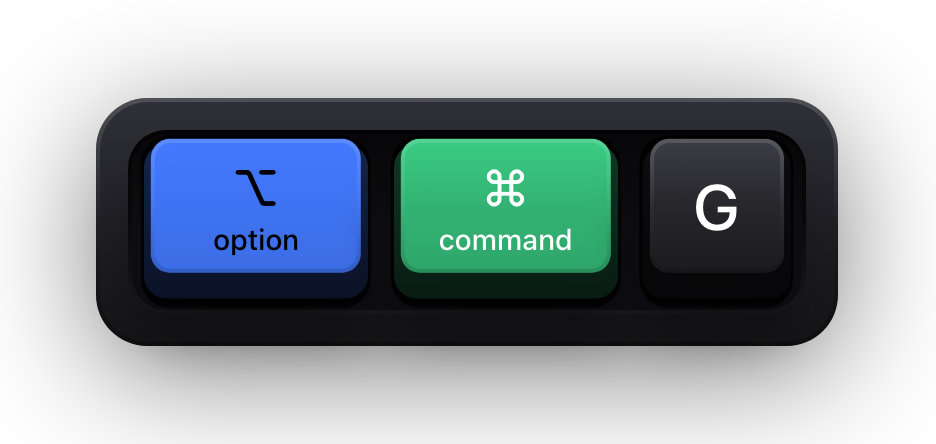
| ⌥⌘G / ⌥⇧⌘G | Group or ungroup the selected objects |
| ⌘L / ⌥⌘L | Lock or unlock the selected objects |
| ⌘D | Duplicate the object |
| ⇧-drag | Constrain the object's movement to 45 degrees |
| ⇧-drag a handle | Constrain the aspect ratio while resizing |
| ⌥-drag a handle | Resize the object from its centre |
| ⌘-drag a handle | Rotate the object |
| ⌘-drag | Turn off the alignment guides while moving or resizing |
| ⇧⌘M | Mask or unmask the object |
| ⌘Return | Exit text editing and select the object itself |
| ⌥⇧⌘P | Draw a custom shape with the Pen tool |
| ⇧⌘K | Open a new comment on the selection |
| ⌥⌘K / ⌥⇧⌘K | Show the next or previous comment |
Tables and charts
Keynote's tables have a keyboard model of their own, and the single most useful fact about it is that Return and Tab move the selection rather than entering anything. Tab moves to the next cell and adds a row when you reach the end; Return moves down.
The border commands are the ones that look impossible to find and are: ⌃⌥⌘ with an arrow key adds or removes the border on that side of the selection. Nothing in the interface suggests they exist.
| Shortcut | What it does |
|---|---|
| Tab / ⇧Tab | Select the next cell, adding a row if needed, or the previous cell |
| Return / ⇧Return | Select the cell below or above |
| Return (on a selected cell) | Start editing that cell |
| ⌥↑ / ⌥↓ | Add a row above or below the selected cells |
| ⌥← / ⌥→ | Add a column to the left or right of the selected cells |
| ⌥⌘⌦ | Delete the selected rows |
| ⌃⌘⌦ | Delete the selected columns |
| ⇧ + arrow keys | Extend the cell selection by one cell |
| ⌥⌘ + arrow keys | Select the first or last populated cell in the row or column |
| ⌥⇧⌘ + arrow keys | Extend the selection to the first or last populated cell |
| ⌃⌘M / ⌃⇧⌘M | Merge or unmerge the selected cells |
| ⌃⌥⌘ + arrow keys | Add or remove the border on that side |
| ⌥⌘U | Auto-align the cell content |
| = | Open the Formula Editor in a cell that has no formula |
| ⌥Return | Open the Formula Editor on a cell that already has one |
| ⌥Tab | Insert a tab while editing text or a formula |
| ⌘\ | Turn on autofill mode |
| ⌥⌘E | Insert an equation |
| ⇧⌘D | Show or hide the Chart Data Editor |
Playing a presentation
This is the table to read twice, because none of it is discoverable while you are standing in front of an audience. B blanks the screen to black and W to white — the two politest ways to take a room's attention off the slide and back onto you. Pressing the key again returns the slide.
X swaps the presenter display with the audience display, which is the fix for the single most common Keynote accident: the projector showing your notes. A question mark or a slash brings up Keynote's own shortcut card mid-presentation, and typing any slide number opens the slide switcher.
| Shortcut | What it does |
|---|---|
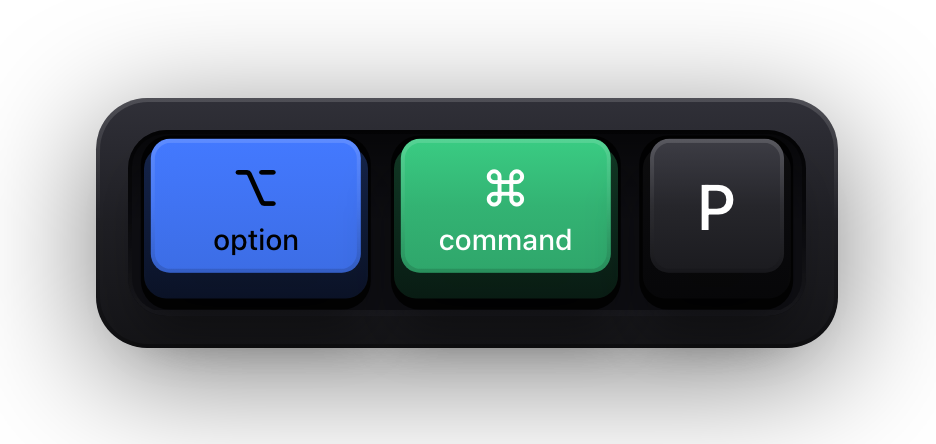
| ⌥⌘P | Play the presentation |
| → or ↓ | Advance to the next slide or build |
| ← or ↑ | Go to the previous slide |
| ⇧→ | Advance without animation |
| ⇧↓ | Advance without builds or animations |
| ⇧← or ⇧↑ | Go back to the previous build |
| Z | Go back through previously viewed slides |
| F | Pause the presentation |
| B | Pause and show a black screen |
| W | Pause and show a white screen |
| C | Show or hide the pointer |
| S | Display the slide number |
| X | Switch the primary and presenter displays |
| R | Reset the timer |
| U / D | Scroll the presenter notes up or down |
| ⇧⌘P | Show or hide the presenter notes |
| ? or / | Show or hide the shortcut card while presenting |
| A slide number | Open the slide switcher; Return goes there, Esc closes it |
| H | Hide the presentation and switch to the last app |
| Esc or Q | Quit presentation mode |
Controlling a video mid-presentation
A video placed on a slide has its own six-key transport, and it is the same JKL model editors use. It is worth knowing if you ever have to scrub back to a moment in a clip because somebody asked about it.
| Shortcut | What it does |
|---|---|
| Space | Play the video |
| K | Pause or resume the video |
| J / L | Rewind or fast forward |
| I / O | Jump to the beginning or the end of the video |
Show your Keynote shortcuts on screen
Keynote's presenting shortcuts are the ones people most want taught and the hardest to teach, because by definition they happen while a presentation is filling the screen. You press X and the displays swap; you press B and the room goes dark. Anyone watching a recording of your talk about presenting sees the effect with no idea what caused it.
Show KeyPress is a paid macOS menu bar app, for macOS 14 Sonoma or later, that draws each key you press as a mechanical keycap in a window above everything else — including a Keynote presentation running full screen. It has no Keynote integration and nothing to install on Apple's side; it is simply an overlay window, so a screen recording or a whole-screen share picks it up with no configuration.
- All Keys content mode is the right choice here, because the presenting shortcuts are single letters — B, W, X and C would be invisible in Shortcuts Only mode.
- Latest mode shows one press at a time, which suits walking an audience through the presenter controls key by key.
- One Display pins the overlay to the screen you are recording rather than letting it follow your pointer onto the presenter display.
- Eight edge presets and a full-screen drag editor keep it clear of the slide content, with a separate saved position per display.
- Rebind the toggle before you rehearse: ⌘⇧K is Show KeyPress's default global toggle and Keynote uses the same chord to open a new comment.
Sources and further reading
Product details and guidance were checked against these first-party pages on August 5, 2026. Re-check current listings before making an install or high-stakes decision.
- Keyboard shortcuts for Keynote on Mac
Apple
Apple's complete Keynote shortcut reference, grouped by navigation, text, objects, tables, views and playback.
- Keyboard shortcut symbols for Keynote on Mac
Apple
Apple's key to the symbols used in Keynote's menus, which is how a written shortcut maps to the keys on the board.
- Control access to input monitoring on Mac
Apple
Apple's guide to the Input Monitoring privacy permission and how to grant or revoke it.
- Take a screenshot or record your screen on Mac
Apple
Apple's instructions for the built-in screenshot and screen recording tools.
FAQ
Questions people ask
What is the shortcut to start a Keynote presentation on a Mac?
⌥⌘P plays the presentation from the current slide. Option-clicking the Play button instead starts from the first slide, and Esc or Q quits presentation mode from anywhere.
How do I black out the screen during a Keynote presentation?
Press B for a black screen or W for a white one; pressing the same key again brings the slide back. Both pause the presentation, which makes them the cleanest way to move a room's attention off the screen without leaving the deck.
My notes are showing on the projector. What is the fix?
Press X. It swaps the primary and presenter displays without leaving the presentation. In rehearsal mode the equivalent is ⌥X. Both are documented by Apple in the presenting section of its Keynote shortcut reference.
Why do some Keynote shortcuts need the Fn key?
Apple documents several as Home, End, Page Up and Page Down. Mac keyboards without a numeric block have none of those keys, so you hold Fn with an arrow instead — Fn↑ is Page Up and Fn← is Home. The command is identical; only the spelling of the key changes.
Can I change Keynote's keyboard shortcuts?
Keynote ships no remapping panel of its own, but macOS can assign a shortcut to any menu command under System Settings, Keyboard, Keyboard Shortcuts, App Shortcuts. Apple notes that doing so means its published list will no longer match what your copy does.
Will a keystroke overlay appear over a full-screen Keynote presentation?
Yes. Show KeyPress draws above other windows, including a presentation filling the display, which is exactly why it is useful for teaching the presenter controls. If you would rather it were not there during the talk itself, ⌘⇧K toggles it off — after you have rebound whichever of the two chords you would rather keep.