
Conference talks
Live demos on stage: making your keystrokes readable
There is no rewind button in a room of four hundred people.
The room is the constraint
Everything about a stage demo is decided by geometry you do not control. The screen is fixed, the back row is a long way from it, the projector is dimmer and lower-contrast than your laptop, and the first three rows are looking at their phones. Whatever you show has to survive all of that on the first pass.
There is also no rewind. In a recorded tutorial an unclear moment costs a viewer five seconds of scrubbing; on stage it costs the audience the rest of the demo, because they are still working out what happened while you move on. Saying "let me do that again" burns the one resource a talk cannot replace, which is time.
And the demo is usually the part of the talk you rehearsed least — you rehearsed the slides. The overlay is a hedge against that: it narrates the mechanical half of the demo for you, at exactly the moment it happens, without you having to remember to.
Sizing for the back row
The instinct is to set the overlay to what looks right on your laptop while you are sitting in the speaker room. That is the wrong reference. The right reference is the last row of a hall you have not stood in yet, so the rule is simple: go larger than feels comfortable, then go one step larger again.
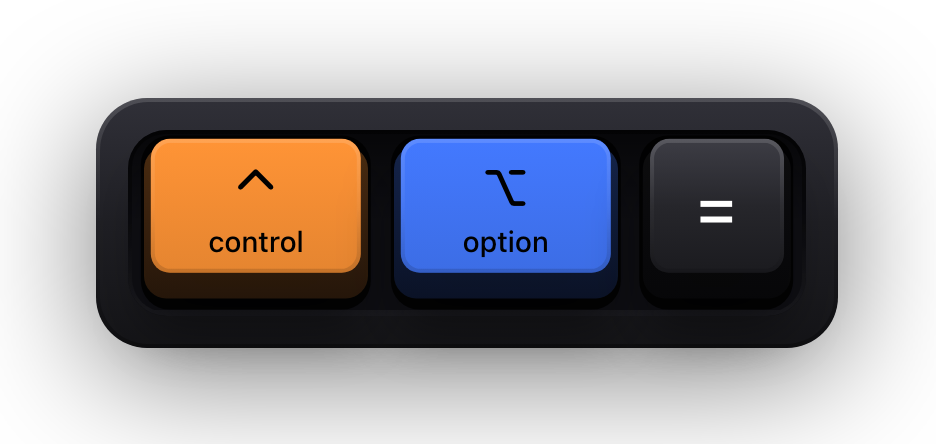
Two global shortcuts exist for exactly this — ⌃⌥= and ⌃⌥- resize the overlay live, without opening Settings. Learn them properly before you go on, because they are the one adjustment you can make on stage without it becoming part of the talk.
| Room | Size approach | Placement |
|---|---|---|
| Meetup, forty people, one screen | One step above what reads well on your own display | Bottom-centre — the audience's eye is already there for slide titles |
| Conference hall with a large projected screen | Two steps up; the back row is further away than any screen test you did | Bottom-centre, and check nothing is cropped by the projector's overscan |
| Hall with side screens or a video feed | Largest that still clears your app's UI | Keep it away from the edges, which are the first thing a camera crop loses |
| Livestreamed as well as in the room | Sized for the room; the stream is more forgiving | Bottom-centre survives both, unlike a corner near the stream's lower third |
Stage setup, in order
- 01
Treat the projector as a display, because it is
Once the HDMI cable is in, the projector is just another screen to macOS. Show KeyPress keeps a separate saved placement for every physical display, so the position you set for the hall does not disturb the one you use at your desk.
- 02
Pin it with One Display, never Follow Pointer
Follow Pointer is the correct default at a desk and a disaster on stage: one stray cursor move onto your presenter screen takes the overlay with it, and the audience is left looking at a demo with no keys. Selected Displays is the alternative if you want it on both.
- 03
Mirror or extend, and know which you chose
If you mirror, the overlay appears in both pictures automatically. If you extend, your notes stay private but the overlay must be placed explicitly on the projected screen. Decide this in the speaker room, not during the applause.
- 04
Latest, Shortcuts Only, generous timeout
One chord at a time, held long enough for you to finish the sentence about it. History modes accumulate keycaps that the back row cannot read anyway, and All Keys turns a search box into visual noise.
- 05
Rehearse with the actual shortcuts
Run the demo end to end once with the overlay on and watch the overlay rather than the demo. You are checking two things: that nothing you press is hidden behind the app's own UI, and that no chord flashes past faster than you can say what it does.
- 06
Memorise the master switch
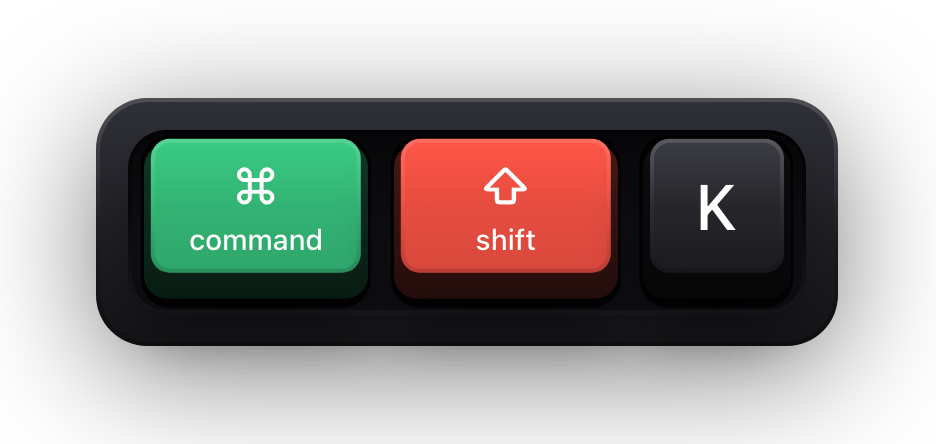
⌘⇧K turns the whole visualization off and on. If something goes wrong — the wrong window, an unexpected dialog, a moment you would rather not annotate — that is one keystroke, not a trip to the menu bar in front of everyone.
Things that go wrong on stage
- A sudo prompt in the demo. While macOS Secure Input is active the keycaps are cleared and a short banner reading Keyboard hidden — Secure Input appears instead. Know it is coming so you do not narrate it as a bug in front of four hundred people; turn off Show Status HUD under General if you would rather the screen showed nothing.
- The pet on the projector. The animated cat is charming in a stream and a distraction in a technical talk. It is toggled from the menu bar, so decide before you are on stage — and note ⌘⇧K takes it down along with everything else.
- Standalone modifiers left on, flashing a keycap every time you rest a finger on Command. Turn them off; a stage demo has enough movement already.
- The conference laptop. If you are not presenting from your own Mac, the app and its Input Monitoring permission are not there, and Input Monitoring cannot be granted from the stage in any dignified way.
- A resolution change when the projector negotiates. Positions are normalised, so a saved placement adapts to a scaling or resolution change rather than ending up off-screen.
Sources and further reading
Product details and guidance were checked against these first-party pages on August 5, 2026. Re-check current listings before making an install or high-stakes decision.
- Secure Keyboard Entry
Apple
How macOS Secure Keyboard Entry stops other apps from receiving key events.
- Control access to input monitoring on Mac
Apple
Apple's guide to the Input Monitoring privacy permission and how to grant or revoke it.
- Show KeyPress on the Mac App Store
Apple
The listing, with the current price, system requirements and version history.
FAQ
Questions people ask
Will the overlay appear on the conference's recording of my talk?
If they capture the screen feed or film the screen, yes — the keycaps are part of the picture. Show KeyPress does no recording of its own and has no involvement in their setup.
What if I present from the conference's laptop?
Then there is no overlay. The app is installed per machine and needs Input Monitoring granted on that machine, which is not something to attempt minutes before a talk. Present from your own Mac if the demo depends on it.
Should I use it during slides as well as the demo?
Usually not. Arrow keys advancing slides tell the audience nothing. ⌘⇧K lets you bring it up as the demo starts and take it down when you return to the deck.
Does the overlay ever steal a click during a demo?
No. The keyboard and pointer overlays are click-through, so a click always lands on the app underneath. The animated pet is the only element that accepts clicks, which is another reason to leave it off on stage.