
App shortcuts
Google Docs keyboard shortcuts for Mac
Docs lives inside a browser, which means every chord on this page has to survive Chrome or Safari getting there first. Most do. A few do not.
The ones to learn first
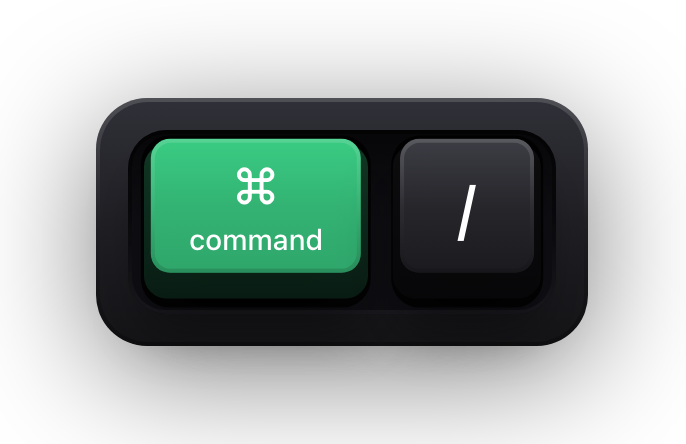
⌘/ is the entry point to everything else: it opens Google's own shortcut panel inside the document, which always reflects the version of Docs you are actually using. If a chord on this page ever stops matching, that panel is the arbiter.
The two paste variants are the pair that changes daily life. ⌘V brings formatting with it and ⇧⌘V does not, which is the difference between pasting a paragraph from a web page and pasting a paragraph plus somebody else's font, colour and line height.
| Shortcut | What it does |
|---|---|
| ⌘/ | Show the common keyboard shortcuts |
| ⌘C / ⌘X / ⌘V | Copy, cut and paste |
| ⇧⌘V | Paste without formatting |
| ⌘Z / ⇧⌘Z | Undo and redo |
| ⌘Y | Repeat the last action |
| ⌘K | Insert or edit a link |
| ⌥Return | Open the link under the cursor |
| ⌘F | Find |
| ⇧⌘H | Find and replace |
| ⌘G / ⇧⌘G | Find again, or find previous |
| ⌘S / ⌘P / ⌘O | Save, print and open |
| ⌘Return | Insert a page break |
| ⌃⇧F | Hide the menus and switch to compact mode |
| ⌥/ | Open the tool finder |
| ⌘+ / ⌘- / ⌘0 | Zoom in, zoom out, or return to 100 per cent |
Formatting text
⌘B, ⌘I and ⌘U need no introduction. The rest of this group is where the time goes, and ⌥⌘C paired with ⌥⌘V is the one to build a habit around — it copies text formatting rather than text, which is the fastest way to make a stray pasted paragraph match everything around it.
⌘\ is the blunt-instrument version of the same idea: it strips every scrap of formatting off the selection and returns it to the document's normal text style. Between those three, almost no document ever needs manual reformatting again.
| Shortcut | What it does |
|---|---|
| ⌘B / ⌘I / ⌘U | Bold, italic and underline |
| ⇧⌘X | Strikethrough |
| ⌘. / ⌘, | Superscript and subscript |
| ⌥⇧K | Small caps |
| ⌥⌘C | Copy text formatting |
| ⌥⌘V | Paste text formatting |
| ⌘\ | Clear text formatting |
| ⇧⌘. / ⇧⌘, | Increase or decrease the font size |
Paragraphs, headings and lists
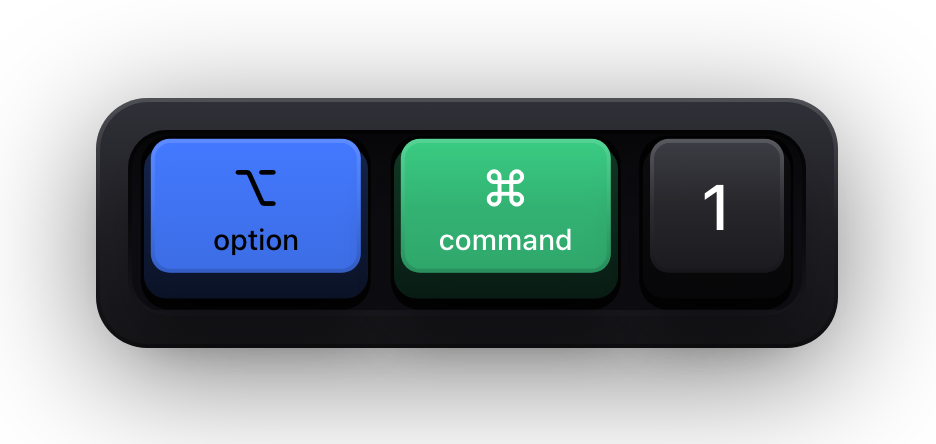
Styles are what make a long document navigable rather than merely long, and ⌥⌘1 through ⌥⌘6 apply the six heading levels that the document outline, the table of contents and every export format all depend on. ⌥⌘0 puts a mangled paragraph back to normal text.
The list chords are the ones most often mis-transcribed from a Windows list, because Docs uses ⇧⌘7, 8 and 9 in an order that matches no other word processor: numbered, bulleted, then checklist.
| Shortcut | What it does |
|---|---|
| ⌥⌘0 | Apply the normal text style |
| ⌥⌘1 to ⌥⌘6 | Apply heading 1 through heading 6 |
| ⇧⌘L / ⇧⌘E / ⇧⌘R | Align left, centre or right |
| ⇧⌘J | Justify |
| ⌘] / ⌘[ | Increase or decrease the paragraph indent |
| ⇧⌘7 | Numbered list |
| ⇧⌘8 | Bulleted list |
| ⇧⌘9 | Checklist |
| ⌃⇧↑ / ⌃⇧↓ | Move the paragraph up or down |
| ⌥⌘Return | Toggle a checkbox |
Selecting text with the keyboard
Docs adds one genuinely unusual capability here: ⌃⇧⌘ with a left or right arrow extends a second, non-contiguous selection after you have made a first one. Nothing else in a browser does that, and it is the fastest way to apply one change to three scattered phrases.
The two Fn rows exist because Mac keyboards without a numeric block have no Home or End key. Google documents these as Shift+Home and Shift+End; on your keyboard that is ⇧Fn← and ⇧Fn→.
| Shortcut | What it does |
|---|---|
| ⌘A | Select all |
| ⇧← / ⇧→ | Extend the selection one character |
| ⇧↑ / ⇧↓ | Extend the selection one line |
| ⌥⇧↑ / ⌥⇧↓ | Extend the selection one paragraph |
| ⇧Fn← / ⇧Fn→ | Extend the selection to the beginning or end of the line |
| ⇧⌘↑ / ⇧⌘↓ | Extend the selection to the beginning or end of the document |
| ⌃⇧⌘← / ⌃⇧⌘→ | Select an additional, separate section of text |
| Fn↑ / Fn↓ | Page up and page down |
| ⌥⇧⌘M | Move focus out of the document text |
| Esc | Return focus to the document text |
Tools, images and the rest
The tool chords below are the ones that live three menus deep and are therefore never found by anyone who does not already know they exist. ⌥⇧⌘H opens revision history, which is among the most useful things in Docs and the hardest to reach with a pointer.
The image commands are unusual in using ⌃⌘ together, a combination almost nothing else in Docs touches. They resize the selected image in one axis or both, and ⌥ with a left or right arrow rotates it fifteen degrees at a time.
| Shortcut | What it does |
|---|---|
| ⌥⇧⌘H | Open revision history |
| ⌥⇧⌘I | Open the Explore tool |
| ⌥⌘X or Fn F7 | Open spelling and grammar |
| ⇧⌘Y | Open the dictionary |
| ⇧⌘C | Word count |
| ⌘' / ⌘; | Move to the next or previous misspelling |
| ⌥⌘. / ⌥⌘, | Go to the side panel |
| ⌥⌘Y | Edit the alt text of the selected image |
| ⌃⌘K / ⌃⌘J | Resize the selected image larger or smaller |
| ⌃⌘B / ⌃⌘W | Resize the image larger or smaller horizontally |
| ⌃⌘I / ⌃⌘Q | Resize the image larger or smaller vertically |
| ⌥→ / ⌥← | Rotate the image clockwise or anticlockwise by 15 degrees |
| ⌥⇧→ / ⌥⇧← | Rotate the image by 1 degree |
| ⌘Esc or ⇧Esc | Close the drawing editor |
Show your Google Docs shortcuts on screen
Teaching Docs is unusually thankless, because the result of a shortcut is almost always a subtle change to a paragraph. You press ⌥⌘1 and a line becomes a heading; you press ⌥⌘C then ⌥⌘V and a paragraph quietly matches another one. Someone watching a recording sees the document rearrange itself with no visible cause, and every viewer following along on their own Mac falls a step behind.
Show KeyPress is a paid macOS menu bar app, for macOS 14 Sonoma or later, that draws each key you press as a mechanical keycap above everything else on screen. It has no Docs integration, no browser extension and nothing to install on the Google side — it is an overlay window, so a screen recording or a call that shares your whole display carries it automatically.
- Shortcuts Only content mode draws chords like ⌥⌘1 and stays completely quiet while you type the actual prose, which is what you want when the document text is not the lesson.
- Stacked History groups continuous typing into readable fragments for the times when the words are the point.
- The overlay is click-through, so it never intercepts a click meant for the browser window underneath it.
- One Display pins it to the screen you are sharing instead of letting it follow your pointer to a second monitor.
- Rebind the toggle first: ⌘⇧K is Show KeyPress's default global toggle and Docs uses the same chord to toggle input controls.
Sources and further reading
Product details and guidance were checked against these first-party pages on August 5, 2026. Re-check current listings before making an install or high-stakes decision.
- Keyboard shortcuts for Google Docs
Google
Google's own Docs shortcut reference, which lists the Mac chord separately from the Windows one for every command.
- Chrome keyboard shortcuts
Google
Google's reference for Chrome keyboard shortcuts, with a dedicated Mac column.
- Control access to input monitoring on Mac
Apple
Apple's guide to the Input Monitoring privacy permission and how to grant or revoke it.
- Secure Keyboard Entry
Apple
How macOS Secure Keyboard Entry stops other apps from receiving key events.
FAQ
Questions people ask
How do I see Google Docs' own shortcut list?
Press ⌘/ inside a document. Google shows the common shortcuts in a panel, and that panel always matches the version of Docs you are using — which makes it the right arbiter if anything on this page ever drifts.
Why do some Google Docs shortcuts need the Fn key on a Mac?
Google documents several commands as Shift+Home, Shift+End, Page Up and Page Down. Mac keyboards without a numeric block have none of those keys, so you hold Fn with an arrow instead — ⇧Fn← is Shift+Home. The command is identical; only the spelling of the key changes.
Why does a Google Docs shortcut do nothing in my browser?
Usually because the browser claimed the combination first — a chord bound to a browser command never reaches the page underneath. The other common cause is context: the single-letter comment shortcuts R, J, K, E and U only fire once a comment has focus, and simply type a letter otherwise.
Are Google Docs shortcuts different on Windows?
Yes. Google publishes both columns in the same reference, and the Mac one is not a straight Ctrl-to-⌘ swap — several commands use ⌃⌥ where the Windows list uses Alt+Shift, and the menu chords differ outright. Every chord on this page is from the Mac column.
Can I change Google Docs' keyboard shortcuts?
Not inside Docs, which ships no remapping panel of its own. macOS can assign a shortcut to any menu item under System Settings, Keyboard, Keyboard Shortcuts, App Shortcuts, and a browser extension can define its own chords — but the in-document editing shortcuts are built into Docs itself.
How do I show which shortcut I pressed while sharing a Google Doc?
Run a keystroke overlay on the display you are sharing. Show KeyPress draws each press as a keycap above your other windows, so a whole-screen share or a screen recorder carries the keys along with the document. A share scoped to a single window is the one case that can leave the overlay out.
Comments, suggestions and footnotes
This is where Docs differs most from a desktop word processor, and where a shared document actually gets written. ⌥⌘M inserts a comment on the selection; ⌥⇧⌘A opens the comment history for the whole document.
The mode switches at the bottom are worth committing to memory if you review other people's work. Editing, Suggesting and Viewing are three different documents as far as your keyboard is concerned, and the chord is the only way to change mode without going to the toolbar.