
App shortcuts
Microsoft Word keyboard shortcuts for Mac
Word for Mac is not Word for Windows with a different logo. Every chord below is the macOS one, from Microsoft's own list.
Documents, views and finding things
These are the commands that operate on the document rather than on the text inside it. The view switches in particular are underused: Draft view strips the page furniture out of a long edit, and Outline view is the fastest way to restructure a report without dragging anything.
Two of these surprise people arriving from Windows. Find and Replace is ⌃H — a Control chord in the middle of a Command-key application — and closing a document is ⌘F4 rather than ⌘W.
| Shortcut | What it does |
|---|---|
| ⌘N | Create a new document |
| ⌘O | Open a document |
| ⌘S | Save the document |
| ⌘⇧S | Open the Save As dialog |
| ⌘P | Open the Print dialog |
| ⌘F4 | Close the current document |
| ⌘F | Find |
| ⌃H | Open the Find and Replace pane |
| ⌘K | Turn the selected text into a hyperlink |
| ⌘Return | Insert a page break |
| ⌘⌥N | Switch to Draft view |
| ⌘⌥O | Switch to Outline view |
| ⌘⌥P | Switch to Print Layout view |
| ⌘⌥8 | Show or hide all non-printing characters |
| ⌘+ / ⌘- | Zoom in or out |
Moving around a document
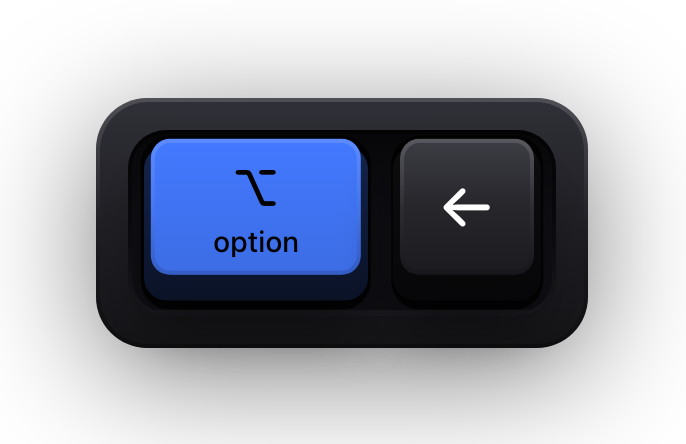
Long documents are where a mouse costs you the most. Scrolling to find a heading breaks your place in the sentence you were writing; a chord does not. These are the movement commands that pay for themselves inside a morning.
Note the Fn key in the document-level jumps. Microsoft documents these as ⌘Home, ⌘End, ⌘Page Up and ⌘Page Down, which on a Mac keyboard without a numeric block means holding Fn with an arrow key — the same command, spelled the way your keyboard is actually laid out.
| Shortcut | What it does |
|---|---|
| ⌥← | Move the cursor one word to the left |
| ⌥→ | Move the cursor one word to the right |
| ⌘↑ | Move the cursor up one paragraph |
| ⌘↓ | Move the cursor down one paragraph |
| ⌘← | Move to the beginning of the line |
| ⌘→ | Move to the end of the line |
| ⌘Fn← | Move to the beginning of the document |
| ⌘Fn→ | Move to the end of the document |
| ⌘Fn↑ | Move to the top of the previous page |
| ⌘Fn↓ | Move to the top of the next page |
| ⇧F5 | Move the cursor back to the previous insertion point |
| ⌘⌥G | Open the Go To dialog to jump to a page, line or bookmark |
Selecting text
Every editing command in Word acts on a selection, so the speed of your editing is really the speed of your selecting. The extend-selection commands mirror the movement ones exactly: add ⇧ to a movement chord and you drag the selection instead of the cursor.
F8 is the one nobody discovers on their own. It turns on extend-selection mode, after which any movement keeps widening the selection until you stop — useful for grabbing an awkward run of text that does not line up with a word or paragraph boundary.
| Shortcut | What it does |
|---|---|
| ⇧ + arrow keys | Extend the selection one character or one line at a time |
| ⇧⌥← | Extend the selection one word to the left |
| ⇧⌥→ | Extend the selection one word to the right |
| ⌘⇧← | Select from the cursor to the beginning of the line |
| ⌘⇧→ | Select from the cursor to the end of the line |
| ⌘⇧↑ | Select from the cursor to the beginning of the paragraph |
| ⌘⇧↓ | Select from the cursor to the end of the paragraph |
| ⌘A | Select the entire document |
| F8 | Turn on extend-selection mode |
| ⇧F8 | Reduce the selection |
Cutting, pasting and the Spike
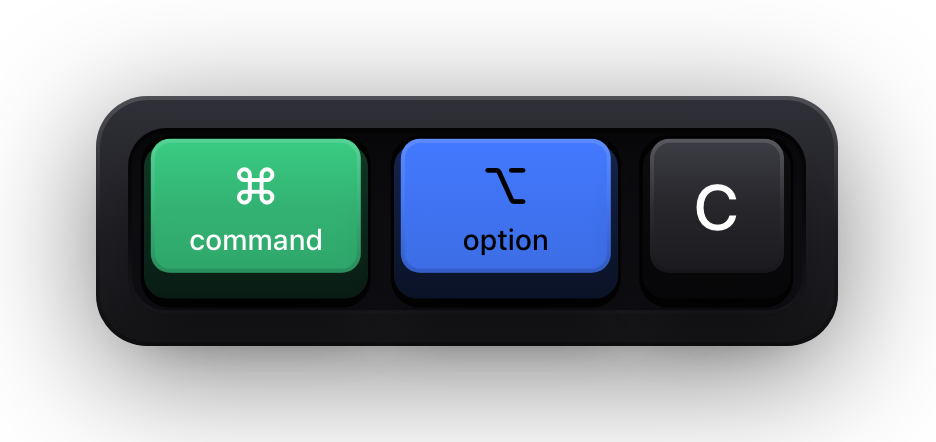
Alongside the usual clipboard, Word keeps a second one almost nobody uses. The Spike collects several cuts in sequence and then drops all of them in one go — ⌘F3 to add to it, ⌘⇧F3 to empty it into the document. For gathering scattered paragraphs into a new order it beats cut-and-paste four times over.
⌘⌥C and ⌘⌥V are the other pair worth building a habit around: they copy and apply formatting rather than content, which replaces an enormous amount of fiddling with the Format Painter.
| Shortcut | What it does |
|---|---|
| ⌘X | Cut the selection to the clipboard |
| ⌘C | Copy the selection to the clipboard |
| ⌘V | Paste the contents of the clipboard |
| ⌃⌘V | Open the Paste Special dialog |
| ⌘F3 | Cut the selection to the Spike |
| ⌘⇧F3 | Paste the contents of the Spike |
| ⌘⌥C | Copy the formatting of the selected text |
| ⌘⌥V | Apply the copied formatting to the selected text |
| ⌘Z | Undo the previous action |
| ⌘Y | Redo the previous action |
Character formatting
⌘B, ⌘I and ⌘U need no introduction, but the rest of this group is where a Windows-derived list starts quietly lying to you. These are the macOS chords, several of which sit nowhere near their Windows equivalents.
| Shortcut | What it does |
|---|---|
| ⌘B | Bold |
| ⌘I | Italic |
| ⌘U | Underline |
| ⌘⇧W | Underline the words but not the spaces between them |
| ⌘⇧D | Double underline |
| ⌘⇧X | Strikethrough |
| ⌘⇧K | Format the selection as small caps |
| ⌘⇧A | Format the selection as all capitals |
| ⌘⇧- | Format the selection as subscript |
| ⌘⇧> | Increase the font size |
| ⌘⇧< | Decrease the font size |
Paragraph formatting, styles and outlining
Styles are the difference between a document you can restructure and one you have to rebuild. ⌘⇧N strips a mangled paragraph back to Normal in a single press, and ⌘⌥1 through ⌘⌥3 apply the heading levels that the navigation pane, the table of contents and Outline view all depend on.
- In Outline view, ⌃⇧← promotes a paragraph and ⌃⇧→ demotes it.
- ⌃⇧↑ and ⌃⇧↓ move the selected paragraphs up and down the outline.
- ⌃⇧+ expands the text under a heading and ⌃⇧- collapses it.
- ⌃⇧A expands all body text and headings, or collapses all body text.
- ⌃⇧ with a heading level number shows all headings at that level.
| Shortcut | What it does |
|---|---|
| ⌘L | Align the paragraph left |
| ⌘E | Centre the paragraph |
| ⌘R | Align the paragraph right |
| ⌘J | Justify the paragraph |
| ⌘1 | Single line spacing |
| ⌘2 | Double line spacing |
| ⌘5 | 1.5-line spacing |
| ⌘⇧N | Apply the Normal style |
| ⌘⌥1 | Apply the Heading 1 style |
| ⌘⌥2 | Apply the Heading 2 style |
| ⌘⌥3 | Apply the Heading 3 style |
| ⌃⇧M | Indent the paragraph from the left |
| ⌘⇧M | Remove a paragraph indent from the left |
| ⌘T | Create a hanging indent |
| ⌘⇧T | Remove a hanging indent |
Working in tables
Word tables have their own keyboard model, and the single most useful fact about it is that Tab moves to the next cell rather than inserting a tab character. To get an actual tab inside a cell you need ⌥Tab — the answer to a question most people give up on and solve with spaces.
The cell-jumping commands use Control rather than Command, and again Microsoft writes them as Control+Home and Control+Page Up, so on a Mac keyboard you hold Fn with an arrow.
| Shortcut | What it does |
|---|---|
| Tab | Move to the next cell and select its content |
| ⇧Tab | Move to the previous cell and select its content |
| ↓ | Move to the next row |
| ↑ | Move to the previous row |
| ⌃Fn← | Move to the first cell in the row |
| ⌃Fn→ | Move to the last cell in the row |
| ⌃Fn↑ | Move to the first cell in the column |
| ⌃Fn↓ | Move to the last cell in the column |
| Tab (in the last cell) | Add a new row to the bottom of the table |
| ⌃⌘I | Insert a row |
| ⇧ + arrow keys | Extend a selection to adjacent cells |
| ⌥Tab | Insert a tab character inside a cell |
Reviewing, proofing and references
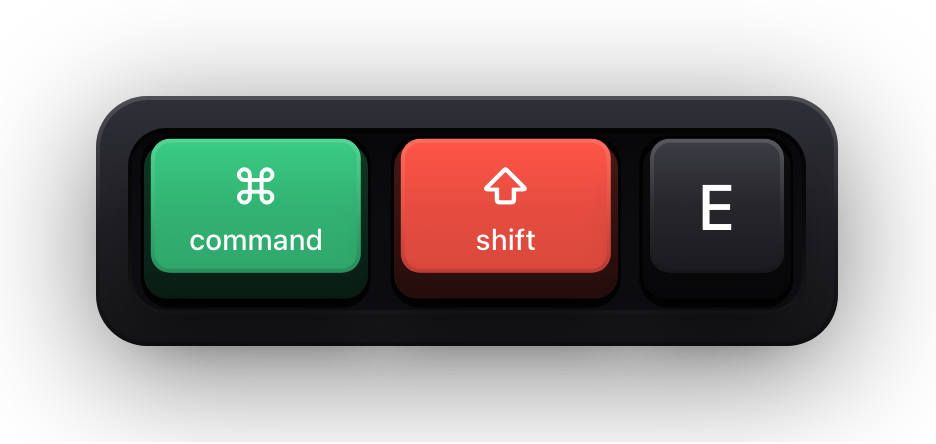
This last group is where a shortcut saves the most clicks, because every one of these commands otherwise lives three levels into a ribbon tab you are not currently on. The field commands in particular earn their keep if you work with cross-references, page numbers, or a table of contents that keeps going stale.
F9 updates the selected fields and ⇧F9 flips a field between its code and its result — the two keys that turn a mysterious grey box into something you can actually debug.
| Shortcut | What it does |
|---|---|
| ⌘⌥A | Insert a comment |
| ⌘⇧E | Turn change tracking on or off |
| ⌘⌥L | Open the Spelling and Grammar dialog |
| ⇧F7 | Open the Thesaurus task pane |
| ⌥⇧F7 | Open the Dictionary |
| ⌘⌥F | Insert a footnote |
| ⌘⌥E | Insert an endnote |
| ⌘F9 | Insert an empty field |
| F9 | Update the selected fields |
| ⇧F9 | Switch between a field code and its result |
| ⌥F9 | Switch between all field codes and their results |
| F11 | Move to the next field |
| ⇧F11 | Move to the previous field |
| ⌃⇧D | Insert a DATE field |
| ⌃⇧P | Insert a PAGE field |
Show your Word shortcuts on screen
A Word shortcut is invisible to an audience. You press ⌘⌥C, the formatting of the next paragraph changes, and everyone watching the recording or the call sees an effect with no visible cause. If you train people on Word, produce documentation videos, or walk a team through a template, that gap is the whole problem — and narration only closes it if your voice keeps perfect pace with your hands.
Show KeyPress is a paid macOS menu bar app that draws each key you press as a keycap on top of everything else on screen. It has no Word integration, no add-in and nothing to install on the Office side; it is simply a window above your other windows, which is why a screen recording or a whole-screen share picks it up with no configuration at all. It requires macOS 14 Sonoma or later and is sold only through the Mac App Store.
- Shortcuts Only content mode draws combinations like ⌘⇧E and stays quiet while you type the actual prose — which is what you want when the document text is not the lesson.
- The three reading modes are Latest for one combination at a time, Horizontal History for a row of recent keycaps, and Stacked History for grouping continuous typing into readable fragments.
- One Display pins the overlay to the screen you are recording or sharing instead of letting it follow your pointer to a second monitor.
- The keyboard overlay is click-through, so it never intercepts a click meant for the Word window underneath it.
- ⌘⇧K toggles Show KeyPress off and on between takes — and since Word uses that same chord for small caps, rebind one of them in the app's settings before you record.
Sources and further reading
Product details and guidance were checked against these first-party pages on August 5, 2026. Re-check current listings before making an install or high-stakes decision.
- Keyboard shortcuts in Word
Microsoft
Microsoft's shortcut reference for Word, with a separate macOS section rather than a translated Windows list.
- Control access to input monitoring on Mac
Apple
Apple's guide to the Input Monitoring privacy permission and how to grant or revoke it.
- Secure Keyboard Entry
Apple
How macOS Secure Keyboard Entry stops other apps from receiving key events.
FAQ
Questions people ask
Why does a Word shortcut I found online not work on my Mac?
Most published Word shortcut lists are the Windows ones. Microsoft maintains a separate macOS section, and it is not a straight Ctrl-to-⌘ swap — Redo is ⌘Y rather than ⌘⇧Z, Find and Replace is ⌃H, and closing a document is ⌘F4. Every chord on this page comes from the macOS section.
Why do some Word shortcuts on a Mac need the Fn key?
Microsoft documents several commands as ⌘Home, ⌘End, ⌃Home and ⌃Page Up. Mac keyboards without a numeric block do not have those keys, so you hold Fn with an arrow key instead — ⌘Fn← is ⌘Home. The command is identical; only the spelling of the key changes.
Can I remap a keyboard shortcut in Word for Mac?
Yes. Word for Mac has its own shortcut customisation under Tools, and macOS separately lets you assign a shortcut to any menu command in System Settings under Keyboard, Keyboard Shortcuts, App Shortcuts. A custom chord will of course not match the defaults listed here.
Are these the same in Word 2021, Microsoft 365 and Word for the web?
The desktop chords here are stable across recent versions of Word for Mac. Word for the web is a different application with a smaller and partly different set, because the browser claims many chords before Word sees them — check Microsoft's reference for the web version rather than assuming these carry over.
Will an on-screen overlay show a password I type in Word?
No. While macOS Secure Input is active — in password fields and document-protection prompts — applications stop receiving key events at all, and Show KeyPress clears the keycaps for the duration. A short banner reading Keyboard hidden — Secure Input appears in their place, and that banner can be switched off under General.
Does Show KeyPress plug into Microsoft Word?
No. There is no add-in and no integration of any kind. It is an ordinary macOS overlay window, which is why it behaves identically in Word, in a browser, or in any other Mac app you happen to be demonstrating.