
App shortcuts
IntelliJ IDEA keyboard shortcuts for Mac
JetBrains ships three keymaps on macOS and they disagree with each other. This page documents exactly one of them: the default, named macOS.
Which keymap this page documents
JetBrains states that on macOS the default keymap is the one named macOS. Two others ship alongside it: IntelliJ IDEA Classic, a legacy keymap that resembles the Windows default, and macOS System Shortcuts, which exists specifically to avoid clashing with the system's own chords. They are genuinely different bindings, not cosmetic variants, and this page documents the default macOS keymap only.
That distinction is the reason most IntelliJ shortcut lists on the web are unreliable. A chord copied from a Windows tutorial, or from someone running the System Shortcuts keymap, will simply do nothing — or something else — on a stock Mac install. Before comparing anything here against your own IDE, open Settings and look at Keymap to see which one is selected.
You cannot edit a predefined keymap in place. Changing any shortcut makes IntelliJ IDEA copy the keymap first and modify the copy, which means your bindings can drift a long way from these defaults without you ever having decided to change keymaps.
The shortcuts JetBrains itself puts first
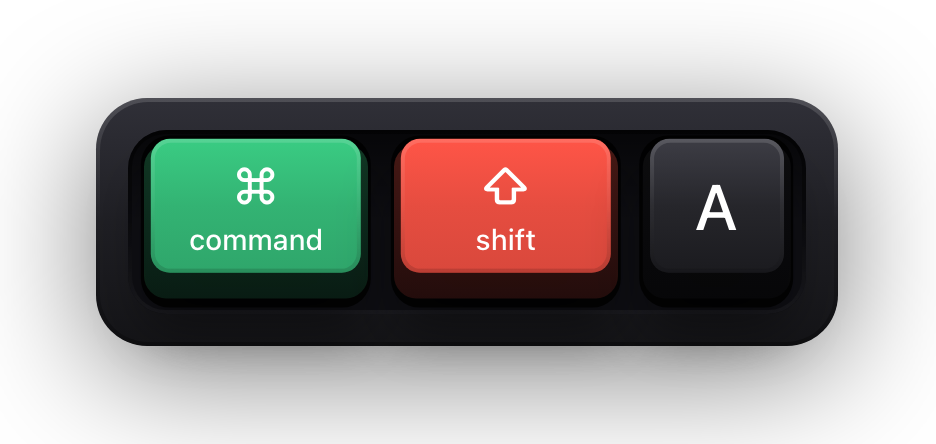
JetBrains opens its own reference with a short list of what it considers the top shortcuts, and it is a better starting point than any of the longer tables further down. Two of them are double-modifier chords rather than combinations: pressing ⇧ twice opens Search Everywhere, and pressing ⌃ twice opens Run Anything.
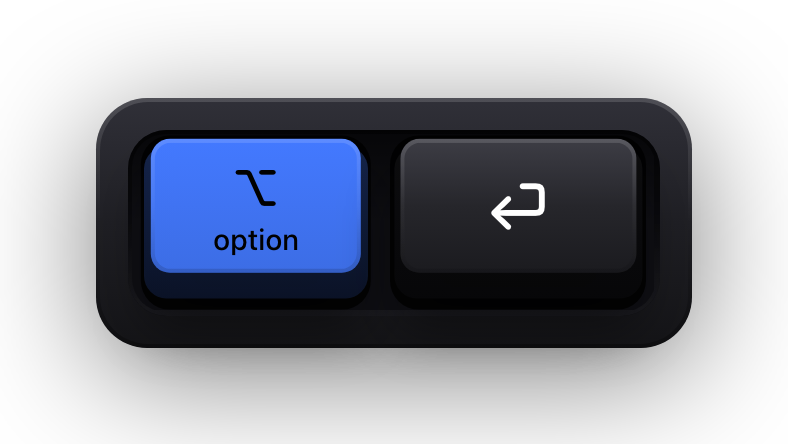
⌥⏎ is the single most valuable key on this list. It offers the intention actions available wherever the caret is, which means the IDE tells you what it can fix instead of you having to know the name of the fix.
| Shortcut | What it does |
|---|---|
| Double ⇧ | Search Everywhere |
| ⌘⇧A | Find Action |
| ⌥⏎ | Show intention actions |
| ⌘E | Recent Files |
| ⌘1 | Show the Project tool window |
| ⌥F7 | Find Usages |
| ⌥F1 | Select In |
| ⌘, | Open Settings |
| ⌘N | Generate |
| Double ⌃ | Run Anything |
| ⌃⌥D | Debug |
| ⌘⇧F8 | View Breakpoints |
| ⌥⇧F5 | Attach to Process |
| ⌃V | VCS Operations Popup |
| ⌃T | Refactor This |
| ⌘⌥L | Reformat Code |
| ⌘F9 | Build Project |
| ⌘⇧F9 | Rebuild |
| ⌃⌥N | New in This Directory |
Basic editing
⌘D duplicates the line or selection, and it is worth pausing on because the same chord means Show Diff inside the diff viewer. Overloaded chords like that are normal in this keymap — context decides.
The three paste entries are the ones people wish they had known sooner. ⌘⇧V opens the clipboard history rather than pasting the most recent entry, and ⌘⌥⇧V pastes as plain text, which is the fix for code arriving out of a browser with its formatting attached.
| Shortcut | What it does |
|---|---|
| ⌘X / ⌘C / ⌘V | Cut, copy or paste |
| ⌘⇧V | Paste from history |
| ⌘⌥⇧V | Paste as plain text |
| ⌘⇧C | Copy paths |
| ⌘⌥⇧C | Copy reference |
| ⌘S | Save all |
| ⌘Z / ⌘⇧Z | Undo or redo |
| ⇥ / ⇧⇥ | Indent, or unindent, the line or selection |
| ⌃⌥I | Auto-indent lines |
| ⇧⏎ | Start a new line |
| ⌘⌥⏎ | Start a new line before the current one |
| ⌘⌫ | Delete line |
| ⌃⇧J | Join lines |
| ⌘D | Duplicate line or selection |
| ⌘⇧U | Toggle case |
| ⌘⇧N | Create a scratch file |
| ⇧F4 | Open the source in a new window |
| ⌃⇧. / ⌃⇧, | Increase or decrease the font size in all editors |
Moving the caret, selecting and folding
The movement chords follow the same rule as the rest of macOS — ⌥ for a word, ⌘ for a line — and then add IntelliJ's own structural jumps on top: ⌃M to the matching brace, ⌘⌥[ and ⌘⌥] to the start and end of the enclosing code block.
Selection mirrors movement exactly: add ⇧ to a movement chord and you drag the selection instead of the caret. The two that do not follow that pattern are the most useful of the group. ⌥↑ widens the selection to the next syntactic unit — word, expression, statement, block — and ⌥↓ shrinks it back, which is how you select a whole argument list without touching a bracket.
The folding shortcuts assume hardware most Mac users do not have: JetBrains binds them to the numeric keypad, so ⌘NumPad+ and ⌘NumPad- need an external keyboard with a number block. On a laptop the practical route is Find Action or a rebind. ⌘. is the exception and folds the current selection with no keypad involved.
The multiple-caret entries at the bottom are where this keymap gets genuinely fast. ⌃G adds a selection at the next occurrence of whatever is selected, ⌃⇧G takes the last one back, and ⌘⌃G selects every occurrence in the file at once — a rename in three keystrokes when a proper refactoring is overkill.
| Shortcut | What it does |
|---|---|
| ⌥← / ⌥→ | Move the caret to the previous or next word |
| ⌘← / ⌘→ | Move the caret to the start or end of the line |
| ⌃M | Move the caret to the matching brace |
| ⌘⌥[ / ⌘⌥] | Move the caret to the start or end of the code block |
| ⌃⇧↑ / ⌃⇧↓ | Go to the previous or next method |
| ⌘Home / ⌘End | Move the caret to the start or end of the text |
| ⌘Page ↑ / ⌘Page ↓ | Move the caret to the top or bottom of the page |
| ⌘A | Select all |
| ⇧← / ⇧→ / ⇧↑ / ⇧↓ | Extend the selection by a character or a line |
| ⌥⇧← / ⌥⇧→ | Extend the selection by a word |
| ⌘⇧← / ⌘⇧→ | Extend the selection to the start or end of the line |
| ⌘⌥⇧[ / ⌘⌥⇧] | Extend the selection to the start or end of the code block |
| ⌘⇧Home / ⌘⇧End | Extend the selection to the start or end of the text |
| ⌥↑ | Extend the selection to the next syntactic unit |
| ⌥↓ | Shrink the selection |
| ⌘NumPad+ / ⌘NumPad- | Expand or collapse the current fold |
| ⌘⌥NumPad+ / ⌘⌥NumPad- | Expand or collapse recursively |
| ⌘⇧NumPad+ / ⌘⇧NumPad- | Expand or collapse all |
| ⌘. | Fold the selection |
| ⌥⇧Click | Add or remove a caret |
| Double ⌥ then ↑ or ↓ | Clone the caret above or below |
| ⌥⇧G | Add a caret to each line in the selection |
| ⌃G | Add a selection for the next occurrence |
| ⌘⌃G | Select all occurrences |
| ⌃⇧G | Deselect the last occurrence |
| ⌘⇧8 | Toggle column selection mode |
| ⌥ and drag | Create a rectangular selection |
Coding assistance
Completion has three levels, and knowing the difference is worth more than any other item here. ⌃Space is ordinary completion, ⌃⇧Space filters it down to what actually type-checks in this position, and ⌃⌥Space searches classes and symbols that have not been imported yet.
⌘⇧⏎ completes the current statement — closing the brackets, adding the semicolon, moving the caret to the next line — and it is the chord that makes typing a block feel less like typing punctuation.
| Shortcut | What it does |
|---|---|
| ⌥⏎ | Show intention actions |
| ⌃Space | Basic completion |
| ⌃⇧Space | Type-matching completion |
| ⌃⌥Space | Second basic completion |
| ⌘⇧⏎ | Complete the current statement |
| ⌘⌥L | Reformat code |
| ⌘P | Parameter info |
| F1 | Quick documentation |
| ⌘⇧↑ / ⌘⇧↓ | Move the statement up or down |
| ⌥⇧↑ / ⌥⇧↓ | Move the line up or down |
| ⌘⌥⇧← / ⌘⌥⇧→ | Move the element left, or the statement right |
| ⌘/ | Comment with a line comment |
| ⌘⌥/ | Comment with a block comment |
| ⌘⌥T | Surround with |
| ⌘N | Generate |
Finding everything, and getting back
This is the group that makes a large codebase navigable. Search Everywhere on double ⇧ covers files, classes, symbols and actions at once, and the specific variants below it are worth learning anyway because they do not make you disambiguate: ⌘⇧O for a file, ⌘⌥O for a symbol, ⌘F12 for the structure of the file you are already in.
⌘⇧⌫ is the quiet hero. It returns the caret to your last edit location, wherever in the project that was, which is the answer to having chased a definition four files deep and forgotten what you were changing.
| Shortcut | What it does |
|---|---|
| Double ⇧ | Search Everywhere |
| ⌘F | Find in the current file |
| ⌘G / ⌘⇧G | Move to the next or previous occurrence |
| ⌘R | Replace in the current file |
| ⌘⇧F | Find in files |
| ⌘⇧R | Replace in files |
| ⌘⇧O | Go to file |
| ⌘⌥O | Go to symbol |
| ⌘F12 | Show the file structure |
| ⌘L | Go to line or column |
| ⌘E | Recent files |
| ⌥⇧C | Recent changes |
| ⌘⇧⌫ | Jump to the last edit location |
| ⌘[ / ⌘] | Navigate back or forward |
| ⌘⇧[ / ⌘⇧] | Select the previous or next tab |
| ⌃⇥ | Open the Switcher |
| ⌘⌥↑ / ⌘⌥↓ | Go to the previous or next occurrence |
| F3 | Toggle an anonymous bookmark |
| ⌘F3 | Show all bookmarks |
| ⌃⇧ and a digit | Toggle a bookmark with that digit |
| ⌃ and a digit | Go to the bookmark with that digit |
Navigating from a symbol, and reading the analysis
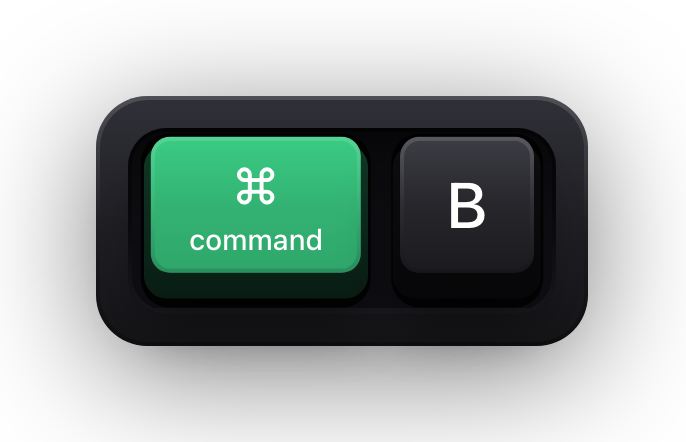
⌘B is the workhorse: on a usage it goes to the declaration, on a declaration it lists the usages. ⌘⌥B goes to the implementation instead, which is the one you actually want in a codebase with interfaces everywhere, and ⌘U goes the other way to the super method.
F2 and ⇧F2 walk between highlighted errors without you reading the gutter, and ⌘F1 shows the description of the one under the caret. Together they turn a red file into a checklist.
| Shortcut | What it does |
|---|---|
| ⌘B | Go to declaration, or to usages |
| ⌘⇧B | Go to the type declaration |
| ⌘⌥B | Go to the implementations |
| ⌘U | Go to the super method |
| ⌘⇧T | Go to the test |
| ⌥F7 | Find usages |
| ⌘⌥F7 | Show usages |
| ⌘⇧F7 | Highlight usages in the file |
| F2 / ⇧F2 | Go to the next or previous highlighted error |
| ⌘F1 | Show the error description |
| ⌘⌥⇧I | Run an inspection by name |
| ⌘6 | Show the Problems tool window |
Running, debugging and stepping
The stepping keys are the plain function keys, which on a modern Mac keyboard means either pressing Fn as well or turning off the media-key behaviour in System Settings. It is worth doing: F7, F8 and ⇧F8 are the three keys a debugging session is made of.
⌃R and ⌃D run and debug whatever configuration the current context implies, so you rarely need to open the configuration list at all. ⌥F8 evaluates an arbitrary expression at the current breakpoint, which is where most debugging actually happens.
| Shortcut | What it does |
|---|---|
| Double ⌃ | Run Anything |
| ⌃R | Run the context configuration |
| ⌃D | Debug the context configuration |
| ⌃⌥R / ⌃⌥D | Open the Run or Debug list |
| ⌥⇧F5 | Attach to process |
| ⌘F2 | Stop |
| ⌘⌥R | Resume the program |
| F8 | Step over |
| F7 | Step into |
| ⇧F7 | Smart step into |
| ⇧F8 | Step out |
| ⌥⇧F8 / ⌥⇧F7 | Force step over, or force step into |
| ⌥F9 | Run to cursor |
| ⌘⌥F9 | Force run to cursor |
| ⌥F10 | Show the execution point |
| ⌥F8 | Evaluate an expression |
| ⌘⌥F8 | Quick-evaluate an expression |
| ⌘F8 | Toggle a line breakpoint |
| ⌘⌥⇧F8 | Toggle a temporary line breakpoint |
| ⌘⇧F8 | View breakpoints |
| ⌘4 / ⌘5 | Show the Run or Debug tool window |
Refactoring, version control and tool windows
⌃T is the only refactoring shortcut you strictly need: it offers every refactoring available at the caret. The named ones below are worth learning anyway for the three or four you reach for daily — extract method, introduce variable, rename.
The version-control group is where this keymap collides with itself hardest. ⌘K commits and ⌘T updates the project, which are exactly the chords a lot of Mac software uses for something else entirely. The tool windows are numbered ⌘1 to ⌘0 in a fixed order, and ⇧⎋ hides whichever one currently has focus.
| Shortcut | What it does |
|---|---|
| ⌃T | Refactor This |
| ⇧F6 | Rename |
| F6 | Move |
| ⌘F6 | Change signature |
| ⌘⌥M | Extract method |
| ⌘⌥V | Introduce variable |
| ⌘⌥F | Introduce field |
| ⌘⌥P | Introduce parameter |
| ⌘⌥N | Inline |
| ⌘⌦ | Safe delete |
| ⌃V | VCS Operations Popup |
| ⌘K | Commit |
| ⌘⇧K | Push |
| ⌘T | Update project |
| ⌘⌥Z | Rollback |
| ⌃⌥⇧↑ / ⌃⌥⇧↓ | Go to the previous or next change |
| ⌘D | Show diff, or compare files |
| F7 / ⇧F7 | Next or previous difference in the diff viewer |
| ⌘⌃→ / ⌘⌃← | Accept the left or right side of a diff |
| ⇧⎋ | Hide the active tool window |
| ⌘⇧F12 | Hide all tool windows |
| F12 | Jump to the last tool window |
| ⌘1 to ⌘0 | Show a specific tool window |
| ⌥F12 | Show the Terminal tool window |
Show your IntelliJ shortcuts on screen
A JetBrains IDE is the hardest kind of application to record. The shortcuts are dense, most of them are invisible, and a good many change the editor in ways that look like the previous keystroke rather than the current one. Someone watching a pair-programming session or a recorded walkthrough sees a method extract itself and has no way to tell ⌘⌥M from a template from an AI completion.
Show KeyPress is a paid macOS menu bar app, for macOS 14 Sonoma or later, that draws each key you press as a keycap above everything else on screen. It is not a plugin — there is nothing to install into the IDE, no JetBrains Marketplace entry, and no integration of any kind. It draws a window over your other windows, and whatever is capturing the display captures it too.
- Shortcuts Only content mode draws chords like ⌘⌥⇧V while leaving the code you type alone, which is usually exactly the right split for a screencast.
- Latest mode suits explaining one refactoring at a time; Horizontal History keeps a trail when a sequence such as ⌘E then ⏎ is the point.
- Function keys and special keys have their own filters, which matters for a debugging demo built on F7 and F8.
- Eight edge presets plus a full-screen drag editor keep the overlay clear of the gutter, the tool windows and the terminal.
- ⌃⌥M switches content mode mid-demo, and ⌃⌥= and ⌃⌥- resize the overlay without opening Settings.
Sources and further reading
Product details and guidance were checked against these first-party pages on August 5, 2026. Re-check current listings before making an install or high-stakes decision.
- Predefined macOS keymap
JetBrains
The full default macOS keymap for IntelliJ IDEA, printed action by action with the Mac chord beside each one.
- Configure keyboard shortcuts
JetBrains
JetBrains' page on the Keymap settings, which names the keymaps that ship on macOS and how to switch between them.
- Control access to input monitoring on Mac
Apple
Apple's guide to the Input Monitoring privacy permission and how to grant or revoke it.
- Secure Keyboard Entry
Apple
How macOS Secure Keyboard Entry stops other apps from receiving key events.
FAQ
Questions people ask
Which IntelliJ IDEA keymap do these shortcuts belong to?
The predefined keymap named macOS, which JetBrains states is the default on macOS. The other two that ship on a Mac — IntelliJ IDEA Classic and macOS System Shortcuts — bind many actions differently, so a chord from this page can genuinely do nothing if one of those is selected in Settings, Keymap.
What is macOS System Shortcuts and should I use it?
It is a keymap JetBrains designed to avoid conflicts with the system's own shortcuts. It is worth switching to if IntelliJ keeps stealing chords you rely on elsewhere in macOS — but its bindings differ from the defaults on this page, so you would need JetBrains' reference for that keymap rather than this one.
Do these shortcuts work in WebStorm, PyCharm and the other JetBrains IDEs?
Most of them do, because the IDEs share a platform and the same macOS keymap underneath. They are not guaranteed identical, though: each IDE adds its own actions and occasionally rebinds one. JetBrains publishes a keymap reference per product, and this page is IntelliJ IDEA's.
Why do the code-folding shortcuts do nothing on my laptop?
They are bound to the numeric keypad — ⌘NumPad+ and ⌘NumPad- — which a Mac laptop keyboard does not have. Either use an external keyboard with a number block, run the action from Find Action, or rebind it. ⌘. folds the current selection and needs no keypad.
Why does ⌘K commit instead of doing what it does in my other apps?
The macOS keymap binds ⌘K to Commit and ⌘T to Update Project, which collides with what many Mac applications use those chords for. Inside the IDE, IntelliJ wins. If that bothers you, rebind it in Settings, Keymap — which copies the predefined keymap rather than editing it.
How do I show which IntelliJ shortcut I pressed in a recording?
Run a keystroke overlay while you record. Show KeyPress draws each press on screen as a keycap, and because it is an ordinary macOS window rather than an IDE plugin, any display-level capture includes it. A capture scoped to the IDE window alone is the one case that leaves it out.