
App shortcuts
Terminal keyboard shortcuts for Mac
These are Apple's shortcuts for Terminal itself, not a shell cheat sheet. Where a chord belongs to the command line rather than the app, this page says so.
Editing the command line
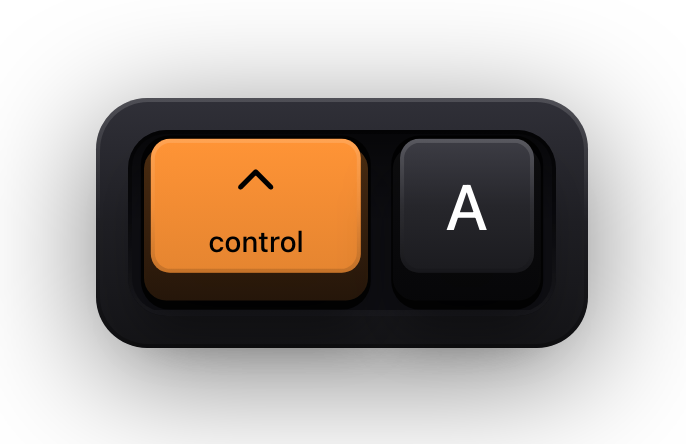
The line-editing chords are the oldest keyboard interface still in daily use, and they are worth learning precisely because they are not Terminal's own: the same ⌃A, ⌃E and ⌃K work in almost every text field on macOS, in most shells, and over SSH on a machine that has never heard of your Mac.
⌥D is the exception that needs a setting. It deletes forward to the end of the word only when Use Option as Meta Key is switched on for the profile, which you can toggle with ⌘⌥O.
| Shortcut | What it does |
|---|---|
| ⌃A | Move the insertion point to the beginning of the line |
| ⌃E | Move the insertion point to the end of the line |
| ⌥→ | Move forward one word |
| ⌥← | Move backward one word |
| → | Move forward one character |
| ← | Move backward one character |
| ⌃U | Delete the line |
| ⌃K | Delete to the end of the line |
| ⌃W | Delete backward to the beginning of the word |
| ⌥D | Delete forward to the end of the word, with Option as Meta enabled |
| Delete | Delete one character |
| Fn-Delete | Forward-delete one character |
| ⌃T | Transpose the two characters at the cursor |
| ⌥ + click | Reposition the insertion point where you click |
| Tab | Complete a directory or file name; press twice to list the possibilities |
History and taking control
Two of the entries here are not chords in the usual sense. The Up Arrow walks back through the commands you have entered this session, and ⌃C sends the signal that terminates most running commands — Apple documents both as the way to repeat and to stop work rather than as app shortcuts.
⌘. is the same signal from the Mac side: Apple's guide states plainly that typing it is equivalent to entering Control-C on the command line. The two reset commands are the ones to remember after a binary has sprayed control characters across your prompt.
| Shortcut | What it does |
|---|---|
| ↑ | Recall the previous command; keep pressing to walk further back |
| ⌃R | Reverse-search the command history |
| ⌃C | Terminate the running command |
| ⌘. | Break — equivalent to entering Control-C on the command line |
| ⌘K | Clear to the start |
| ⌘L | Clear to the previous mark |
| ⌥⌘L | Clear to the previous bookmark |
| ⌥⌘R | Soft-reset the terminal emulator state |
| ⌃⌥⌘R | Hard-reset the terminal emulator state |
| ⌘R | Toggle the Allow Mouse Reporting option |
| ⌘⌥O | Toggle the Use Option as Meta Key option |
| ⌃⇧⌘? | Open the man page for the selection |
| ⌃⌥⌘/ | Search the man page index for the selection |
Windows, tabs and split panes
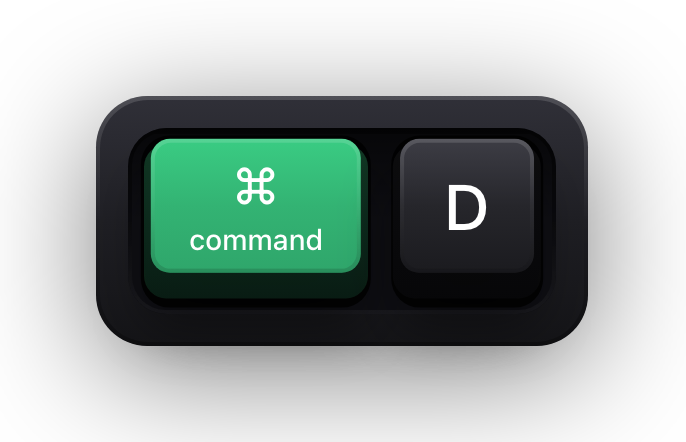
Terminal's window commands have a second form that carries your work with them: ⌃⌘N and ⌃⌘T open a new window or tab running the same command as the current one, which is how you get a second copy of a long SSH session without retyping the host.
⌘D splits the current window into two panes and ⇧⌘D closes the split again. Note that ⌘D is a split here and a duplicate almost everywhere else on macOS — one of the few places where Terminal's chord fights the system convention.
| Shortcut | What it does |
|---|---|
| ⌘N | New window |
| ⌃⌘N | New window running the same command |
| ⌘T | New tab |
| ⌃⌘T | New tab running the same command |
| ⇧⌘T | Show or hide the tab bar |
| ⇧⌘\ | Show all tabs, or leave the tab overview |
| ⇧⌘K | New remote connection |
| ⌃Tab | Next tab |
| ⌃⇧Tab | Previous tab |
| ⌘` | Next window |
| ⇧⌘~ | Previous window |
| ⌘D | Split the window into two panes |
| ⇧⌘D | Close the split pane |
| ⌘W | Close the tab |
| ⇧⌘W | Close the window |
Scrolling, marks and bookmarks
Marks are Terminal's least-known feature and the one that makes a long build log navigable. Terminal drops a mark at each prompt, so ⌘↑ and ⌘↓ jump between commands rather than scrolling by line — the equivalent of chapter markers through a session.
A bookmark is a mark you place deliberately, optionally with a name, and ⌥⌘↑ and ⌥⌘↓ move between those alone. ⇧⌘A then selects everything between two marks, which is how you copy the output of exactly one command without dragging across a screenful of text.
| Shortcut | What it does |
|---|---|
| ⌘Home | Scroll to the top |
| ⌘End | Scroll to the bottom |
| ⌘PageUp | Page up |
| ⌘PageDown | Page down |
| ⌥⌘PageUp | Scroll up one line |
| ⌥⌘PageDown | Scroll down one line |
| ⌘U | Mark |
| ⌥⌘U | Mark as a bookmark |
| ⇧⌘U | Unmark |
| ⌘Return | Mark the line and send return |
| ⇧⌘M | Insert a bookmark |
| ⌥⇧⌘M | Insert a bookmark with a name |
| ⌘↑ | Jump to the previous mark |
| ⌘↓ | Jump to the next mark |
| ⇧⌘A | Select everything between two marks |
Selecting, copying and finding text
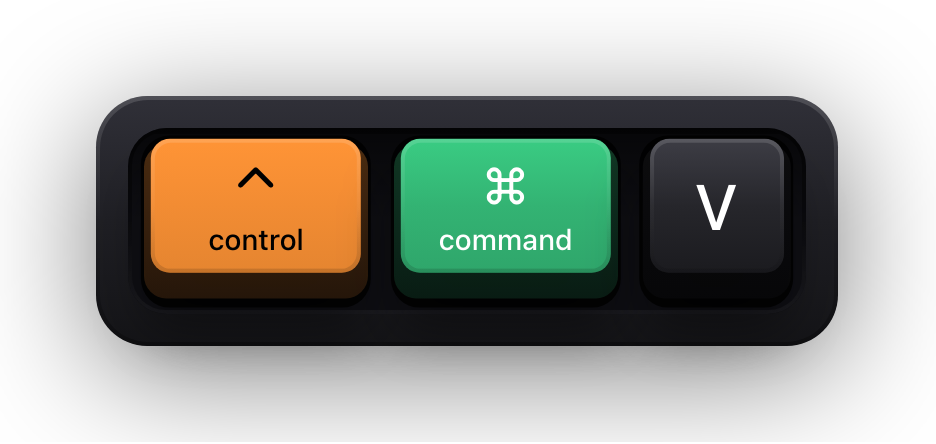
Terminal has four different pastes, and the distinction is a safety feature rather than a quirk. Paste escaped text quotes anything the shell would otherwise interpret, which is what you want for a path with spaces or a string full of dollar signs pasted from a chat window.
⌘E and ⌘J are the pair worth stealing: ⌘E loads the selection into the find buffer so ⌘G walks through its other occurrences, and ⌘J jumps the view straight to the selected text after you have scrolled away from it.
| Shortcut | What it does |
|---|---|
| ⌘C | Copy |
| ⌃⇧⌘C | Copy without the background colour |
| ⌥⇧⌘C | Copy as plain text |
| ⌘V | Paste |
| ⇧⌘V | Paste the selection |
| ⌃⌘V | Paste escaped text |
| ⌃⇧⌘V | Paste the escaped selection |
| ⌘X | Cut |
| ⌘A | Select all |
| ⌘F | Find |
| ⌘G | Find next |
| ⇧⌘G | Find previous |
| ⌘E | Find using the selected text |
| ⌘J | Jump to the selected text |
| ⌃⌘Space | Open the character viewer |
Appearance, export and the rest
The size and colour chords are the ones that matter for anything anyone else will watch. ⌘+ and ⌘- change the font size live, and the Inspector at ⌘I is where a session's title, profile and window settings live if you would rather not open Settings at all.
⇧⌘↓ and ⇧⌘↑ show and hide the alternate screen — the full-screen buffer that a pager or a text editor takes over — which lets you look back at what your prompt said before the editor opened.
| Shortcut | What it does |
|---|---|
| ⌘I | Show or hide the Inspector |
| ⇧⌘I | Edit the window title |
| ⌥⌘I | Edit the background colour |
| ⌘+ | Make the font bigger |
| ⌘- | Make the font smaller |
| ⌃⌘F | Enter or leave full screen |
| ⇧⌘C | Show or hide colours |
| ⌘, | Open Terminal settings |
| ⌘P | |
| ⌘S | Export the text as a file |
| ⇧⌘S | Export the selected text as a file |
| ⇧⌘↓ | Show the alternate screen |
| ⇧⌘↑ | Hide the alternate screen |
Show Terminal shortcuts on screen while you record
A terminal recording is the hardest kind to follow, because almost nothing that happens on screen tells you which key caused it. A line clears — was that ⌃U or ⌃K? The prompt jumps — was that a mark or a scroll? Viewers who cannot see the chord end up copying the command rather than learning the workflow, which is usually the opposite of the point.
Show KeyPress is a paid macOS menu bar app, for macOS 14 Sonoma or later, that draws each key you press as a keycap on top of everything else on screen. It does not attach to Terminal, does not record video, and installs nothing into your shell — it is an overlay window, so any capture of the display carries it.
- Latest mode suits a terminal demo: one control chord at a time, replaced by the next, at the pace you narrate them.
- Standalone modifiers have their own switch, so holding ⌃ between commands does not flash a keycap every few seconds.
- The key timeout decides how long a press stays readable after you release it, which matters when a chord causes no visible change.
- The overlay is click-through and lives in the menu bar with no Dock icon, so it stays out of a Mission Control sweep.
- ⌘⇧K is the master switch for the whole visualization, including the pointer halo and the pet.
Sources and further reading
Product details and guidance were checked against these first-party pages on August 5, 2026. Re-check current listings before making an install or high-stakes decision.
- Keyboard shortcuts in Terminal on Mac
Apple
Apple's complete shortcut reference for Terminal, grouped by windows, line editing, marks and selection.
- Execute commands and run tools in Terminal on Mac
Apple
Apple's page on running commands, terminating them with Control-C, and repeating them from history.
- Secure Keyboard Entry
Apple
How macOS Secure Keyboard Entry stops other apps from receiving key events.
FAQ
Questions people ask
Which of these are Terminal shortcuts and which belong to the shell?
Anything using ⌘ is Terminal's own and works regardless of which shell you run. The ⌃ chords for line editing, along with the Up Arrow for history and ⌃C to terminate a command, are handled further down — by the shell or by the running program — which is why they also work over SSH on a machine that is not a Mac.
How do I stop a command that is running in Terminal?
Press ⌃C, which sends a signal that terminates most commands. Apple documents ⌘. as equivalent to entering Control-C on the command line, so either works. Neither is guaranteed against a program that ignores the signal.
What is Secure Keyboard Entry in Terminal?
A Terminal setting that stops other applications from receiving the keys you type in it. It is macOS Secure Input, and while it is on no visualizer, text expander or macro tool sees anything — including a keystroke overlay, which clears itself for the duration rather than showing stale keycaps.
Can I add my own keyboard shortcuts to Terminal?
Yes, per profile. Terminal's Keyboard settings map a key or chord to the escape sequence it sends, which is how custom function keys are defined. That is a different mechanism from an application shortcut, and it applies to the profile you edit rather than to Terminal as a whole.
Will a keystroke overlay show what I type into a sudo prompt?
No. A password prompt is exactly where macOS Secure Input engages, so applications stop receiving key events entirely. Show KeyPress clears the keycaps and shows a short Keyboard hidden — Secure Input banner instead, and that banner can be switched off under General.