
Screen recording
Record your Mac screen with keystrokes visible
You do not need a special recorder. The built-in macOS screenshot tool and QuickTime both record what is on the screen — and an on-screen keystroke overlay is on the screen.
How a screen recording picks up the overlay
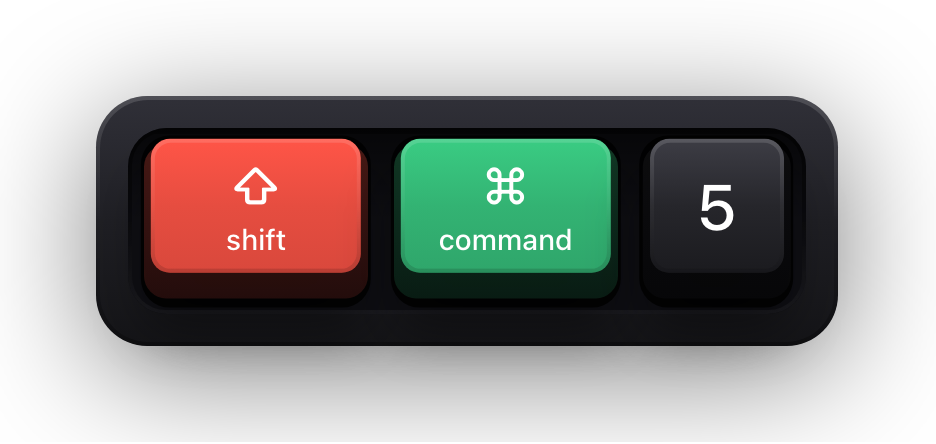
macOS ships with a screenshot and screen-recording tool on Shift-Command-5, and QuickTime Player can start a screen recording from its File menu. Both record the display, and the keystroke overlay is drawn on the display, above your other windows. Nothing connects the two apps — the recorder simply records what is there.
That is why this works with any recorder rather than a specific one. Show KeyPress does not record video, does not capture audio, does not edit anything, and does not hand a feed to another app. It has exactly one job: putting your keys on screen while you press them.
The corollary is worth stating plainly. If your recording is scoped to a region or a single window, the overlay is included only when it happens to fall inside what you are recording.
Record with Shift-Command-5
- 01
Start the visualisation
Launch Show KeyPress from the menu bar and confirm keys appear when you type. It requests Input Monitoring on first run — that is the only privacy permission it asks for.
- 02
Position the overlay before you record
Pick one of the eight edge presets, or press ⌃⌥P for the drag editor and place it freely with snapping and guides. Doing this first saves a re-record.
- 03
Open the capture controls
Press Shift-Command-5 to bring up the onscreen controls for screenshots and screen recording.
- 04
Choose Record Entire Screen
This is the safe default: the whole display goes into the file, so the overlay is in the frame wherever you put it.
- 05
Or choose Record Selected Portion deliberately
If you crop, drag the selection so it includes the overlay's corner. A tight crop around a code editor will cut the overlay out of the recording.
- 06
Record, then stop from the menu bar
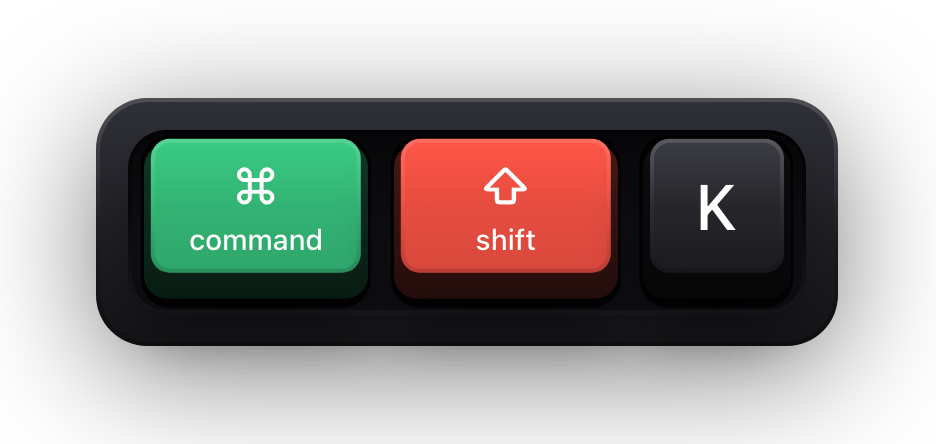
The stop button lives in the menu bar while recording. Your own keystrokes for starting and stopping will appear in the overlay too — trim them, or hit ⌘⇧K to toggle the app off just before you stop.
Record with QuickTime Player
QuickTime Player's File menu has a New Screen Recording item, which on current macOS hands you the same onscreen capture controls. The workflow is identical, and so is the reason it works: QuickTime records the display, and the overlay is on the display.
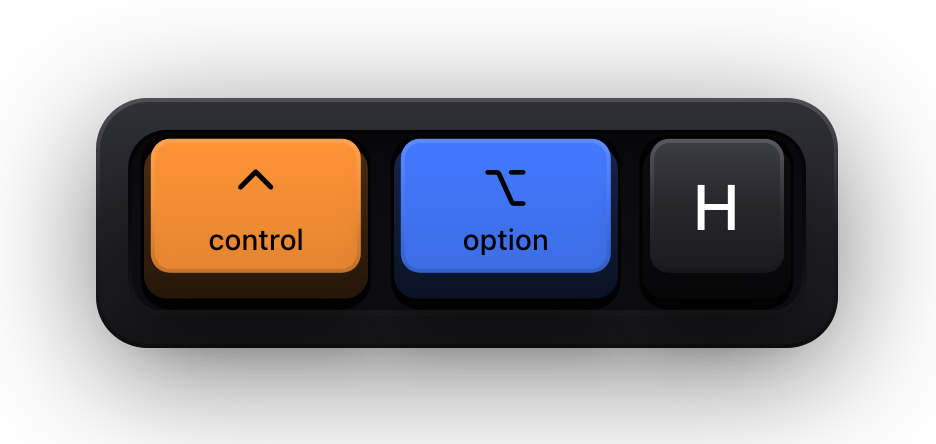
One QuickTime option is worth knowing about because it overlaps with what Show KeyPress does. QuickTime can mark mouse clicks in the recording. If you also use the app's cursor halo — with its click motion and drag feedback — decide which one you want, because running both gives every click two different visual treatments. ⌃⌥H toggles the halo on its own, without touching the keycaps.
Settings that make a recording readable
A screen recording is watched later, often smaller than it was recorded, often on a phone. Tune for that rather than for how it looks at full size on your own monitor.
- Standalone modifiers, function keys and special keys each have their own toggle, so you can stop a lone ⇧ from flashing on screen every time you capitalise a letter.
- Duplicate handling controls whether a held-down or repeated key shows once or once per press.
- Press animations can be turned off separately for modifiers and regular keys if you want a calmer frame.
| Setting | For a shortcut walkthrough | For a typing demo |
|---|---|---|
| Presentation | Latest — only the newest combination, replaced by the next | Stacked History — continuous typing grouped into readable fragments |
| Content mode | Shortcuts Only, so plain letters never clutter the frame | All Keys, because the letters are the subject |
| Size | Large, so it survives being watched at half size | Medium is usually enough |
| Timeout | Longer, so the combination stays up while you narrate it | Shorter, so fragments do not pile up |
| History size | Not applicable in Latest | Between three and twelve keys; six is a sensible default |
What will not appear in the recording
- Anything typed while macOS Secure Input is active. Password fields and Terminal's Secure Keyboard Entry stop key events reaching other apps, so the keyboard overlay is cleared for the duration and a short banner reading “Keyboard hidden — Secure Input” is recorded in its place — unless you switch off Show Status HUD in Settings, in the Status HUD card under General.
- Anything outside a Record Selected Portion crop, including the overlay if you cropped past it.
- Anything on a display the overlay is not currently on. With Follow Pointer the overlay tracks your mouse across monitors; pin it with One Display if you are recording one screen.
- Caps Lock, which macOS does not report reliably enough to visualise.
Sources and further reading
Product details and guidance were checked against these first-party pages on August 5, 2026. Re-check current listings before making an install or high-stakes decision.
- Take a screenshot or record your screen on Mac
Apple
Apple's instructions for the built-in screenshot and screen recording tools.
- Secure Keyboard Entry
Apple
How macOS Secure Keyboard Entry stops other apps from receiving key events.
- Control access to input monitoring on Mac
Apple
Apple's guide to the Input Monitoring privacy permission and how to grant or revoke it.
- Show KeyPress on the Mac App Store
Apple
The listing, with the current price, system requirements and version history.
FAQ
Questions people ask
Do I need a special screen recorder to capture the keystroke overlay?
No. Any recorder that captures the display captures the overlay, because the overlay is drawn on the display. The built-in Shift-Command-5 tool and QuickTime Player both work with no configuration.
Does Show KeyPress record video?
No. It does not record video, capture audio, or edit footage. It only draws your keystrokes and pointer on screen; the recording is done entirely by macOS or whatever recorder you prefer.
Why is the overlay missing from my cropped recording?
Record Selected Portion only captures the region you dragged. Either widen the selection to include the overlay's corner, or move the overlay inside the region with the ⌃⌥P drag editor before recording.
Will my passwords show up in the video?
No. The keyboard overlay is cleared while macOS Secure Input is active, which covers password fields and Terminal's Secure Keyboard Entry; what the recording gets instead is a brief “Keyboard hidden — Secure Input” banner, and that can be switched off with Show Status HUD in Settings. For anything else you would rather not have on tape, ⌘⇧K toggles the overlay off from anywhere.