
Category guide
Keystroke visualizer for Mac: what it is and what to look for
A category with a handful of apps in it, one real decision, and a permission question most buyers skip.
What a keystroke visualizer does
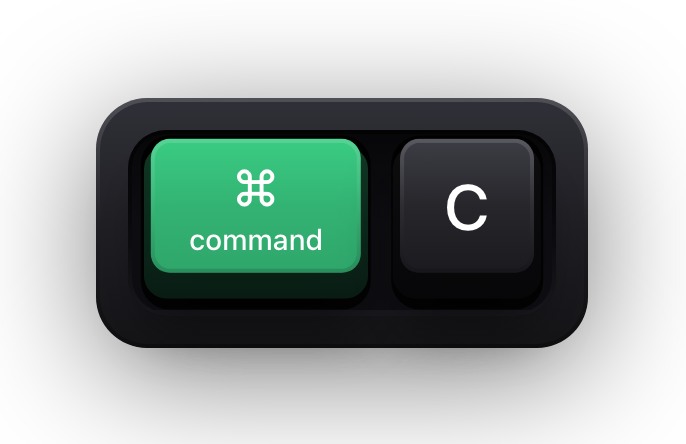
It watches the keyboard and draws what it sees. That is the entire category. The app renders a keycap, a label or a line of text on top of your other windows, holds it for a moment, and removes it — press ⌘C and a ⌘C keycap appears for as long as it takes to read, so anyone watching your screen has the same information you do about what you just pressed.
It does not capture video, edit anything, or send your keystrokes anywhere. Those are separate categories of software. A visualizer's only output is pixels on your own display, which is also why it works with any recorder or conferencing tool that captures a display: there is nothing to integrate.
The vocabulary varies — keystroke visualizer, key press display, keyboard overlay, keycast — and they all describe the same thing.
Eight things worth checking before you install one
Reading
How it behaves at typing speed
One key at a time is right for shortcut demos and wrong for typing. A visualizer with only one mode will be wrong half the time.
Filtering
What it refuses to draw
Being able to show only shortcuts, and to suppress standalone modifiers, is the difference between an overlay that clarifies and one that flickers.
Permissions
Which grant it asks for
Input Monitoring is the narrow, correct permission for reading key events. Accessibility is a much broader grant, and Screen Recording has no business being on the list at all.
Safety
What happens at a password field
macOS Secure Input stops key events reaching apps. A visualizer should visibly clear itself rather than leave a stale keycap on screen.
Displays
How it handles more than one screen
Following the pointer, pinning to one display, and remembering a separate position per display are three different needs, and presenting usually requires the second.
Appearance
Whether it can be made unobtrusive
Keycap style, size, opacity and theme decide whether the overlay reads as part of the production or as a thing bolted onto it.
Interaction
Whether it steals clicks
An overlay that is not click-through will eventually swallow a click at the worst possible moment. It should be transparent to the mouse.
Distribution
Where it comes from
An app holding Input Monitoring deserves scrutiny. Mac App Store distribution means sandboxing and review; a published source repository means the behaviour can be audited.
How Show KeyPress answers each one
| Criterion | Show KeyPress |
|---|---|
| Reading modes | Latest for one combination at a time, Horizontal History for a row of recent keycaps, Stacked History for continuous typing grouped into fragments |
| Filtering | All Keys or Shortcuts Only, with independent switches for standalone modifiers, function keys and special keys, plus timeout, history size and duplicate handling |
| Permissions | Input Monitoring only — no Accessibility, no Screen Recording |
| Password safety | The keyboard visualization is cleared for as long as macOS Secure Input is active, with a Keyboard hidden — Secure Input banner in its place that can be switched off |
| Displays | Follow Pointer, One Display or Selected Displays, with a saved placement per physical display and identifiers that survive reordering |
| Appearance | Mechanical, Flat and Minimal keycaps; framed, overlay or frameless; nine theme families plus one autosaved Custom theme, which is where the per-category colour, depth, corner and shadow overrides live |
| Interaction | The keyboard and pointer overlays are click-through; only the animated pet accepts clicks and drags |
| Distribution | A paid, sandboxed Mac App Store app for macOS 14 or later, with its source published for audit |
Beyond the keyboard
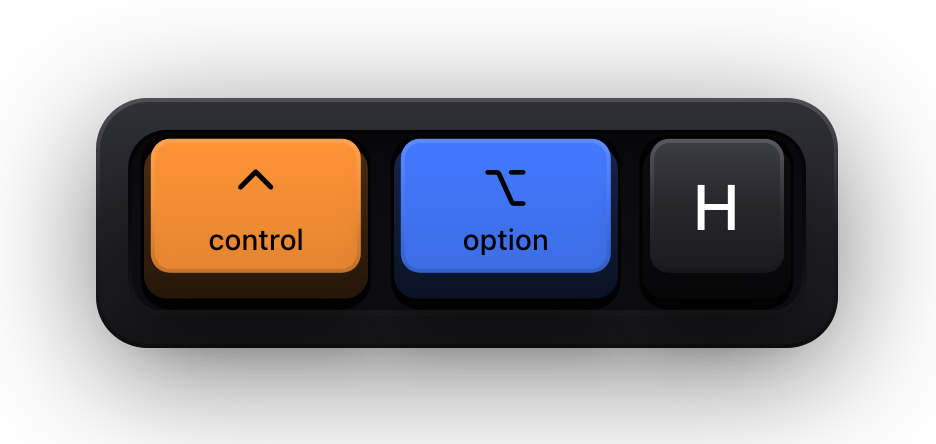
Two things sit alongside the keycaps in Show KeyPress, each on its own toggle — the halo on ⌃⌥H — because a screen recording often has more than one thing worth pointing at.
- A cursor halo follows the physical pointer across displays, with circle, squircle, square and diamond shapes and aura, solid, double, segmented or neon-depth line treatments.
- Primary, secondary and middle clicks each get distinct motion, and drags and scrolling get their own axis-aware feedback.
- The halo can be always visible, shown on activity, or limited to clicks and actions.
- An animated cat can idle, sleep, groom and react to your typing rate — the one element that is deliberately not click-through, so you can pick it up and move it.
- Reduce Motion is respected by the cursor halo, the pet and the status banner, which fall back to static poses; the keycap press animation has its own on and off switch for modifiers and regular keys.
When a visualizer is the wrong tool
It is worth being clear about the boundaries of the category, because a page like this one is easy to land on with the wrong problem.
- You need to record or edit video — a visualizer draws on screen and nothing else; the recorder is separate software.
- You are on Windows or Linux — Show KeyPress is macOS 14 or later, and nothing else.
- You want a log of what you typed — nothing is persisted, by design, and that is a different and far more invasive kind of software.
- You want your settings to follow you between Macs — nothing is synced anywhere.
- You want to add keys in post-production — this is a live overlay; it draws while you press, or not at all.
Sources and further reading
Product details and guidance were checked against these first-party pages on August 5, 2026. Re-check current listings before making an install or high-stakes decision.
- Show KeyPress on the Mac App Store
Apple
The listing, with the current price, system requirements and version history.
- Control access to input monitoring on Mac
Apple
Apple's guide to the Input Monitoring privacy permission and how to grant or revoke it.
- Secure Keyboard Entry
Apple
How macOS Secure Keyboard Entry stops other apps from receiving key events.
FAQ
Questions people ask
Is there a free keystroke visualizer for Mac?
Show KeyPress is not one — it is a paid Mac App Store app with no free tier or trial. Other apps in the category exist at various prices; check the Mac App Store listing for current pricing and requirements.
Does a keystroke visualizer log what I type?
It should not, and Show KeyPress does not. Key events are processed on device, and keystrokes, typed fragments and pointer coordinates are never persisted or transmitted. It is worth confirming this for any app you grant Input Monitoring.
Which permission should a keystroke visualizer ask for?
Input Monitoring. It is the narrow permission macOS provides for receiving key events. An app asking for Accessibility or Screen Recording to do this job is asking for more than the job requires.
Does Show KeyPress run on Windows?
No. It is a macOS-only app and requires macOS 14 Sonoma or later. There is no Windows or Linux version.