
App shortcuts
Figma keyboard shortcuts for Mac
Figma's defaults assume a US QWERTY keyboard. Every chord here comes from Figma's own help centre, with the Mac column rather than the Windows one.
Tools on the toolbar
Figma's tools are single letters, which is what makes the app fast and also what makes it feel unpredictable to a newcomer: press R while a text layer is being edited and you type an R. Every shortcut in this section assumes the canvas has focus and nothing is in text-edit mode.
Holding Space is the one to build a habit around. It temporarily switches to the Hand tool for as long as you hold it and hands the previous tool back the moment you let go, so panning never costs you the tool you were using.
| Shortcut | What it does |
|---|---|
| V | Move tool |
| H | Hand tool |
| Space (hold) | Temporarily switch to the Hand tool |
| K | Scale tool |
| F | Frame tool |
| R | Rectangle tool |
| O | Ellipse tool |
| L | Line tool |
| ⇧L | Arrow tool |
| P | Pen tool |
| ⇧P | Pencil tool |
| T | Text tool |
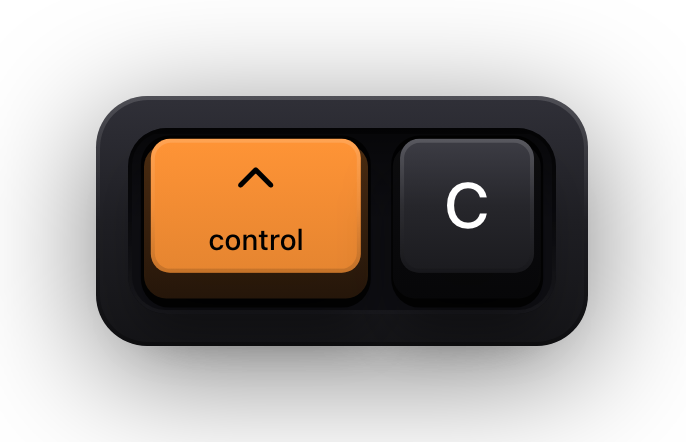
| ⌃C | Eyedropper, to sample a colour from anywhere on screen |
| ⌥Space | Keyboard box selection tool |
| ⇧D | Enter Dev Mode |
Selecting and editing layers
Deep selection is the thing that separates fluent Figma from frustrated Figma. Clicking selects the outermost frame; holding ⌘ while you click reaches straight through to the layer under the pointer, however deeply it is nested, and holding ⌘ while you drag a marquee does the same for a group of them.
⌥⌘A is the quiet workhorse of a design system change: it selects every layer matching the one you have, so a padding value or a colour can be corrected across a page in one edit rather than forty.
| Shortcut | What it does |
|---|---|
| ⌘A | Select all layers on the page |
| ⌘ + click | Deep select the layer under the pointer, however deeply nested |
| ⌥⌘A | Select matching layers |
| ⇧⌘A | Select the inverse of the current selection |
| \ | Select the parent of the current selection |
| ⌘D | Duplicate the selection |
| ⌥ + drag | Duplicate a layer by dragging a copy off it |
| ⌘C | Copy |
| ⌘V | Paste |
| ⌘X | Cut |
| ⇧⌘R | Paste to replace the selected layer |
| ⌥⌘C | Copy properties |
| ⌥⌘V | Paste properties |
| ⇧⌘L | Lock or unlock the selection |
| ⇧⌘H | Show or hide the selection |
Grouping, framing and vectors
Groups and frames look similar on the canvas and behave nothing alike, so it is worth having both chords in your fingers. ⌘G groups; ⌥⌘G wraps the same selection in a frame, which is what you want whenever the result needs constraints, clipping or auto layout later.
The four boolean operations all live on ⌥⇧ plus a mnemonic letter — union, subtract, intersect, exclude — and they stay editable afterwards. ⌥⇧F flattens the result into a single vector path when you are certain, and ⌥⌘O turns a stroke into an outlined shape.
| Shortcut | What it does |
|---|---|
| ⌘G | Group the selection |
| ⇧⌘G | Ungroup |
| ⌥⌘G | Wrap the selection in a frame |
| ⌘] | Bring the selection forward one step |
| ⌘[ | Send the selection backward one step |
| ⌥⇧U | Union the selected shapes |
| ⌥⇧S | Subtract the selected shapes |
| ⌥⇧I | Intersect the selected shapes |
| ⌥⇧E | Exclude the selected shapes |
| ⌥⇧F | Flatten the selection into one vector path |
| ⌥⌘O | Outline the stroke as a vector layer |
| ⌃⌘M | Use the selection as a mask, or remove the mask |
| ⌥R | Reveal the rotation origin target |
| ⌥ (hold) | Measure the distance to the layer you hover |
Auto layout
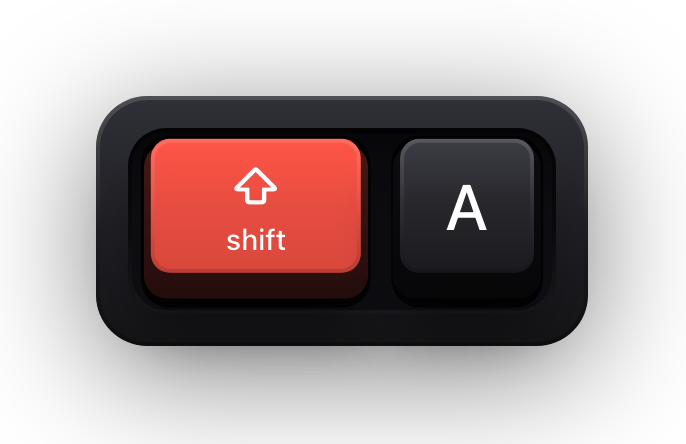
Auto layout has the densest shortcut set in Figma because so much of it is modifier-plus-drag rather than a chord. ⇧A adds it to a selection, ⌥⇧A strips it off, and ⌃⇧A asks Figma to suggest a structure for a selection that was never built as a stack.
The alignment keys only apply while an auto layout frame is selected, and they are positional rather than mnemonic: the arrow keys set the alignment within the frame, while W, A, S and D push it to an edge. X toggles the space-between behaviour, which is the fastest way to build a nav bar.
| Shortcut | What it does |
|---|---|
| ⇧A | Add auto layout to the selection |
| ⌃⇧A | Suggest auto layout for the selection |
| ⌥⇧A | Remove auto layout |
| ↓ / → / ← / ↑ | Set the alignment inside the auto layout frame |
| W / A / S / D | Set the alignment to an edge |
| B | Toggle baseline alignment |
| X | Toggle the gap-between behaviour |
| ⌥ (hold) | Set padding on opposite sides while dragging |
| ⌥⇧ (hold) | Set padding on all sides while dragging |
| ⇧ (hold) | Set padding or spacing with the big nudge increment |
| ⌘ + click a padding field | Edit padding on all sides at once |
| ⌃ (hold) while dragging in | Drop an object into an auto layout frame without joining the stack |
Components, assets and commands
⌘/ opens the quick actions bar, and it is the honest answer to this entire page: type the name of the thing you want and Figma will run it and show you its shortcut on the way past. ⌘K opens the actions menu the same way from anywhere in the app.
⌃⌥⌘K is the one that saves the most time on a mature file. From any instance it jumps to the main component, which is the difference between fixing a button once and hunting the page it was defined on.
| Shortcut | What it does |
|---|---|
| ⌥⌘K | Create a component from the selection |
| ⌥⌘B | Detach an instance from its component |
| ⌃⌥⌘K | Go to the main component of the selected instance |
| ⌥ + drag | Swap or insert an instance while dragging |
| ⌥1 | Open the File tab |
| ⌥2 | Open the Assets tab |
| ⌥3 | Open the libraries modal |
| ⇧⌘S | Convert the selected layer to a slot |
| ⌘/ | Open the quick actions bar |
| ⌘K | Open the actions menu |
| ⌥⌘P | Run the last plugin again |
| ⌥⌘S | Open the file's version history |
| ⇧⌘E | Export the selection |
| ⌘L | Copy a link to the selection |
Type
Figma's type shortcuts are almost all increment-and-decrement pairs built on < and >, which means one hand can walk a font size, a weight, a letter-spacing value and a line height without leaving the canvas. They apply to the selected text layer, or to the selected characters inside one.
| Shortcut | What it does |
|---|---|
| T | Select the Text tool |
| ⇧⌘< / ⇧⌘> | Decrease or increase the font size |
| ⌥⌘< / ⌥⌘> | Decrease or increase the font weight |
| ⌘< / ⌘> | Decrease or increase the letter spacing |
| ⇧⌥< / ⇧⌥> | Decrease or increase the line height |
| ⌘[ / ⌘] | Decrease or increase the list indentation |
| ⌥8 | Create a bulleted list |
| ⇧⌘U | Open the link input box above the selected text |
Zoom, view and the interface
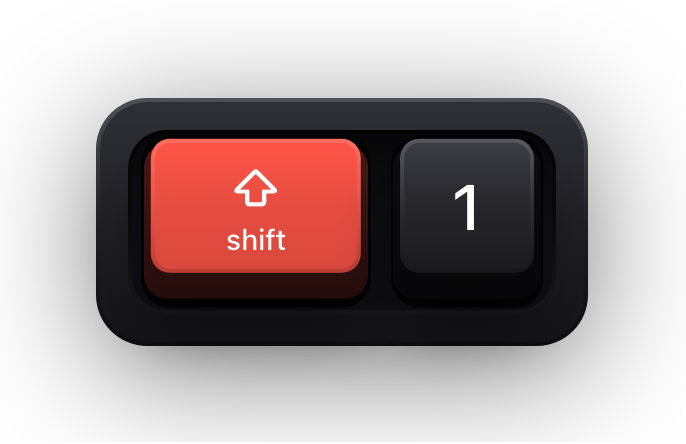
The zoom chords do not use ⌘ at all, which surprises people arriving from every other Mac app: it is ⇧+ and ⇧-, with ⇧1 to fit everything on the page and ⇧2 to fill the viewport with whatever is selected. ⌘+ and ⌘- work as well, so either habit is fine.
⌘\ hides the whole interface for a screenshot or a presentation, and ⇧⌘\ collapses the panels while keeping the canvas where it is. Both are toggles, so the same chord brings the interface back.
| Shortcut | What it does |
|---|---|
| ⇧+ | Zoom in |
| ⇧- | Zoom out |
| ⇧1 | Zoom to fit everything on the page |
| ⇧2 | Zoom to the current selection |
| ⌘\ | Show or hide the whole interface |
| ⇧⌘\ | Minimise the navigation bar and both sidebars |
| ⌥⌘\ | Show or hide other people's cursors |
| ⇧⌘' | Toggle snap to pixel grid |
| ⌃P | Toggle pixel preview |
| ⇧⌘O | Show outlines |
| ⌥/ | Remove the fill from the selection |
| ⇧/ | Remove the stroke from the selection |
| ⌘F | Open find and replace in the file |
| ⌘⌥Return | Present the prototype |
| ⌃⇧? | Open Figma's own keyboard shortcuts panel |
Show Figma shortcuts on screen while you present
Design review is the worst case for invisible shortcuts. You press ⌥⌘K and a component exists; you press ⌘/ and a menu appears and disappears again before anyone reads it. Whoever is watching the call sees a file changing shape and has no way to learn how, which is the entire reason design walkthroughs get recorded and then rewatched at half speed.
Show KeyPress is a paid macOS menu bar app, for macOS 14 Sonoma or later, that draws each key you press as a keycap on top of everything else on screen. There is no Figma plugin, no integration and no video recording — it is an overlay window, so a whole-screen share or a display capture carries it automatically while a single-window share can leave it out.
- Latest mode shows one combination at a time, which matches the pace of spoken instruction in a walkthrough.
- Shortcuts Only draws combinations and stays quiet while you rename layers or type into a text layer.
- Nine theme families plus one autosaved custom theme let the keycaps sit against a Figma file without shouting.
- Eight edge presets and a full-screen drag editor keep the overlay clear of Figma's toolbar and right sidebar.
- ⌃⌥M switches content mode mid-demo, so you can start showing plain typing without opening Settings.
Sources and further reading
Product details and guidance were checked against these first-party pages on August 5, 2026. Re-check current listings before making an install or high-stakes decision.
- Select keyboard layout
Figma
Figma's per-layout shortcut tables, including the default US QWERTY mappings with a Mac column.
- Access design tools from the toolbar
Figma
What each tool in the Figma Design toolbar does, and the key that selects it.
- Adjust your zoom and view options
Figma
Figma's zoom levels, pixel preview, guides and cursor toggles, each with its Mac chord.
- Guide to auto layout
Figma
Auto layout's own guide, whose tables list the add, remove, alignment and padding shortcuts.
- Create and insert component instances
Figma
How instances are created, inserted and traced back to their main component, with the shortcuts.
FAQ
Questions people ask
Where does Figma list its own keyboard shortcuts?
Inside the app. Press ⌃⇧? to open the keyboard shortcuts panel, or open the main menu and choose Preferences, then Keyboard layout. The panel highlights shortcuts as you use them, which makes it a reasonable way to audit what you already know.
Do Figma shortcuts change on a non-US keyboard?
Yes. Figma's defaults assume a US QWERTY layout, and several chords use keys that other layouts place elsewhere or not at all. Figma ships remapped sets for fourteen other layouts, selected under Preferences, Keyboard layout, and choosing yours changes the chords the app expects.
Can I customise a Figma keyboard shortcut?
Not individually. Figma's shortcuts are fixed apart from choosing a keyboard layout, so the practical substitute is the quick actions bar at ⌘/, which runs any command by name and shows its shortcut beside it.
Why does pressing R type a letter instead of selecting the Rectangle tool?
Because a text layer has focus. Single-letter tool shortcuts only apply when the canvas has focus and nothing is in text-edit mode. Press Escape first, then the tool key.
Does Show KeyPress work inside the Figma desktop app and the browser?
Both, because it does not know or care which app you are in. It draws the keys you press on top of whatever is on screen, so it behaves identically in the Figma desktop app, Figma in a browser tab, or anything else.