
Permissions
Secure Input on macOS: why a key overlay goes blank
The overlay is not broken. macOS is refusing to tell it what you typed, which is the point.
What Secure Input is
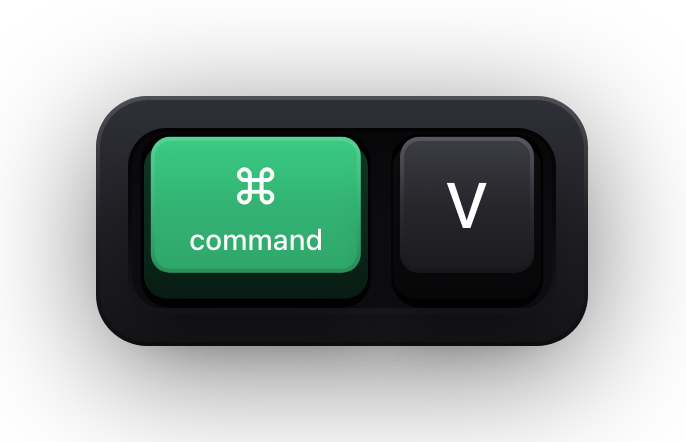
Secure Keyboard Entry is a request an app makes to macOS: for as long as this is on, do not let anyone else see what is being typed. Press ⌘V to paste a password into a login field and the paste lands; every other app on the Mac is simply not told a key moved. The system honours it at a level far below any individual app. Other processes are not filtered, or trusted, or asked to behave — they are simply not handed the events.
That is what makes it worth understanding. It is not a courtesy that a well-behaved app implements and a badly-behaved one skips. It is the operating system withholding the data, and it applies to every app on the Mac equally.
When macOS turns it on
Common
Password fields
Secure text fields in apps and on the web — logins, keychain prompts, anywhere the field hides what you type behind dots.
System
The login window
Signing in and unlocking are handled outside your session entirely, so nothing running in it sees those keystrokes.
Opt-in
Terminal, on request
Terminal offers Secure Keyboard Entry as a menu item you can leave switched on for a whole session, not just while a password prompt is up.
Varies
Any app that asks
Any app can request it while its own input has focus, and hold it for as long as that window is frontmost — a password manager or a remote-access client is a typical case.
Why your overlay stops working
If you searched for why a keystroke overlay suddenly stopped drawing keys, this is almost always the answer. You clicked into a password field, macOS switched Secure Input on, and from that moment the overlay was receiving no key events to draw. Click into a normal text field and it starts again on its own.
In Show KeyPress the overlay does not go quiet without saying so. No keycaps are drawn, and in their place a short banner reading “Keyboard hidden — Secure Input” appears for a few seconds, so the pause is labelled rather than mysterious. It is on by default; if you would rather see nothing at all, the Show Status HUD switch turns it off — Settings, General, the Status HUD card.
There is nothing to fix. Granting more permissions will not change it — Input Monitoring is a permission to be handed events that macOS is currently not handing to anyone. A tool that could draw your password despite Secure Input would be defeating the protection, not implementing a feature.
- The overlay is not crashed, disabled, or missing a permission.
- It resumes by itself the moment Secure Input goes off — no restart, no toggling.
- The effect is system-wide: every other app is in exactly the same position.
What Show KeyPress does about it
Show KeyPress watches the Secure Input state rather than waiting to be surprised by it. When it turns on, keycaps already on screen are cleared instead of being left frozen mid-word, and a separate status HUD takes their place, reading “Keyboard hidden — Secure Input” — so you can tell an intentional pause from a fault while you are recording. The banner shows for the usual HUD duration and then goes; the Show Status HUD switch in Settings, in the Status HUD card under General, turns it off if you want the frame completely clear.
This behaviour needs no Accessibility permission and no Screen Recording permission. It is one system call reporting a state, checked continuously, and it is the reason your passwords cannot end up on a keycap in your video.
What this means for a recording
For screencasts and live demos, Secure Input is quietly doing you a favour. The most damaging thing a keystroke overlay could do is render your password in a frame that ends up on the internet, and the system removes that possibility rather than leaving it to the app's own care.
The practical habit is still worth keeping: your recorder captures pixels, so anything visible on screen — an autofilled field, a token in a terminal, a notification — is in the video regardless of what the overlay does or does not draw.
Sources and further reading
Product details and guidance were checked against these first-party pages on August 5, 2026. Re-check current listings before making an install or high-stakes decision.
- Secure Keyboard Entry
Apple
How macOS Secure Keyboard Entry stops other apps from receiving key events.
- Control access to input monitoring on Mac
Apple
Apple's guide to the Input Monitoring privacy permission and how to grant or revoke it.
FAQ
Questions people ask
Will Show KeyPress display my password?
No. While macOS Secure Input is active the app is not delivered the key events at all, so no keycaps are drawn — what you see instead is a short banner reading “Keyboard hidden — Secure Input”, which the Show Status HUD switch in Settings turns off if you do not want it. Password fields are the standard case for Secure Input.
Can I disable Secure Input so the overlay keeps working?
Not from the overlay. It is switched on by whichever app you are typing into. Terminal exposes Secure Keyboard Entry as a menu item you can turn off yourself; a password field will keep turning it on, by design.
How can I tell whether Secure Input is what stopped my overlay?
Click into an ordinary text field, such as a note or a search box, and type. If keycaps appear again, Secure Input was active in the previous field. Show KeyPress also says so outright: unless you have turned the Status HUD off, a banner reading “Keyboard hidden — Secure Input” appears the moment the mode switches on.
Does Secure Input affect the pointer overlay too?
It applies to keyboard input, which is what it protects. The keyboard visualization is what clears while it is active.