
Keyboard
Show only keyboard shortcuts, not every keystroke
Your audience needs to see ⇧⌘P. They do not need to watch you type fourteen characters into a search box.
All Keys or Shortcuts Only
The content mode sits in Settings under Keyboard, one row below the display mode, and it has exactly two positions. All Keys mirrors everything you press. Shortcuts Only draws a key only when a modifier was held with it.
That is the whole rule, and it is worth stating precisely because the edge cases are where people get surprised: Command, Option, Control, Shift and fn all count as modifiers. Shift counts, so a capital letter typed with Shift is still a combination as far as the filter is concerned. If your demo involves a lot of capitalised typing, expect to see it.
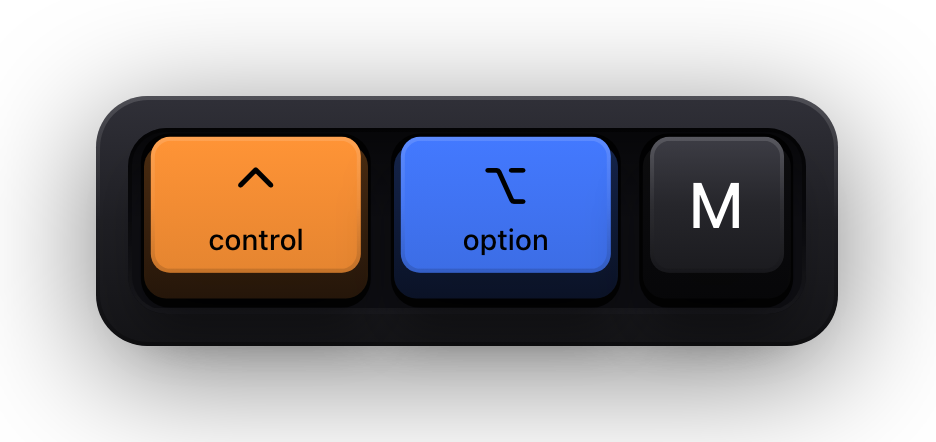
The mode has a global shortcut of its own — ⌃⌥M by default — and flipping it shows a brief banner reading All Keys or Shortcuts Only, so you can go quiet for a stretch of typing and come back for the next command without opening Settings.
The three filters that decide the rest
Filter
Standalone Modifiers
Whether a modifier appears when no regular key is pressed with it. Off, a bare tap of ⌘ draws nothing — but the press is still tracked, so the moment it becomes part of a combination the modifier appears alongside the key.
Filter
Function Keys
Covers F1 through F20 as a group. Off, they are not drawn at all, in either content mode. Useful when your function row is bound to brightness and volume and nobody needs to see it.
Filter
Special Keys
Covers Return, Enter, Tab, Space, Delete, Forward Delete, Escape, the four arrows, Home, End, Page Up and Page Down. This is the switch that surprises people in Shortcuts Only — see below.
Why Return and the arrows still appear
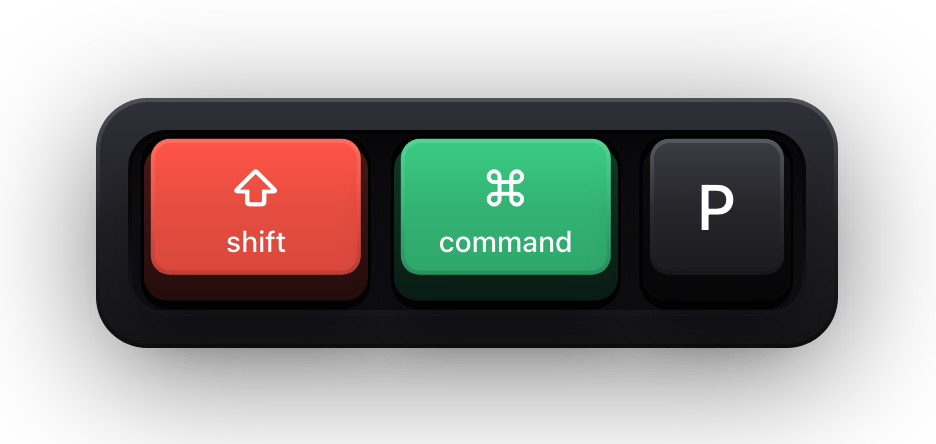
In Shortcuts Only, special keys are always drawn, with or without a modifier. That is deliberate: pressing Return, Escape or an arrow key is a command in its own right, and a viewer following along needs to see it. A tutorial that shows ⇧⌘P and then silently swallows the Return that confirmed it is a tutorial with a hole in it.
If you would rather they stayed hidden too, that is what the Special Keys switch is for. Turn it off and Shortcuts Only draws nothing but genuine modifier combinations.
| What you press | All Keys | Shortcuts Only |
|---|---|---|
| A letter on its own | Drawn | Not drawn |
| Shift and a letter | Drawn | Drawn — Shift counts as a modifier |
| ⌘ with a letter | Drawn | Drawn |
| A bare tap of ⌘, ⌥, ⌃ or ⇧ | Drawn, unless Standalone Modifiers is off | Drawn, unless Standalone Modifiers is off |
| Return, Tab, Escape or an arrow | Drawn, unless Special Keys is off | Drawn, unless Special Keys is off |
| F1 to F20 | Drawn, unless Function Keys is off | Drawn, unless Function Keys is off |
Setting it up for a clean demo
- 01
Switch the content mode to Shortcuts Only
Settings, Keyboard, the Content row. The live preview above the settings updates as you change it, so you can confirm the effect without leaving the window.
- 02
Decide about standalone modifiers
Leave them on if you want the audience to see you reach for ⌘ before the key lands. Turn them off if a habit of resting a thumb on Command makes the overlay blink all through the demo.
- 03
Turn off Function Keys if your function row is hardware
Brightness, volume and media keys are function keys. On a Mac laptop they fire constantly and carry no meaning for the viewer.
- 04
Decide whether Return and the arrows are part of the lesson
In a keyboard-navigation demo they are the whole lesson. In a shortcut reference they are noise. The Special Keys switch is the one that decides.
- 05
Record the ⌃⌥M shortcut in muscle memory
It flips between All Keys and Shortcuts Only globally, with a short confirmation banner. It is faster than any settings pane once you are recording.
Two keys that behave differently
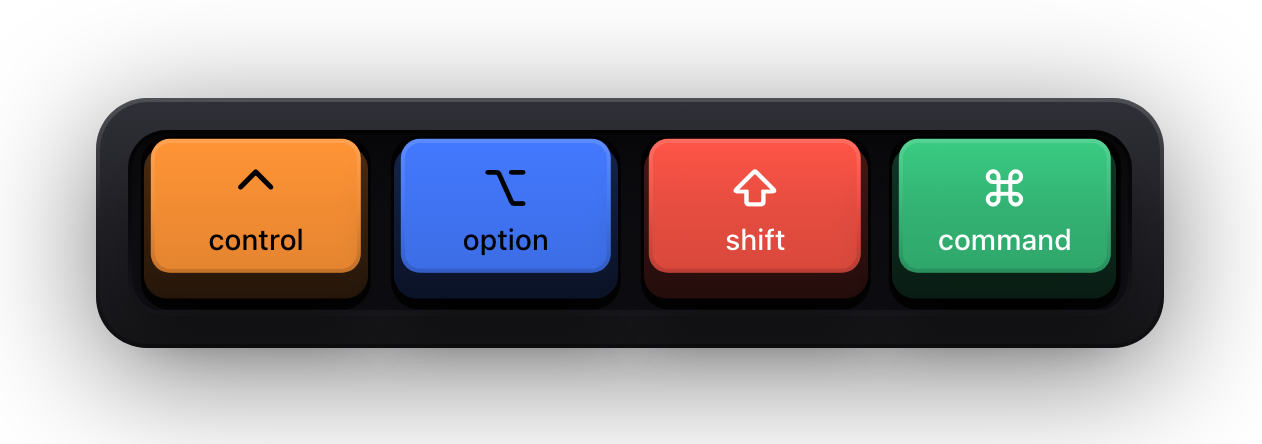
- fn counts as a modifier and is drawn with the label fn. It is what makes a laptop's Home, End, Page Up and Page Down combinations legible.
- Caps Lock is never drawn. macOS does not report reliable press and release events for it, so rather than guess, the overlay leaves it out — even though Caps Lock exists as a colour category in the theme editor.
- Letters and digits are labelled from your active keyboard layout, so a Russian or German layout shows what you actually typed.
- Control combinations are the exception: macOS reports a control character rather than a letter, so the overlay falls back to the US label for that physical key.
Sources and further reading
Product details and guidance were checked against these first-party pages on August 5, 2026. Re-check current listings before making an install or high-stakes decision.
- Secure Keyboard Entry
Apple
How macOS Secure Keyboard Entry stops other apps from receiving key events.
- Show KeyPress on the Mac App Store
Apple
The listing, with the current price, system requirements and version history.
FAQ
Questions people ask
How do I stop the overlay showing everything I type?
Switch the content mode to Shortcuts Only, in Settings under Keyboard, or press ⌃⌥M. Unmodified typing is then ignored and only combinations are drawn.
Why does the overlay still show letters in Shortcuts Only?
Because a modifier was held. Shift counts, so capitals appear. Special keys such as Return and the arrows also appear by design — turn off the Special Keys filter if you want them gone.
Can I hide a bare Command tap?
Yes. Turn off Standalone Modifiers. The modifier is still tracked internally, so it appears as soon as you press a real key with it — it simply stops flashing on its own.
Does Shortcuts Only hide passwords?
That is not its job, and you should not rely on it for that. macOS Secure Input is what protects password fields: while it is active the keyboard visualization is cleared and a banner reading Keyboard hidden — Secure Input appears in its place.