
Meetings
Show your keystrokes in a Zoom call
Zoom sends the room a picture of your screen. Your hands are not in it.
The gap a call opens up
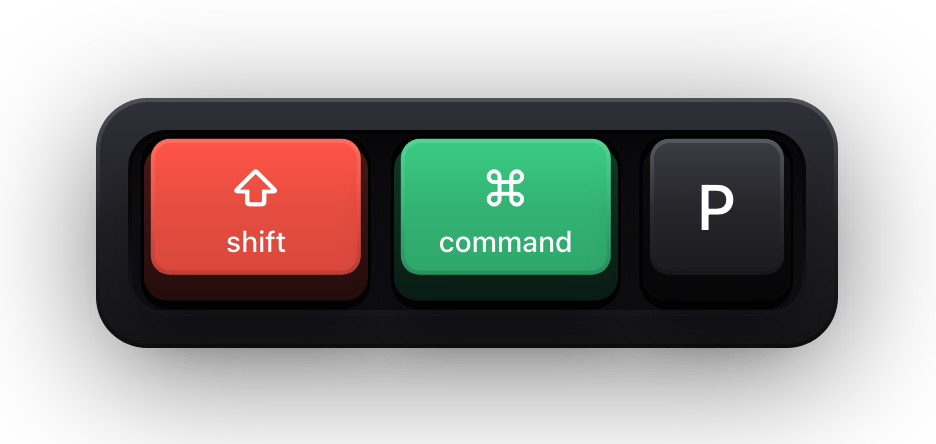
Nobody in a Zoom call is looking at your keyboard. They are looking at a video stream of a rectangle you chose, at whatever resolution the connection allows, often in a tile next to eleven other tiles. When a panel opens because you pressed something, the only evidence they get is the panel.
You compensate by narrating: "and then I hit Command-Shift-P". That works right up until you are moving fast, or someone asks a question mid-sentence, or you press something out of habit that you did not think to mention. Then the call quietly desynchronises — half the room is still looking for the menu item you skipped.
An overlay closes the gap without you having to do anything. The keycaps appear at the same moment the panel does, in the same picture, so cause and effect arrive together over a stream that is already lagging your voice by a fraction of a second.
Fifteen minutes before the meeting
- 01
Grant Input Monitoring while nobody is watching
The permission prompt sends you into System Settings under Privacy & Security, and you do not want to be doing that with the room already on the line. It is the only privacy permission Show KeyPress requests — not Accessibility, not Screen Recording.
- 02
Switch to Shortcuts Only
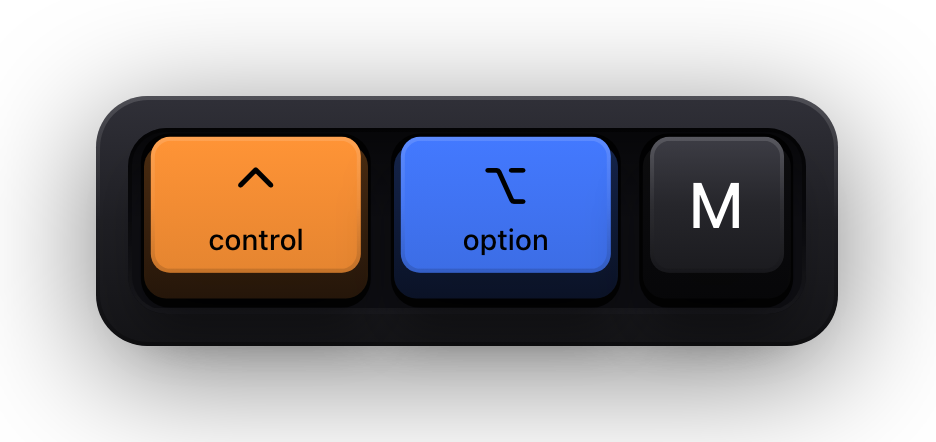
Nobody needs to watch you type into the chat box or a search field. Shortcuts Only draws combinations and leaves plain typing alone, which keeps a shared screen calm for an hour-long call. Use ⌃⌥M to flip between the two content modes without opening Settings.
- 03
Pin it to the display you will share
One Display holds the overlay on a fixed screen. If you present from the external monitor and keep the participant list and your notes on the laptop, this is what stops the keycaps from following your cursor into the wrong picture.
- 04
Clear the meeting chrome
Zoom parks a floating meeting toolbar and a green sharing border on the screen you are sharing, usually top-centre and around the edges. One of the eight edge presets near the bottom clears both; ⌃⌥P opens the full-screen drag editor with snapping if you need somewhere exact.
- 05
Check it in your own participant view
Once sharing has started, look at what Zoom shows you of the shared stream and press one real shortcut. Confirming the keycaps are actually in the picture takes four seconds and is the only test that matters.
Reading Zoom's own shortcuts on the overlay
There is a nice side effect once the overlay is running: the shortcuts you use to drive the meeting itself become visible too. Mute, start and stop share, the reactions — the room sees the chord rather than watching your toolbar flicker, which is genuinely useful when you are teaching colleagues to run their own calls.
Zoom's hot keys are a subject of their own, and they have their own page here rather than a paraphrase on this one.
Reference
Zoom keyboard shortcuts on macOS
The mute, share, recording and reaction chords, taken from Zoom's own documentation rather than a Windows list with the keys renamed.
Read moreAdjacent
Shortcuts on any screen share
The same setup applied to Google Meet, Microsoft Teams and anything else that shares a display — because none of it depends on the conferencing app.
Read moreThe password moment on a shared call
Sooner or later you will log into something while forty people watch. macOS handles this below the level of any app: while Secure Input is active — password fields, unlock dialogs, terminals with Secure Keyboard Entry — applications stop receiving key events at all.
Show KeyPress clears the keyboard visualization for that whole period, so no keycap is drawn and nothing reaches the stream. What the call does see in its place is a short banner reading Keyboard hidden — Secure Input, which tells the room the overlay stood down rather than froze. If you would rather it showed nothing at all, turn off Show Status HUD in Settings under General before the call.
Sources and further reading
Product details and guidance were checked against these first-party pages on August 5, 2026. Re-check current listings before making an install or high-stakes decision.
- Sharing your screen in a Zoom meeting
Zoom
Zoom's screen share options, including sharing a whole desktop versus one window.
- Using hot keys and keyboard shortcuts
Zoom
Zoom's own list of macOS hot keys for meetings, chat, sharing and reactions.
- Secure Keyboard Entry
Apple
How macOS Secure Keyboard Entry stops other apps from receiving key events.
FAQ
Questions people ask
Do I need a Zoom plugin or app integration?
No. There is nothing to install on the Zoom side and no integration to configure. Show KeyPress is an ordinary on-screen window, so any share that captures the display captures it too.
Participants say they cannot see the keys — what went wrong?
Almost always a single-window share. Re-share as a whole screen or desktop. The second most common cause is the overlay sitting on a display you did not share; pin it with One Display.
Will the overlay show up in a Zoom cloud or local recording?
A Zoom recording captures the shared stream, so if participants can see the keycaps live, the recording contains them as well. Show KeyPress does no recording of its own.
Can I turn the keys off without leaving the share?
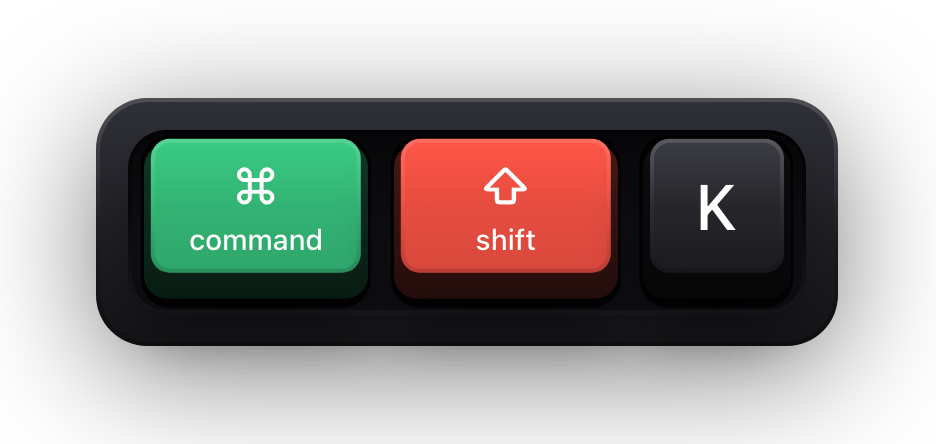
Yes. ⌘⇧K is a global toggle for the whole visualization and a short status banner confirms the new state. It is the master switch, so it takes the cursor halo and the pet with it.