
Customer support
Screen sharing with customers: show the keys you press
The call is not over when the problem is fixed. It is over when they can fix it again without you.
The call ends and they are on their own
Support screen shares have a shape that no other kind of demo has. The customer is not being taught a skill and is not being sold anything — they have a broken thing, and after the call they will have to do the same sequence on their own machine, from memory, possibly two weeks later when it breaks again.
That makes the fast fix a trap. You know where the setting is, so you get there in three keystrokes; the customer watches a dialog appear and disappear and writes down "Sam did something with the preferences". The ticket closes, and the same ticket opens again next month.
An overlay is the cheapest possible fix for this, because it costs the customer nothing and requires no cooperation from them. The chord is simply in the picture they are already watching, next to the thing it did, and it is in the recording if your helpdesk keeps one.
Whose keyboard is on screen
This is the distinction that matters most in a support context, and it is worth being blunt about it. Show KeyPress draws the input received by the Mac it is installed on. Nothing else.
- When you share your screen to demonstrate the fix, the customer sees your keycaps — that is the useful case, and the one this page is about.
- When the customer shares their screen so you can watch them, you see their screen and no keys, because the app is on your Mac and not theirs.
- If you take remote control of the customer's machine, what gets drawn depends on how that remote-control tool injects events on their end — do not promise a customer it will work without testing your specific tool first.
- It is a macOS 14 or later app. A customer on Windows or Linux cannot run it at all, whatever your remote support tool supports.
A support-desk setup that survives all day
- 01
Grant Input Monitoring once, at the start of the shift
It is the only privacy permission the app requests — not Accessibility, not Screen Recording. Granting it opens System Settings, which is not something to do with a frustrated customer on the line.
- 02
Share the screen, not the window
Support tools default to convenient, narrow shares. An overlay drawn above your windows is not part of any one of them, so a single-window share can carry the app and leave the keys out. Share a whole screen or a full display and the keycaps travel with it.
- 03
Shortcuts Only for the fix, All Keys for the terminal
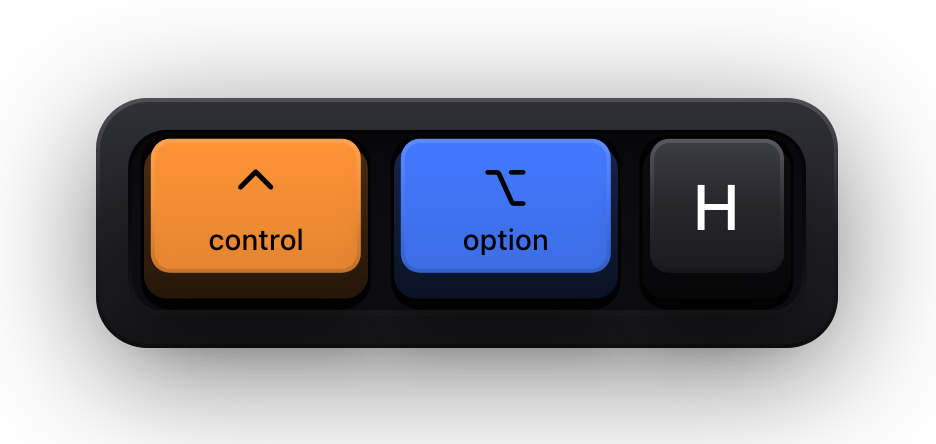
Most of a support call is navigation, where the combinations are the whole story. But if the fix involves typing an exact command or path, ⌃⌥M switches to All Keys so the customer can read back the characters rather than guess at them.
- 04
Slow the timeout down
This audience is not a class of engineers; they are one person who is already annoyed and is reading a chord for the first time. Set the timeout longer than you would for a tutorial, so the keycap is still there while you say what it does.
- 05
Put it somewhere your support tool is not
Remote support software adds its own toolbars, session banners and border chrome to the shared screen. Test one of the eight edge presets against your actual tool with a colleague before you use it with a customer.
- 06
Turn on the cursor halo if they keep losing you
Over a compressed share a moving cursor is genuinely hard to follow. ⌃⌥H toggles the halo on its own, so you can add it for a customer who keeps asking where you are and drop it for one who does not.
Passwords, licence keys and other things on a support call
Support work involves typing things that must not be readable to the person on the call: an admin password, an internal tool's credentials, a licence key that is not the customer's. macOS handles the worst of this itself — while Secure Input is active, applications stop receiving key events entirely, so a password field or a terminal with Secure Keyboard Entry produces no keycaps at all.
What appears instead is a short banner reading Keyboard hidden — Secure Input, so the customer sees the overlay standing down rather than a stale keycap sitting there. If you would rather your shared screen showed nothing at that moment, turn off Show Status HUD in Settings under General.
Everything else stays local by construction. Key events are processed on device, keystrokes and typed fragments are never persisted, and the app has no network entitlement at all — so nothing about a customer's session reaches anyone, including us.
What this does not solve
- It will not diagnose anything — it draws keys, and that is all it does.
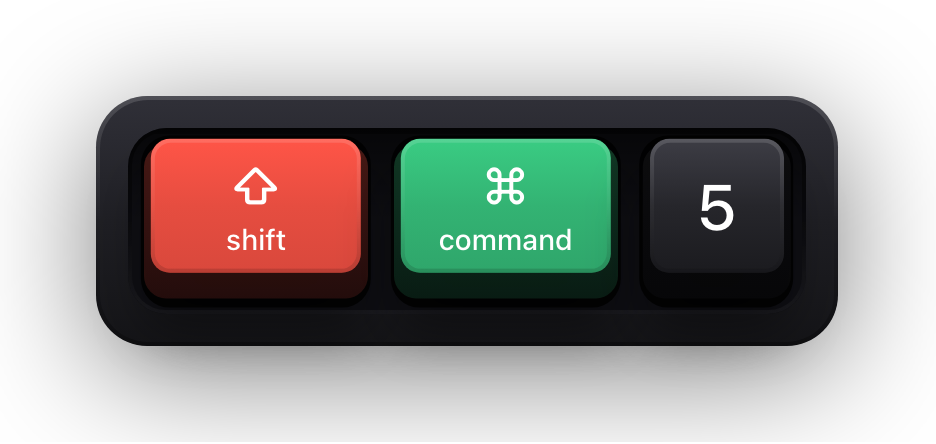
- It does not record the session; if your helpdesk keeps recordings, that is your recorder's job — ⇧⌘5 or whatever your desk uses — and it will include the keycaps because they are on screen.
- It sends nothing to your ticketing system, and there is no export of what was pressed, by design.
- It cannot show what the customer pressed on their machine, which is usually the thing you most want to know.
- There is no plugin for Zoom, Teams, or any remote support tool — the overlay is simply on screen, which is why it works with all of them that share a display.
Sources and further reading
Product details and guidance were checked against these first-party pages on August 5, 2026. Re-check current listings before making an install or high-stakes decision.
- Secure Keyboard Entry
Apple
How macOS Secure Keyboard Entry stops other apps from receiving key events.
- Control access to input monitoring on Mac
Apple
Apple's guide to the Input Monitoring privacy permission and how to grant or revoke it.
- Sharing your screen in a Zoom meeting
Zoom
Zoom's screen share options, including sharing a whole desktop versus one window.
FAQ
Questions people ask
Can I see what the customer is typing?
No. The app draws input received by the Mac it runs on. Watching a customer's shared screen shows you their screen, not their keys, and there is no way to make it do otherwise.
The customer says they cannot see the keycaps — why?
You are most likely sharing a single application window. The overlay is a separate window drawn above it, so it is not part of that window's content. Re-share the whole screen.
Is it safe to leave running through a full shift of calls?
It is designed for it. Nothing is written to disk and nothing is sent anywhere, and macOS Secure Input clears the visualization whenever a password field or a secure terminal is focused. For the moments macOS does not cover, ⌘⇧K is a one-keystroke off switch.
Do our customers need to install anything?
No. They are watching a video stream of your screen. There is nothing on their side and no plugin for your support or conferencing tool.