
App shortcuts
Microsoft PowerPoint keyboard shortcuts for Mac
PowerPoint splits its shortcuts across two references — one for building a deck, one for presenting it. Both macOS lists are below, unmixed.
Presentations, slides and zoom
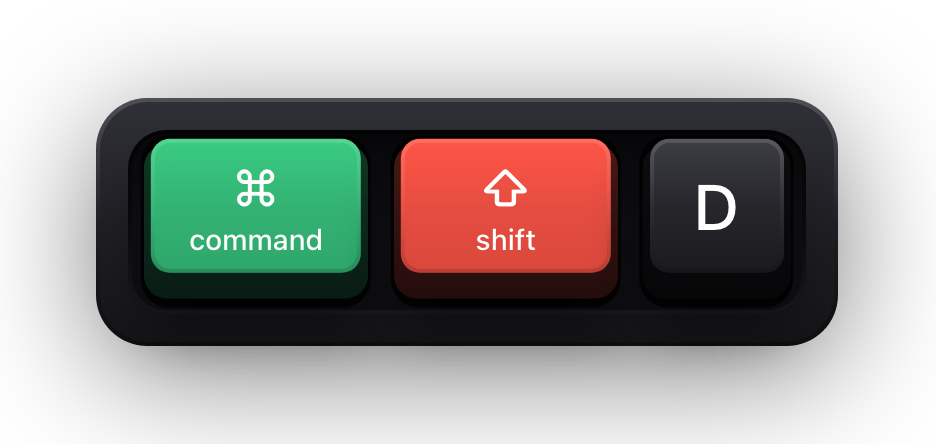
These operate on the file and on whole slides rather than on anything inside them. Two of them differ from the rest of Office on a Mac and catch people out: closing a presentation is ⌘W here rather than the ⌘F4 that Word uses, and ⌘Q closes PowerPoint outright.
⌘⇧D is the entry worth building a habit around. Duplicating a slide and then editing the copy is how most decks are actually assembled, and doing it from the keyboard removes a right-click and a menu from every single repetition.
| Shortcut | What it does |
|---|---|
| ⌘N | Create a new presentation |
| ⌘⇧P | Create a new presentation from a template in the PowerPoint template gallery |
| ⌘O | Open a presentation |
| ⌘⇧O | Open a recent file |
| ⌘S | Save the presentation |
| ⌘⇧S | Save with a different name, location or file format |
| ⌘P | Print a presentation |
| ⌘W | Close a presentation |
| ⌘Q | Close PowerPoint |
| ⌘~ | Move through multiple open presentations |
| ⌘⇧N | Insert a new slide |
| ⌘⇧D | Make a copy of the selected slide |
| ⌘⇧2 | Format the slide background |
| Page Down | Go to the next slide |
| Page Up | Go to the previous slide |
| ⌘+ / ⌘- | Zoom in or out |
| ⌘⌥O | Zoom to fit |
| Esc | Cancel a command, such as Save As |
Reordering slides and sections
Four chords, and they replace the single most tedious mouse operation in the application: dragging a slide up a thumbnail pane that scrolls while you drag. They act on sections as well as slides, which is what makes them worth knowing for a deck long enough to have sections at all.
| Shortcut | What it does |
|---|---|
| ⌘↑ | Move the selected slide or section up in order |
| ⌘↓ | Move the selected slide or section down in order |
| ⌘⇧↑ | Move the selected slide or section to the beginning |
| ⌘⇧↓ | Move the selected slide or section to the end |
Views, masters and panes
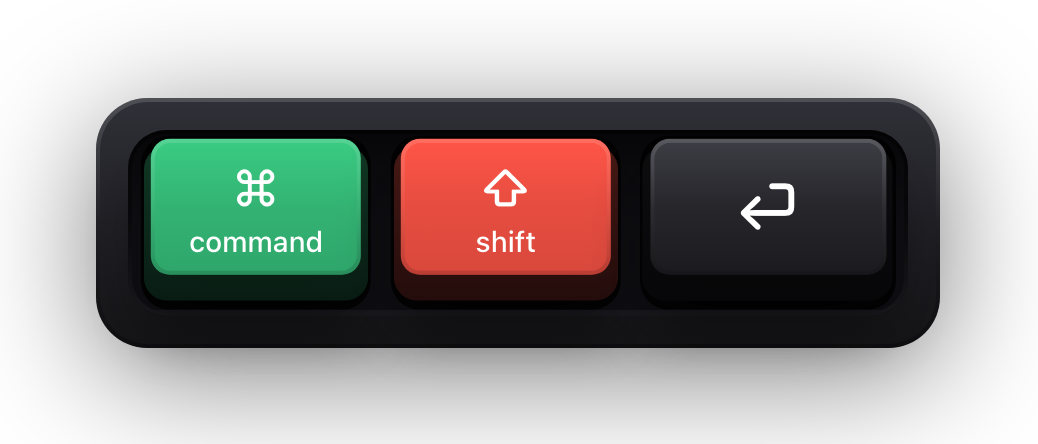
The numbered views are the fastest thing on this page to learn and the least known. ⌘1 through ⌘4 reach the four editing views directly, and adding ⌥ reaches the three master views — which is where a change applies to every slide at once instead of to the one in front of you.
⌘⌃F is the one to remember before you share a screen: it hides the menus and fills the display with the slide you are editing, without starting the slide show itself.
| Shortcut | What it does |
|---|---|
| ⌘1 | Switch to Normal view |
| ⌘2 | Switch to Slide Sorter view |
| ⌘3 | Switch to Notes Page view |
| ⌘4 | Switch to Outline view |
| ⌘⌥1 | Switch to Slide Master view |
| ⌘⌥2 | Switch to Handout Master view |
| ⌘⌥3 | Switch to Notes Master view |
| ⌥Return | Switch to Presenter view |
| ⌘⇧Return | Switch to slide show |
| ⌃⇧Tab | Toggle between Outline view and the thumbnail pane |
| ⌘⌃F | Switch to full screen, hiding the menus |
| ⌘⌥⌃G | Show or hide guides |
| ⇧F9 | Show or hide the grid |
| F6 | Cycle clockwise through the panes in Normal view |
| ⇧F6 | Cycle counterclockwise through the panes in Normal view |
| F1 | Show the help menu |
Objects: stacking, grouping and nudging
A slide is a stack of objects, and almost every layout problem is really a stacking-order problem. The four ⇧ and ⌥⇧ chords below move an object through that stack — one position at a time, or straight to the front or back.
The arrow keys are the other half. Plain arrows move the selection, ⇧ with an arrow resizes it, and ⌥← and ⌥→ rotate it in fifteen-degree steps — which is a far better way to line up a diagonal than dragging a rotation handle and hoping.
| Shortcut | What it does |
|---|---|
| Tab / ⇧Tab | Select another object when one object is selected |
| ⌘A | Select all objects on a slide |
| ⌘⇧F | Bring the object to the front |
| ⌘⇧B | Send the object to the back |
| ⌘⌥⇧F | Bring the object forward one position |
| ⌘⌥⇧B | Send the object back one position |
| ⌘⌥G | Group the selected objects |
| ⌘⌥⇧G | Ungroup the selected objects |
| ⌘⌥J | Regroup the selected objects |
| ⌥→ | Rotate the selected object clockwise 15 degrees |
| ⌥← | Rotate the selected object counterclockwise 15 degrees |
| Arrow keys, or ⌘ with an arrow | Move the selected object in that direction |
| ⇧ with an arrow | Resize the selected object |
| ⌘⇧1 | Format the selected object |
| Space | Play or pause media |
Copying objects, formatting and animation
PowerPoint copies three separate things, and they have three separate chords. ⌘C copies the object, ⌘⇧C copies only its formatting, and ⌘⌥⇧C copies only its animation. Getting those apart is what stops a deck drifting into six slightly different versions of the same box.
⌃D is the odd one out in the whole application: duplicating an object uses Control rather than Command, and Control-dragging does the same thing with the pointer.
| Shortcut | What it does |
|---|---|
| ⌘X | Cut the selected object or text |
| ⌘C | Copy the selected object or text |
| ⌘V | Paste the cut or copied object or text |
| ⌘⌃V | Open the Paste Special dialog |
| ⌃D, or ⌃ and drag | Duplicate the selected objects |
| ⌘⇧C | Copy the formatting of the selected object or text |
| ⌘⇧V | Paste the copied formatting onto the selection |
| ⌘⌥⇧C | Copy animation |
| ⌘⌥⇧V | Paste animation |
| ⌘Z | Undo the last action |
| ⌘Y | Redo the last action |
Text, tables and finding things
Once the cursor is inside a text box, PowerPoint behaves like a small word processor. The two entries worth singling out are ⌘[ and ⌘], which promote and demote a paragraph — the fastest way to build a bulleted hierarchy without touching the ribbon — and ⇧F3, which cycles a selection through sentence case, uppercase and lowercase.
In a table, Tab moves to the next cell rather than inserting a tab character; ⌥⇧Tab is how you get an actual tab inside a cell. Pressing Tab in the last cell adds a new row.
| Shortcut | What it does |
|---|---|
| ⌘T | Open the Font dialog box |
| ⌘⌥M | Open the Paragraph dialog box |
| ⌘B / ⌘I / ⌘U | Bold, italic or underline the selected text |
| ⌘⇧> / ⌘⇧< | Increase or decrease the font size of the selected text |
| ⇧F3 | Switch between sentence case, uppercase and lowercase |
| ⌃Space | Remove manual character formatting |
| ⌘⌃= | Apply subscript formatting |
| ⌘⌃⇧= | Apply superscript formatting |
| ⌘L / ⌘E / ⌘R / ⌘J | Left align, centre, right align or justify a paragraph |
| ⌘[ / ⌘] | Promote or demote a paragraph |
| ⌥← / ⌥→ | Move one word left or right |
| ⌘⇧← / ⌘⇧→ | Select all text to the start or end of the line |
| ⌥⇧← / ⌥⇧→ | Select to the beginning or end of a word |
| ⌘⌫ | Delete one word to the left |
| Return | With an object selected, select the text inside it |
| Esc | With text selected inside an object, select the object |
| ⌘F | Open the Search in Presentation field |
| ⌘⇧H | Open the Find and Replace pane |
| ⌘K | Insert a hyperlink |
| ⌘⇧M | Insert a comment |
| Tab / ⇧Tab | In a table, move to the next or preceding cell |
| ⌥⇧Tab | Insert a tab inside a table cell |
Running the slide show
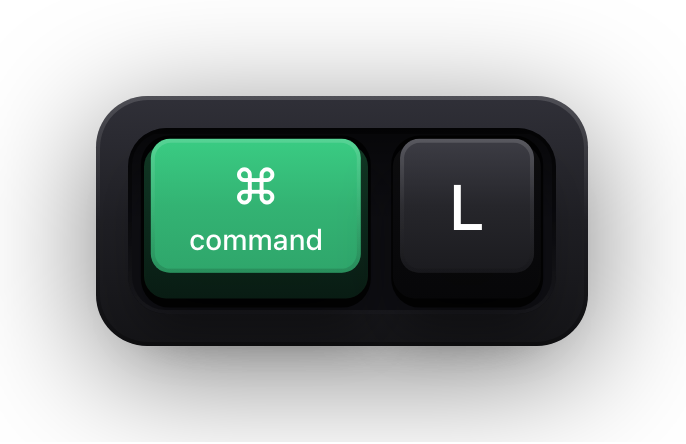
Microsoft keeps these in a second, separate reference, which is why most published PowerPoint lists stop before them. They are the half that matters when someone is watching: the annotation and blanking keys turn a deck into something you can actually teach from.
B and W are the pair to memorise. Either one blanks the screen — black or white — and pressing it again brings the slide back, which is the cleanest way to take the room's attention off the projector and put it on the discussion.
| Shortcut | What it does |
|---|---|
| ⌘⇧Return | Start the presentation from the beginning |
| ⌘Return | Start the presentation from the current slide |
| ⌥Return | Start the presentation in Presenter view |
| N, Page Down, →, ↓ or Space | Next animation, or advance to the next slide |
| P, Page Up, ←, ↑ or Delete | Previous animation, or return to the previous slide |
| A slide number, then Return | Jump straight to that slide |
| H | Go to the next hidden slide |
| Fn← / Fn→ | Return to the first slide, or go to the last slide |
| B, ⇧B or . | Blank the screen to black, and back again |
| W, ⇧W or , | Blank the screen to white, and back again |
| ⌘L | Start the laser pointer |
| ⌘P | Change the pointer to a pen |
| ⌘A | Change the pointer to an arrow |
| ⌘I | Hide the pointer |
| ⌃H / ⌘U | Hide or show the pointer on mouse movement |
| ⇧E | Erase the on-screen annotations |
| ⌥X | Change the camera source for a cameo |
| Tab / ⇧Tab | Move to the next or previous hyperlink or trigger |
| Return | Open the selected hyperlink |
| ⌃ and click | Display the shortcut menu |
| Esc, - or ⌘. | End the presentation |
Show your PowerPoint shortcuts on screen
Teaching PowerPoint has an awkward property: almost every shortcut's effect looks like something you could have done with the mouse. You press ⌘⇧D, a slide appears, and the person watching learns nothing except that a slide appeared. Training sessions, template walkthroughs and recorded onboarding all run into this, and narrating each chord aloud only works if your voice keeps exact pace with your hands.
Show KeyPress is a paid macOS menu bar app, for macOS 14 Sonoma or later, that draws each key you press as a mechanical keycap on top of everything else on screen. It has no PowerPoint integration, no add-in and nothing to install on the Office side — it is an ordinary window drawn above your other windows, so a screen recorder or a whole-screen share carries it without any configuration.
- Shortcuts Only content mode draws combinations like ⌘⌥⇧F and stays quiet while you type the actual slide text.
- Latest mode shows one chord at a time, which suits step-by-step teaching; the two history modes keep a trail when the sequence is the lesson.
- One Display pins the overlay to the screen you are presenting from instead of letting it follow your pointer to your notes display.
- The overlay is click-through, so it never intercepts a click meant for the slide underneath it.
- ⌘⇧K toggles it between takes, and ⌃⌥= and ⌃⌥- resize it without opening Settings.
Sources and further reading
Product details and guidance were checked against these first-party pages on August 5, 2026. Re-check current listings before making an install or high-stakes decision.
- Use keyboard shortcuts to create PowerPoint presentations
Microsoft
Microsoft's shortcut reference for building a deck, with a dedicated macOS section rather than a translated Windows list.
- Use keyboard shortcuts to deliver your presentation
Microsoft
Microsoft's separate reference for running a slide show, including the pen, laser pointer and Presenter view keys on macOS.
- Control access to input monitoring on Mac
Apple
Apple's guide to the Input Monitoring privacy permission and how to grant or revoke it.
- Take a screenshot or record your screen on Mac
Apple
Apple's instructions for the built-in screenshot and screen recording tools.
FAQ
Questions people ask
Why do PowerPoint shortcut lists I find online not work on my Mac?
Most of them are the Windows list. Microsoft maintains a separate macOS section, and it is not a straight Ctrl-to-⌘ swap: duplicating an object is ⌃D rather than a Command chord, Find and Replace is ⌘⇧H, and Redo is ⌘Y. Every chord on this page comes from the macOS sections.
What is the shortcut to start a PowerPoint slide show on a Mac?
⌘⇧Return starts it from the beginning and ⌘Return starts it from the slide you are on. ⌥Return starts it in Presenter view, which puts your notes and the next slide on one display and the show on the other.
How do I draw on a slide while presenting?
⌘P turns the pointer into a pen, ⌘L turns it into a laser pointer, ⌘A puts it back to an arrow, and ⇧E erases everything you have drawn. ⌘I hides the pointer entirely.
Why does a shortcut work on one slide but not another?
Context. The object shortcuts need an object selected, the text shortcuts need a cursor inside a text box, and the slide-show keys only exist while a show is running. Return and Esc switch between the object level and the text level inside it, which is usually the state that is wrong.
Can I change a PowerPoint shortcut on a Mac?
macOS lets you assign a shortcut to any menu command under System Settings, Keyboard, Keyboard Shortcuts, App Shortcuts, which covers anything PowerPoint exposes as a menu item. A custom chord will of course not match the defaults listed here.
Will an audience see which shortcuts I press while presenting?
Not on their own — a projector or a screen share transmits the display, not the keyboard. A keystroke overlay such as Show KeyPress draws the keys onto that display, so anything capturing or projecting it carries them too.