
App shortcuts
Excel keyboard shortcuts for Mac
Excel's Mac shortcuts are not the Windows ones with Command swapped for Control. Half of them still use Control, and knowing which half is the whole trick.
Why Excel for Mac keeps using the Control key
Excel arrived on the Mac carrying a shortcut set designed around a keyboard that had a Control key and no Command key. Rather than break decades of muscle memory, Microsoft kept most of those Control chords and layered the Mac-native Command equivalents on top. The result is that many commands genuinely have two bindings, and a few important ones only have the Control form.
This is where mis-transcribed lists go wrong. A page that takes Microsoft's Windows column and swaps Ctrl for Command will tell you that ⌘⇧$ applies the currency format. It does not — the currency format is ⌃⇧$, with Control, on a Mac. The number-format group is almost entirely Control-based for exactly this reason.
The other Mac-specific wrinkle is the function keys. Excel uses F2 through F12 heavily, and on a Mac whose top row is set to control brightness and volume you have to hold Fn to reach them, or change the setting in System Settings under Keyboard.
Workbooks, windows and undo
| Shortcut | What it does |
|---|---|
| ⌘N | Open a new blank workbook |
| ⇧⌘P | Create a new workbook from a template |
| ⌘O | Display the Open dialog |
| ⌘S | Save the workbook |
| ⇧⌘S | Display the Save As dialog |
| ⌘P | Print the workbook |
| ⌘W | Close the window |
| ⌘Q | Quit Excel |
| ⌘Z | Undo the last action |
| ⌘Y or ⇧⌘Z | Redo the last action |
| ⌘H | Hide Excel |
| ⌥⌘R | Expand or minimise the ribbon |
| ⌃⌘F | Switch to full screen view |
| Esc | Exit a dialog or cancel an action |
| F1 | Display the Help window |
Move around a sheet
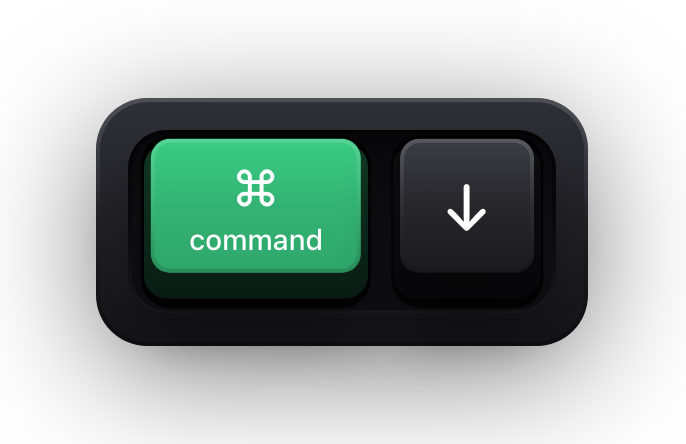
⌘ with an arrow key is the one to learn first: it jumps to the edge of the current data region, which is how you get to the bottom of a fifty-thousand-row column without scrolling.
| Shortcut | What it does |
|---|---|
| Arrow keys | Move one cell up, down, left or right |
| ⌘ + arrow key | Move to the edge of the current data region |
| Home (Fn-←) | Move to the beginning of the row |
| ⌃Home | Move to the beginning of the sheet |
| ⌃End | Move to the last cell in use |
| Page Down / Page Up | Move down or up one screen |
| ⌥Page Down / ⌥Page Up | Move one screen right or left |
| ⌥→ | Move to the next sheet |
| ⌥← | Move to the previous sheet |
| ⌃G or F5 | Display the Go To dialog |
| ⌃F or ⇧F5 | Display the Find dialog |
| ⌃H or ⇧⌘H | Display the Replace dialog |
| ⌃Delete | Scroll to display the active cell |
| ⌃F5 | Move to the Search Sheet dialog |
| Tab | Move between unlocked cells on a protected sheet |
Select cells, columns and rows
| Shortcut | What it does |
|---|---|
| ⌘A | Select the current region or the entire sheet |
| ⇧ + arrow key | Extend the selection by one cell |
| ⇧⌘ + arrow key | Extend the selection to the last nonblank cell in the same column or row |
| ⌃Space | Select the entire column |
| ⇧Space | Select the entire row |
| ⇧Home | Extend the selection to the beginning of the row |
| ⌃⇧Home | Extend the selection to the beginning of the sheet |
| ⌃⇧End | Extend the selection to the last cell used |
| ⇧Page Down / ⇧Page Up | Extend the selection down or up one screen |
| ⇧⌘* | Select only the visible cells |
| F8 | Turn on the ability to extend the selection using the arrow keys |
| ⇧F8 | Add another range of cells to the selection |
| ⌃/ | Select the current array |
| ⌃⇧[ | Select cells directly referred to by formulas in the selection |
| ⌃] | Select only cells with formulas that refer directly to the active cell |
Enter and edit data
⌥Return is the one people hunt for most often: it starts a new line inside a cell instead of committing the entry and dropping down a row.
| Shortcut | What it does |
|---|---|
| F2 | Edit the selected cell |
| Return | Complete the cell entry and move forward |
| ⇧Return | Complete the cell entry and move up |
| Tab / ⇧Tab | Complete the cell entry and move right or left |
| ⌥Return | Start a new line in the same cell |
| ⌘Return | Fill the selected cell range with the text you type |
| Esc | Cancel the cell entry |
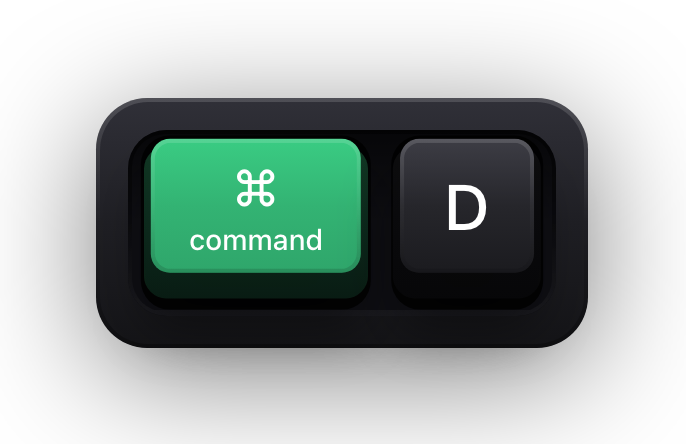
| ⌘D | Fill cells down |
| ⌘R | Fill cells right |
| ⌃E | Flash Fill |
| ⌃⇧= | Insert cells |
| ⌘- | Delete cells |
| ⌘C / ⌘V / ⌘X | Copy, paste or cut the selection |
| ⌃⌘V | Use Paste Special |
| ⌘K | Insert a hyperlink |
| ⇧F2 | Insert a note, or open and edit an existing cell note |
| ⇧⌘F2 | Insert a threaded comment, or open and reply to one |
Formulas and the formula bar
⌘T appears twice in Microsoft's Mac list and that is not a transcription error: inside a formula it toggles the reference style between absolute and relative, and on a range it creates a table. Excel picks by context.
| Shortcut | What it does |
|---|---|
| = | Start a formula |
| ⇧F3 | Open the Formula Builder |
| ⌃A | Display the Formula Builder after a valid function name |
| ⇧⌘T | Insert an AutoSum formula |
| ⌘T or F4 | Toggle the formula reference style between absolute and relative |
| ⌃⇧U | Expand or collapse the formula bar |
| ⇧⌘Return | Enter the formula as an array formula |
| ⌃` | Alternate between displaying cell values and formulas |
| ⌃' | Copy the formula from the cell above |
| ⌃⇧" | Copy the value from the cell above |
| ⌃; | Enter the date |
| ⌘; | Enter the time |
| F9 | Calculate all open workbooks |
| ⇧F9 | Calculate the active sheet |
| ⌃L | Define a name |
| ⌘F3 | Open the Define Name dialog |
| ⌥↓ | Display the AutoComplete list |
Format cells and numbers
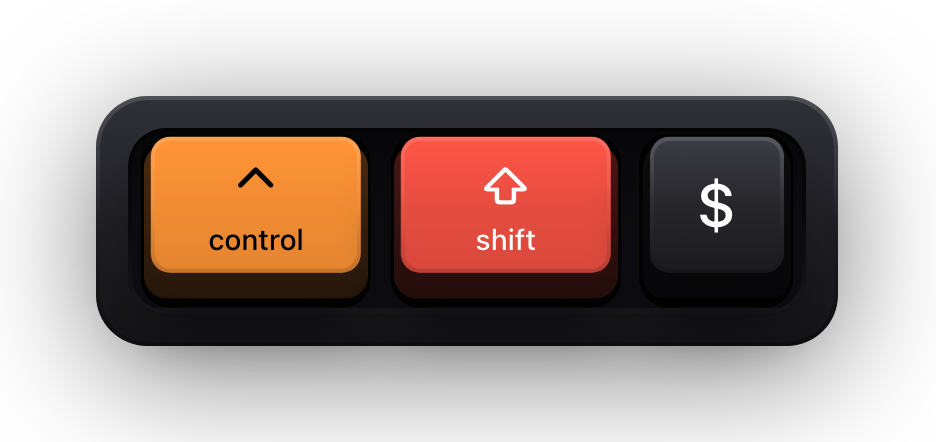
This is the group that gets mis-transcribed most often. The number formats are Control chords on a Mac, not Command chords, and each one is Control plus Shift plus a symbol you can read off a US keyboard: dollar for currency, percent for percentage, hash for the date.
| Shortcut | What it does |
|---|---|
| ⌘1 | Display the Format Cells dialog |
| ⌘B / ⌘I / ⌘U | Apply or remove bold, italic or underline formatting |
| ⇧⌘X | Apply or remove strikethrough formatting |
| ⇧⌘> / ⇧⌘< | Increase or decrease the font size |
| ⌘E | Align centre |
| ⌘L | Align left |
| ⌃⇧~ | Apply the general number format |
| ⌃⇧$ | Apply the currency format with two decimal places |
| ⌃⇧% | Apply the percentage format with no decimal places |
| ⌃⇧^ | Apply the exponential number format with two decimal places |
| ⌃⇧# | Apply the date format |
| ⌃⇧@ | Apply the time format |
| ⌃⇧! | Apply the number format with two decimal places |
| ⌥⌘0 | Apply an outline border around the selected cells |
| ⌥⌘- | Remove outline borders |
| ⇧⌘L | Display the Modify Cell Style dialog |
Rows, columns, sheets and tables
| Shortcut | What it does |
|---|---|
| ⌘) | Hide a column |
| ⇧⌘) | Unhide a column |
| ⌘( | Hide a row |
| ⇧⌘( | Unhide a row |
| ⌃9 | Hide the selected rows |
| ⌃0 | Hide the selected columns |
| ⌃8 | Display or hide outline symbols |
| ⇧F11 | Insert a new sheet |
| F11 | Insert a new chart sheet |
| ⇧⌘K | Group the selected cells |
| ⇧⌘J | Ungroup the selected cells |
| ⌘T | Create a table |
| ⇧⌘F or ⌃⇧L | Add or remove a filter |
| ⇧⌘R | Open the Sort dialog |
| ⌥↓ | Display the Filter list or a PivotTable page field pop-up menu |
The function keys
Excel leans on the function keys harder than almost any other Mac application. If pressing F2 changes your screen brightness instead, hold Fn as well, or switch the top row to standard function keys in System Settings under Keyboard.
| Shortcut | What it does |
|---|---|
| F1 | Display the Help window |
| F2 | Edit the selected cell |
| ⌥F2 | Open the Save dialog |
| ⇧F3 | Open the Formula Builder |
| ⌘F4 | Close the window or dialog |
| F5 | Display the Go To dialog |
| ⇧F5 | Display the Find dialog |
| F6 or ⇧F6 | Switch focus between the worksheet, ribbon, task pane and status bar |
| F7 | Check spelling |
| ⇧F7 | Open the thesaurus |
| F8 | Extend the selection |
| ⌥F8 | Display the Macro dialog |
| ⌃F9 | Minimise the active window |
| ⇧F10 | Display the context menu |
| ⌘F10 | Maximise or restore the active window |
| ⌥F11 | Open Visual Basic |
| F12 | Display the Save As dialog |
| ⌥F12 | Open the Power Query Editor |
Putting the chords on screen with Show KeyPress
Spreadsheet training has a particular failure mode. The instructor selects a range, presses something, and a column of numbers turns into currency. Everyone watching sees the outcome; nobody sees ⌃⇧$. Half the room writes down the wrong thing and the other half asks afterwards.
Show KeyPress is a paid menu bar app from the Mac App Store, for macOS 14 or later, that draws each key you press as a keycap on top of everything else. It has no connection to Excel — no add-in, no ribbon button, no macro. It simply draws an always-on-top window, which is why a screen recorder or a whole-screen share picks it up without any setup.
- Shortcuts Only draws the combinations and stays out of the way while you type values into cells — the right default for a spreadsheet demo, where the data is not the lesson.
- Latest shows one combination at a time, which matches the pace of spoken instruction; Horizontal History and Stacked History keep more of the recent input on screen.
- ⌘⇧K toggles all the visualization, ⌃⌥M switches the content mode, and ⌃⌥= and ⌃⌥- change the overlay size without opening Settings.
- Eight edge presets plus a full-screen drag editor keep the overlay off the formula bar and out of the ribbon.
- Input Monitoring is the only privacy permission requested — not Accessibility, not Screen Recording.
- It is macOS 14 or later only. There is no Windows build, so it cannot help with Excel for Windows.
Sources and further reading
Product details and guidance were checked against these first-party pages on August 5, 2026. Re-check current listings before making an install or high-stakes decision.
- Keyboard shortcuts in Excel
Microsoft
Microsoft's shortcut reference for Excel, with a separate macOS tab rather than a translated Windows list.
- Control access to input monitoring on Mac
Apple
Apple's guide to the Input Monitoring privacy permission and how to grant or revoke it.
- Show KeyPress on the Mac App Store
Apple
The listing, with the current price, system requirements and version history.
FAQ
Questions people ask
Why do so many Excel for Mac shortcuts still use Control?
Excel kept its original Control-based bindings when it moved to the Mac and added Command equivalents alongside them. Many commands accept either, but the number-format group — currency, percentage, date, time — is Control-based only, which is why translating a Windows list by swapping Ctrl for Command produces wrong chords.
How do I apply the currency format in Excel for Mac?
⌃⇧$ applies the currency format with two decimal places. The neighbouring formats follow the same pattern: ⌃⇧% for percentage with no decimal places, ⌃⇧# for the date format, ⌃⇧@ for the time format, and ⌃⇧~ for the general number format.
Why does F2 change my screen brightness instead of editing a cell?
Because the top row of your keyboard is set to control system features. Hold Fn together with the function key, or turn on standard function keys in System Settings under Keyboard. Excel uses F2 through F12 heavily, so this is worth changing before a demo.
How do I start a new line inside a cell?
⌥Return. Plain Return completes the entry and moves to the next cell, which is why typing a two-line label feels impossible until you find this one.
Does Show KeyPress work as an Excel add-in?
No. It is a separate menu bar app with no integration into Excel or any other application. It draws an overlay on top of your screen and nothing else, which is what makes it work identically in Excel, in a browser, and in the Finder.