
App shortcuts
Obsidian keyboard shortcuts for Mac
Obsidian has two kinds of shortcut and only documents one of them exhaustively. Knowing which is which explains most of the confusion around them.
Hotkeys and editing shortcuts are not the same thing
Obsidian draws a line that no other note-taking app bothers with, and it explains almost every argument about its shortcuts. Hotkeys are customisable keyboard combinations attached to Obsidian commands — opening a file, inserting a template, toggling a plugin. Editing shortcuts are the text-editing and navigation keys, and Obsidian's own documentation says outright that these come from your operating system or the framework Obsidian is built on and cannot be customised inside the app.
That is why you can rebind ⌘P but not ⌥←. It is also why a published Obsidian shortcut list is often half right: the editing half is stable and documented per platform, while the hotkey half depends entirely on which core plugins are enabled and what the person writing the list had rebound.
The fastest way to see what a command is actually bound to on your machine is the command palette itself — find the command and the hotkey is printed beside it. Settings, then Hotkeys, lists and edits every one of them, and a filter there shows only the commands that have a binding at all.
Opening things: palette, switcher and search
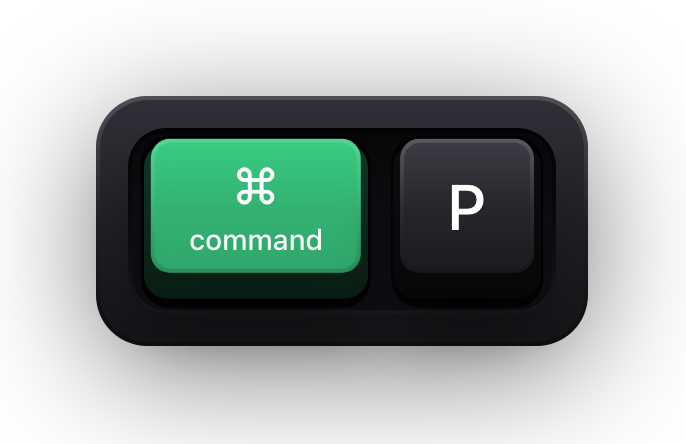
These four are the whole reason Obsidian can be driven without a pointer. ⌘P runs any command by name, ⌘O opens any note by name, and ⌘⇧F searches the vault. Between them they cover most of what the sidebar exists for.
The quick switcher has one detail worth knowing: with a note highlighted in the list, ⌘⏎ opens it in a new tab rather than replacing what you are reading. That is the difference between following a link and losing your place.
| Shortcut | What it does |
|---|---|
| ⌘P | Open the command palette |
| ⌘O | Open the quick switcher |
| ⌘⏎ (in the quick switcher) | Open the selected note in a new tab |
| ⌘⇧F | Open Search |
| ⌘N | Create a new note |
| ⌘E | Switch between editing and reading view |
| ⌘ and click the view switcher | Open the note in editing and reading view at once |
| ⌘ and hover a link | Preview the linked file next to the cursor |
| ⌘⏎ (in Note composer) | Create a new note from the source note or the selection |
Tabs, tab groups and windows
Obsidian's tabs behave like a browser's, and the switching chords are the browser ones — with one deliberate exception. Moving between tabs uses ⌃⇥ rather than ⌘, because ⌘1 through ⌘9 are already taken by jumping to a tab by position.
The modifier table below is the part people miss entirely. Which modifier you hold while clicking a link decides whether it opens in the same tab, a new tab, a new tab group beside the current one, or a separate window — and that is four different layouts from one click.
| Shortcut | What it does |
|---|---|
| ⌘T | Open a new tab |
| ⌃⇥ | Go to the next tab |
| ⌃⇧⇥ | Go to the previous tab |
| ⌘1 | Go to the first tab on the left |
| ⌘2 to ⌘8 | Go to the second through eighth tab |
| ⌘9 | Go to the last tab on the right |
| ⌘⇧T | Reopen the most recently closed tab |
| ⌘ and click a link | Open it in a new tab |
| ⌘⌥ and click a link | Open it in a new tab group |
| ⌘⌥⇧ and click a link | Open it in a new window |
The macOS editing keys
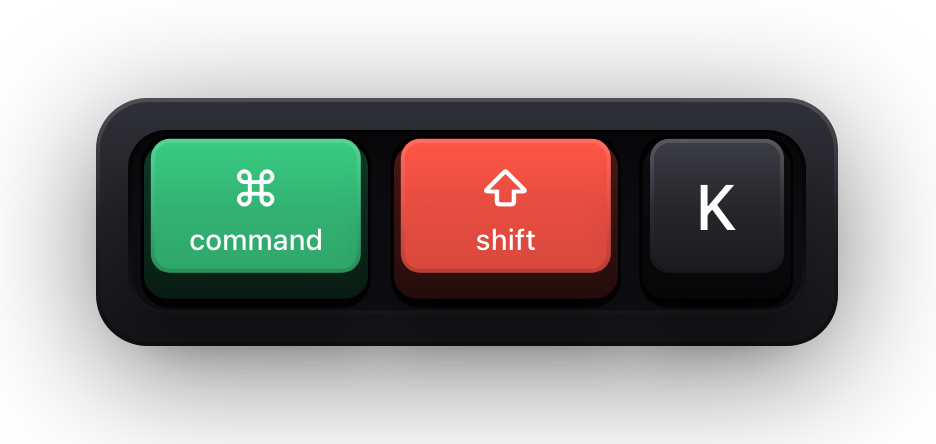
This is the table Obsidian publishes per platform, and the macOS column is not a translation of the Windows one — the delete-to-line-start and delete-to-line-end commands exist only on the Mac side, where ⌘ is free because word movement uses ⌥.
⌘⇧K is the entry to memorise. With nothing selected it deletes the whole current line, which in a bullet-heavy note is the difference between editing and re-typing. ⌘C and ⌘X do something similar with no selection: they take the whole paragraph.
| Shortcut | What it does |
|---|---|
| ⌘C / ⌘X / ⌘V | Copy, cut or paste |
| ⌘⇧V | Paste without formatting |
| ⌘Z / ⌘⇧Z | Undo or redo |
| ⌘C with no selection | Copy the current paragraph |
| ⌘X with no selection | Cut the current paragraph |
| ⌘B / ⌘I | Bold or italicise the selected text |
| ⌥⌫ | Delete the previous word |
| ⌥⌦ | Delete the next word |
| ⌘⌫ | Delete to the beginning of the current line |
| ⌘⌦ | Delete to the end of the current line |
| ⌘⇧K with no selection | Delete the current line |
Moving the cursor around a note
The movement keys follow the standard macOS model — ⌥ for a word, ⌘ for a line — and then extend it: ⌘↑ and ⌘↓ go to the beginning and end of the note rather than the line above or below.
Fn↑ and Fn↓ page through a long note. On a Mac keyboard without a dedicated Page Up and Page Down block, Fn with an arrow is those keys.
| Shortcut | What it does |
|---|---|
| ← / → | Move the cursor one character |
| ↑ / ↓ | Move the cursor to the previous or next line |
| ⌥← | Move to the beginning of the previous word |
| ⌥→ | Move to the end of the next word |
| ⌘← | Move to the beginning of the current line |
| ⌘→ | Move to the end of the current line |
| ⌘↑ | Move to the beginning of the note |
| ⌘↓ | Move to the end of the note |
| Fn↑ / Fn↓ | Move the cursor up or down one page |
Selecting text
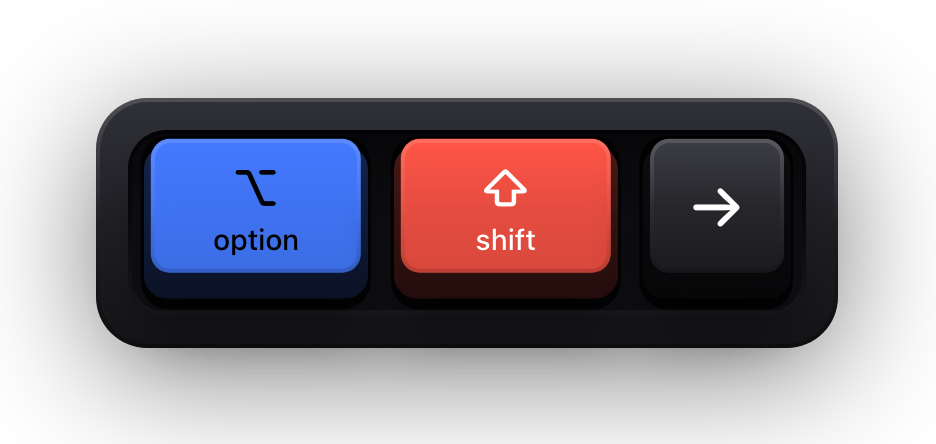
Selection is movement with ⇧ added, with one asymmetry worth flagging: extending the selection by a page uses ⌃⇧↑ and ⌃⇧↓ rather than the Fn keys that move by a page. That is not a typo in Obsidian's documentation — it is the framework underneath.
Escape is the one to remember when a selection has got away from you. Obsidian calls it simplify selection, and it collapses multiple cursors and stray ranges back to one.
| Shortcut | What it does |
|---|---|
| ⌘A | Select all |
| ⇧← / ⇧→ | Extend the selection one character |
| ⌥⇧← | Extend the selection to the beginning of the previous word |
| ⌥⇧→ | Extend the selection to the end of the next word |
| ⌘⇧← | Extend the selection to the beginning of the current line |
| ⌘⇧→ | Extend the selection to the end of the current line |
| ⌘⇧↑ | Extend the selection to the beginning of the note |
| ⌘⇧↓ | Extend the selection to the end of the note |
| ⌃⇧↑ / ⌃⇧↓ | Extend the selection one page up or down |
| Esc | Simplify the selection |
Multiple cursors, folding and the canvas
Multiple cursors in Obsidian are a modifier-plus-click affair rather than a chord: ⌥ and a click adds another cursor, and ⇧⌥ while dragging makes a rectangular selection down consecutive lines — which is how a run of paragraphs becomes a list without touching any of them individually.
Folding is the one important feature with no default hotkey at all. Obsidian's documentation is explicit that if you want to fold from the keyboard, you assign hotkeys to the Fold less and Fold more commands yourself; out of the box, folding whole documents runs through the command palette.
- ⌥ and click adds another cursor; clicking anywhere without a modifier, or pressing Esc, removes them.
- ⇧⌥ while dragging makes a rectangular selection across consecutive lines.
- Fold all headings and lists, and Unfold all headings and lists, are command palette entries — the per-section Fold less and Fold more commands ship unbound.
- In a canvas, ⌘A selects every card, and holding ⌘ while scrolling zooms it.
- In a canvas, ⌘ and clicking a web card's label opens the page in your browser.
- ⌘ and scrolling adjusts the font size, and ⌘⇧V pastes HTML without converting it to Markdown.
Show your Obsidian shortcuts on screen
Obsidian is a screencast subject that punishes silence. The effect of a hotkey is usually a panel appearing, a note switching, or a block changing shape — all of which look like the app doing something on its own. Worse, most people watching have a different set of hotkeys to yours, so a bare demonstration teaches them a chord that may not exist on their machine unless you show it.
Show KeyPress is a paid macOS menu bar app, for macOS 14 Sonoma or later, that draws each key you press as a mechanical keycap on top of everything else. It has no Obsidian integration and no community plugin — nothing is installed into the vault, and nothing touches your notes. It is a window above your other windows, which is exactly why a screen recorder or a whole-screen share picks it up.
- Shortcuts Only content mode draws ⌘⇧F and ⌘⌥⇧-click while leaving the prose you write alone.
- Stacked History groups continuous typing into readable fragments, which is the mode to pick when the note's text is the lesson.
- The overlay is click-through, so it never swallows a click meant for the editor underneath.
- Per-display saved positions plus eight edge presets keep it clear of the sidebars and the status bar.
- ⌘⇧K toggles Show KeyPress — and since Obsidian uses that same chord to delete a line, rebind one of them before you record.
Sources and further reading
Product details and guidance were checked against these first-party pages on August 5, 2026. Re-check current listings before making an install or high-stakes decision.
- Editing shortcuts
Obsidian
Obsidian's own reference for editing and navigation keys, with a separate macOS table alongside the Windows and Linux one.
- Hotkeys
Obsidian
How Obsidian's customisable command hotkeys work, and how they differ from the shortcuts the operating system provides.
- Tabs
Obsidian
Obsidian's tab documentation, whose tables give the Mac chords for switching, opening and reopening tabs.
- Command palette
Obsidian
The core plugin that runs any Obsidian command from the keyboard, and the chord that opens it.
- Secure Keyboard Entry
Apple
How macOS Secure Keyboard Entry stops other apps from receiving key events.
FAQ
Questions people ask
Why can I rebind some Obsidian shortcuts but not others?
Obsidian separates hotkeys from editing shortcuts. Hotkeys are attached to Obsidian commands and are fully customisable in Settings, Hotkeys. Editing shortcuts — the cursor, selection and clipboard keys — come from the operating system or the framework Obsidian is built on, and Obsidian's own documentation states they cannot be customised inside the app.
How do I see the hotkey for a particular Obsidian command?
Open the command palette with ⌘P and find the command: if it has a hotkey, it is printed beside it. Settings, then Hotkeys, lists all of them, lets you add or remove bindings, and has a filter that shows only the commands that already have one.
Are Obsidian's Mac shortcuts different from the Windows ones?
Yes, and Obsidian publishes them as separate tables. Beyond the Ctrl-to-⌘ swap, the Mac side has commands the Windows side does not — deleting to the beginning or end of a line, for instance — because ⌘ is free where Windows uses Ctrl for word movement. Every chord here is from the macOS tables.
What is the shortcut to fold a heading in Obsidian?
There is no default one. Obsidian documents folding as a mouse action plus two command palette entries, Fold all headings and lists and Unfold all headings and lists, and suggests assigning your own hotkeys to the Fold less and Fold more commands if you want to do it from the keyboard.
Why does a hotkey print differently from what my keyboard says?
Obsidian displays hotkeys as they would appear on a US keyboard layout. The binding still works on the physical keys you actually pressed, so the mismatch is cosmetic — unless you change keyboard layout, at which point the physical keys move.
Does Show KeyPress install anything into Obsidian?
No. There is no community plugin, no theme and no integration of any kind, and it never reads or writes anything in your vault. It is a separate macOS menu bar app that draws an overlay window, which is why it behaves identically in Obsidian, a browser or any other Mac app.