
Troubleshooting
Keystroke overlay not showing: how to fix it
Nine times out of ten it is one of five things, and they are worth checking in this order.
Check these in order
- 01
Input Monitoring is not granted
Without it macOS delivers no key events at all, so the overlay has nothing to draw. Settings under General shows either Permission Granted or Permission Required, with a button that opens System Settings → Privacy & Security → Input Monitoring directly. Grant it there and the app picks it up on its own within a second — no relaunch. It is the only privacy permission the app asks for; Accessibility and Screen Recording are not involved.
- 02
The master switch is off
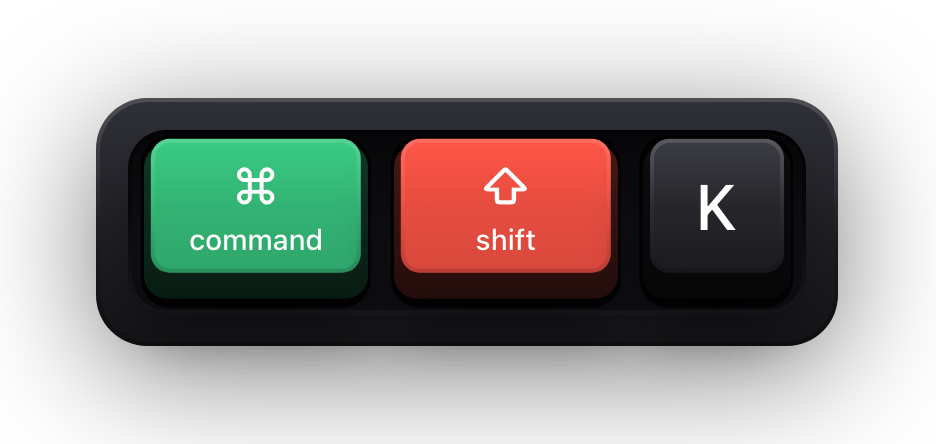
Keypress Enabled in Settings under General, the Enabled item in the menu bar, and ⌘⇧K are the same switch. It covers the keyboard, the pointer halo and the pet together. The menu bar icon is a filled keyboard when it is on and an outline when it is off, which is the fastest way to tell at a glance.
- 03
The Keyboard Overlay switch is off
Separate from the master switch: Settings under Keyboard has its own Keyboard Overlay toggle, and with it off the halo and the pet still work while the keycaps do not. The Displays & Position pane says Keyboard Overlay Is Off outright when this is the cause.
- 04
Shortcuts Only is hiding your typing
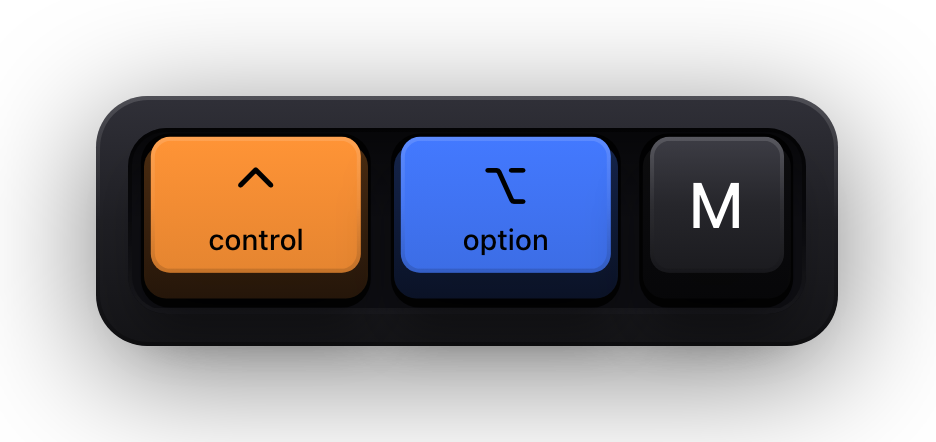
In Shortcuts Only a key is drawn only when a modifier was held with it, so plain typing is silent on purpose. Press ⌃⌥M to flip back to All Keys — a short banner confirms which mode you landed in — or change the Content row in Settings under Keyboard.
- 05
A filter is hiding the specific key
Standalone Modifiers off means a bare tap of ⌘ draws nothing. Function Keys off hides F1 to F20. Special Keys off hides Return, Tab, Space, Delete, Escape, the arrows and the page and line keys. All three are in Settings under Keyboard, in the Filters card.
- 06
The overlay is on another display
Check the Display Target in Settings under Displays & Position. Follow Pointer re-resolves on a key press rather than on pointer movement, so move the cursor and then type. One Display and Selected Displays keep it where you pinned it, whether or not you are looking there.
- 07
It is behind or outside your capture
The overlay is drawn on screen, not injected into a recorder. A capture scoped to a single application window will not contain it, because it is a separate window above that one. Switch to a display capture.
Symptoms and what they mean
| What you see | Most likely cause | Fix |
|---|---|---|
| Nothing at all, ever | Input Monitoring not granted, or the master switch is off | Check the permission card in General, then the Enabled item in the menu bar |
| A banner reading Keyboard hidden — Secure Input | macOS Secure Input is active — a password field, or a terminal with Secure Keyboard Entry | Nothing to fix. It ends when the field or terminal releases it |
| Shortcuts appear, plain typing does not | Shortcuts Only content mode | ⌃⌥M, or the Content row in Settings under Keyboard |
| Letters appear, modifiers alone do not | Standalone Modifiers is off | Turn it back on in the Filters card |
| Keys flash and vanish immediately | Key Timeout is at its minimum | Raise it — the range is half a second to five seconds |
| Only one key is ever on screen | Latest display mode, which is working as designed | Switch to Horizontal History or Stacked History for typing |
| It works on screen but not in the recording | The capture is scoped to a single window | Use a display capture instead of a window capture |
| It stopped after switching Spaces or waking the Mac | Transient input state is reset on wake and during Space transitions | Press a key — it comes back on the next event |
Things that look like bugs and are not
- The overlay is invisible between keystrokes. It is not a permanent window — it appears when a key is pressed and hides once everything has timed out.
- Its own shortcuts never draw keycaps. ⌘⇧K, ⌃⌥M, ⌃⌥H, ⌃⌥P and the two size shortcuts are recognised and swallowed, so toggling never leaves its own keys in the shot.
- Caps Lock never appears. macOS does not report reliable press and release events for that key, so it is left out rather than guessed at.
- The overlay hides while the position editor is open. The editor shows a draggable copy instead, and the real overlay returns when you close it.
- Latest never shows more than four simultaneous non-modifier keys. That cap is fixed; Maximum Keys applies to the two history modes.
- A Control combination on a non-US layout shows the US label. macOS reports a control character rather than a letter in that case, so the overlay falls back to the physical key's US label.
When Secure Input is the answer
This is the one case where an empty overlay is the app behaving correctly. While macOS Secure Input is active — in password fields, and in terminals with Secure Keyboard Entry switched on — applications stop receiving key events entirely. The keyboard visualization is cleared for the duration and a banner reading Keyboard hidden — Secure Input is shown in its place, so you can tell the difference between the app standing down and the app failing.
If you would rather nothing at all appeared, turn off Show Status HUD in Settings under General. That switch also controls the On and Off confirmations for the toggle shortcuts, and it has a duration slider next to it.
One thing worth knowing: some apps leave Secure Keyboard Entry on after you have finished with a password field. If the overlay stays blank long after the login, check whether a terminal or password manager still has it enabled.
Sources and further reading
Product details and guidance were checked against these first-party pages on August 5, 2026. Re-check current listings before making an install or high-stakes decision.
- Control access to input monitoring on Mac
Apple
Apple's guide to the Input Monitoring privacy permission and how to grant or revoke it.
- Secure Keyboard Entry
Apple
How macOS Secure Keyboard Entry stops other apps from receiving key events.
- Take a screenshot or record your screen on Mac
Apple
Apple's instructions for the built-in screenshot and screen recording tools.
FAQ
Questions people ask
Why is my keystroke overlay not showing anything?
Most often Input Monitoring has not been granted, so macOS delivers no key events. Check Settings under General — it shows the permission state and opens System Settings straight at the right pane.
Do I need to restart the app after granting permission?
No. The app polls for the change and starts monitoring on its own once the permission is granted, usually within a second of you ticking the box.
Why does the overlay go blank when I type a password?
macOS Secure Input is active, and applications stop receiving key events at all. The visualization is cleared and a Keyboard hidden — Secure Input banner appears instead. It resumes on its own.
Why do my keystrokes not appear in the recording?
The capture is almost certainly scoped to a single application window. The overlay is a separate window drawn above it, so it is not part of that window's content — use a display capture.
Does it need Accessibility or Screen Recording permission?
No. Input Monitoring is the only privacy permission requested. If the overlay is empty, neither of those grants will change anything.