
Displays
Keyboard overlay across multiple monitors
The right corner of a laptop screen is the wrong corner of a 32-inch monitor. One saved position was never going to be enough.
Three ways to target displays
Follow Pointer is worth understanding precisely: it re-resolves on a key press and when another app comes forward, not on every twitch of the mouse. Moving the pointer to a second screen does not make an idle overlay pop up there — the next keystroke does.
In Selected Displays you cannot untick the last remaining screen. There is always at least one display targeted, so the overlay can never end up switched on with nowhere to draw.
| Target | What happens | Choose it when |
|---|---|---|
| Follow Pointer | The overlay appears on whichever display holds your cursor, re-resolved when you press a key | You work across screens and want the keys wherever your attention is |
| One Display | The overlay stays on one chosen screen and never moves | You present from one display and keep notes, chat or the participant list on another |
| Selected Displays | The same keyboard state is drawn on every screen you tick | A mirrored setup, a capture display, or a room where a projector and your own screen both need it |
A placement per display, not per Mac
Placement is stored separately for every display. Bottom-right with a small inset might be perfect on a laptop and terrible on a wide monitor where that corner holds a Dock or a chat window, and that is exactly the case a single global position cannot serve.
Displays are identified by the system's persistent display identifier, which stays the same when you unplug a monitor, plug it back in, or rearrange the screens in System Settings. Your carefully placed overlay does not migrate to the wrong screen because the arrangement changed.
A display you have never placed the overlay on uses a fallback placement, so a monitor connected for the first time gets something sensible rather than nothing. Reset in the placement editor drops a display back to that fallback.
- The Displays & Position pane lists every connected display with its name, a MAIN badge on the primary one, and the placement currently saved for it.
- A scaled map of your actual display arrangement sits above the list, so you are picking a screen by its position rather than by name.
- Each row has its own Position on Screen… button that opens the drag editor on that display.
- If a targeted display is disconnected, the overlay falls back to the main display instead of disappearing.
Placing it on each screen
- 01
Pick the target mode first
It changes what the rest of the pane means. One Display turns the list into a single choice; Selected Displays turns it into checkboxes.
- 02
Select a display in the map or the list
The Placement card above shows the placement currently saved for the selected display, and opens the editor for it.
- 03
Open the editor and drag the real overlay
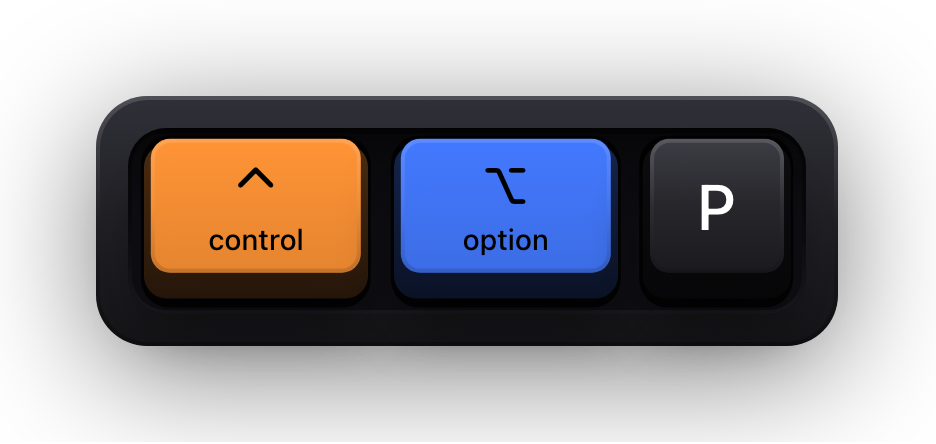
The editor dims that display and shows the actual keyboard overlay, at its real size and theme. Drag it where you want it. ⌃⌥P opens the same editor without going through Settings.
- 04
Snap to a preset, or place it freely
Eight edge markers and a centre marker appear as dots; the overlay snaps to one when it comes within roughly 32 points. Anywhere else is a free position, stored as a proportion of that screen's usable area.
- 05
Click Done
The placement is saved for that display only, and a Position Saved banner confirms it. Cancel discards the drag; Reset returns the display to the fallback placement.
- 06
Repeat on the next display
There is no copy between screens, on purpose — the whole point of per-display placement is that the right spot is different on each one.
Presenting from a laptop with an external screen
The classic setup is a laptop plus a projector or a second monitor, sharing only one of them. Follow Pointer is the wrong choice here: the moment you type on the wrong screen the overlay follows and your audience loses it. One Display pinned to the shared screen is what you want, and it is a single setting away.
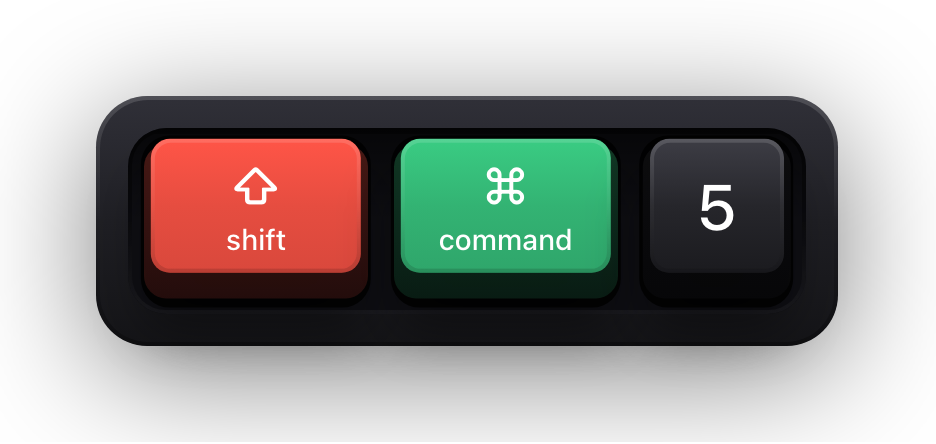
If you are capturing with OBS, with the built-in ⇧⌘5 controls, or by sharing a whole desktop, place the overlay well inside the captured area rather than at its extreme edge. A capture region and a display are not always the same rectangle.
Sources and further reading
Product details and guidance were checked against these first-party pages on August 5, 2026. Re-check current listings before making an install or high-stakes decision.
- Show KeyPress on the Mac App Store
Apple
The listing, with the current price, system requirements and version history.
FAQ
Questions people ask
Can the overlay appear on two monitors at once?
Yes. Selected Displays draws the same keyboard state on every screen you tick, each using that screen's own saved placement.
Why did the overlay not move to my second screen?
Follow Pointer re-resolves on a key press rather than on pointer movement, so move the cursor and press a key. If it still does not move, the target is probably One Display or Selected Displays.
Do saved positions survive unplugging a monitor?
Yes. Placements are keyed to the system's persistent display identifier, so reconnecting a monitor or reordering the arrangement brings the right placement back with it.
What happens if the display I pinned to is disconnected?
The overlay falls back to the main display so it stays visible. Reconnect the monitor and its own placement is used again.