
Permissions
Input Monitoring on Mac: what the permission grants
One switch in Privacy & Security decides whether a keystroke overlay can see anything at all.
What the permission actually grants
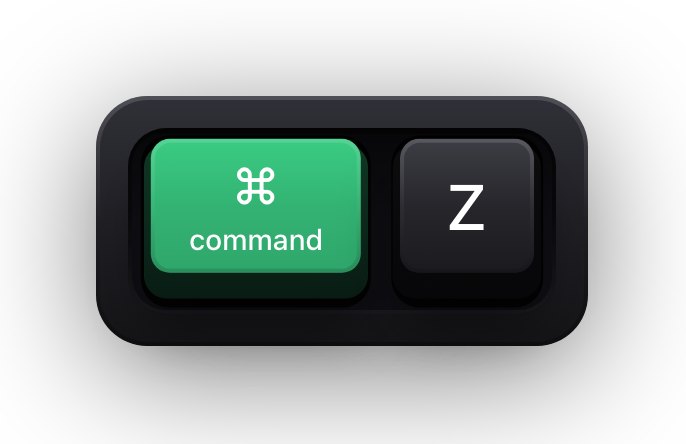
Every app can see the keys you type into its own windows. Input Monitoring is about the other case: an app that wants to be told about key presses while you are typing somewhere else entirely. Press ⌘Z in your editor and the editor undoes; without this permission, nothing else on the Mac learns that it happened. macOS treats that as a privacy decision and puts it behind an explicit approval, per app, that you make once and can undo at any time.
It is a listening permission, not a control permission. It says an app may be handed input events; it does not let that app press keys on your behalf, read the contents of other apps' windows, or see what is on your screen. Those are separate approvals with separate switches.
- Approved per app, by you, in System Settings — never silently.
- Available to sandboxed apps distributed through the Mac App Store.
- Revocable at any moment, with no reinstall and no support ticket.
- Independent of Accessibility and of Screen Recording, which are their own approvals.
Why an on-screen keystroke overlay needs it
A keystroke overlay exists to show your audience what you pressed in the app you are demonstrating — the editor, the browser, the terminal. Those key presses go to that app, not to the overlay. Without Input Monitoring the overlay is simply never told they happened, and it draws an empty rectangle for the whole recording.
That is the honest trade. The permission is not an optional extra the app could engineer around; it is the entire mechanism by which the feature works. Show KeyPress asks for this one, and it does not ask for anything else.
Input Monitoring vs Accessibility vs Screen Recording
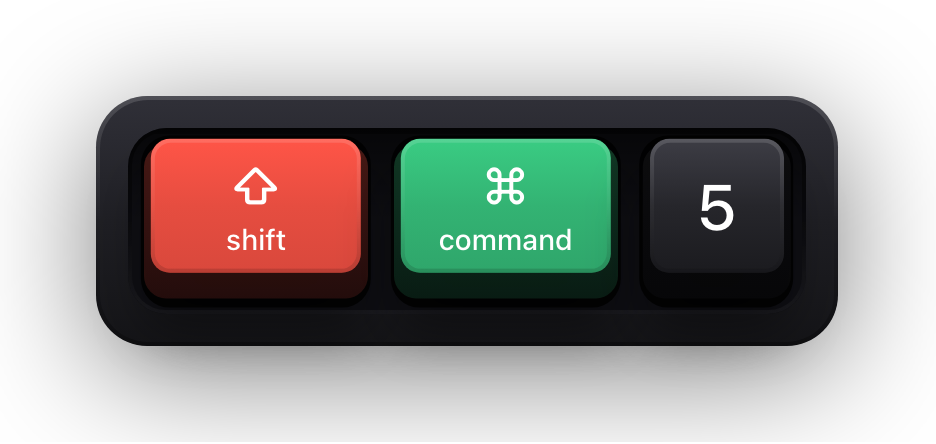
The last row is the one people get backwards. An overlay is drawn on top of your screen, so a recorder that already has Screen Recording will capture it — the built-in ⇧⌘5 tools included — but the overlay itself has no reason to look at your screen, and Show KeyPress does not ask to.
| Permission | What it lets an app do | Does Show KeyPress ask for it? |
|---|---|---|
| Input Monitoring | Be handed keyboard and other input events from the whole system, not just from its own windows | Yes — the only privacy permission it requests |
| Accessibility | Act on your behalf: inspect other apps' windows and controls, and post synthetic input into them | No |
| Screen Recording | Read the pixels of your screen, which is what capture, recording and streaming tools need | No — it draws onto the screen and never reads it |
Grant it in System Settings
- 01
Open Privacy & Security
Choose Apple menu › System Settings, then click Privacy & Security in the sidebar.
- 02
Open Input Monitoring
Pick Input Monitoring from the list of privacy categories. It lists every app that has asked for it.
- 03
Switch the app on
Find Show KeyPress in the list and turn its switch on. If it is not there yet, launch the app once — apps appear in this list after they first ask.
- 04
Reopen the app if macOS asks
A change to Input Monitoring takes effect when the app next starts, so macOS may offer to quit and reopen it for you. Accept, and the overlay starts drawing.
Revoke it whenever you want
The same switch turns it off. Nothing is uninstalled and no settings are lost — the app simply stops being told about key presses, so the keyboard overlay stops drawing. Turn it back on before your next recording and everything resumes.
This is worth knowing before you grant it rather than after. A permission you can withdraw in five seconds is a much smaller decision than one you cannot.
Sources and further reading
Product details and guidance were checked against these first-party pages on August 5, 2026. Re-check current listings before making an install or high-stakes decision.
- Control access to input monitoring on Mac
Apple
Apple's guide to the Input Monitoring privacy permission and how to grant or revoke it.
- Take a screenshot or record your screen on Mac
Apple
Apple's instructions for the built-in screenshot and screen recording tools.
- Show KeyPress on the Mac App Store
Apple
The listing, with the current price, system requirements and version history.
FAQ
Questions people ask
Does Show KeyPress need Accessibility permission?
No. Accessibility lets an app control your Mac and inspect other apps; a keystroke overlay only needs to be told which key was pressed, which is Input Monitoring. Show KeyPress does not request Accessibility.
Does it need Screen Recording permission?
No. It draws keycaps on top of your screen rather than reading what is on it. Your recorder or streaming app needs Screen Recording; the overlay does not.
Why does macOS ask me to quit and reopen the app?
An Input Monitoring change is applied when the app next starts. Quitting and reopening is how the newly granted access reaches the running process.
Can I grant Input Monitoring temporarily?
There is no built-in timer, but the switch is yours. Turn it on before a recording session and off afterwards; the app keeps its settings either way and simply stops receiving key events while it is off.
Is Input Monitoring available to Mac App Store apps?
Yes. It works inside the App Store sandbox, which is how Show KeyPress can be a sandboxed App Store app and still draw your keystrokes.