
Appearance
Keyboard overlay themes and keycaps on macOS
Presets you cannot break, one custom theme that remembers everything, and the controls that make the overlay belong to your footage.
A theme is more than a palette
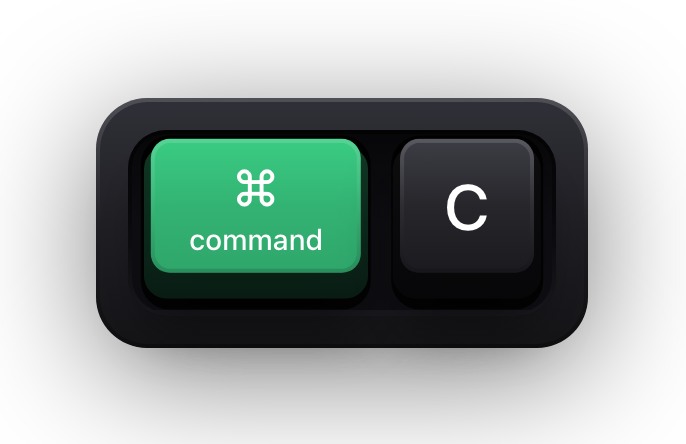
Each family sets five things at once: the keycap style, the frame treatment behind the keys, the material the caps are made of, the press effect they use when a key goes down, and the colours for every key category. That is why Gaming is not Dark with different colours — it snaps rather than travels, and it sits in a tighter, higher-contrast frame.
System is the only family that moves on its own: it follows the Mac's light or dark appearance. The other eight stay where you put them, which is what you want when footage recorded weeks apart has to match. The keyboard and the pointer pick from separate galleries, so a restrained keyboard can sit alongside a loud cursor halo, or the reverse.
| Family | Character | Suits |
|---|---|---|
| System | Follows the Mac's light or dark appearance | Everyday use where the overlay should just fit in |
| Dark | Graphite caps with coloured modifiers; the pointer gallery calls it Default | Most recordings, most of the time |
| Light | Aluminium caps on a light frame | Light-mode apps and bright documentation footage |
| Mono | Colour stripped out, monospaced labels, no frame | Terminal and code demos, where colour would compete |
| Classic | Warm vintage caps with deep travel | Character pieces and typing-focused videos |
| Modern | Glass caps over a translucent panel | Product demos and UI walkthroughs |
| Minimal | Compact pill keys that scale rather than travel | Small overlays and long stretches of typing |
| Gaming | High-contrast keys with a glow and a snap | Streams, where the overlay is part of the show |
| Neon | Layered outlines with a cyan and magenta glow | Dark, stylised footage |
Read-only presets, one Custom theme
You cannot edit a built-in family, and the settings pane says so plainly: built-in themes are read-only, your Custom theme is preserved. Next to that line sits an Edit Custom button, which copies the family you are looking at into the Custom slot and switches you to it. From there you are editing your own theme, and the preset you started from is still intact.
There is exactly one Custom keyboard theme and one Custom pointer theme. Both are autosaved — no naming step, no save button — and both survive quitting the app. Reset Custom Theme takes one back to defaults, and asks before it does.
The pointer forks more eagerly: change any pointer control while a preset is selected and that preset is copied into Custom for you. The keyboard waits for the button, because its editing controls only appear once Custom is the active theme.
Three keycap styles
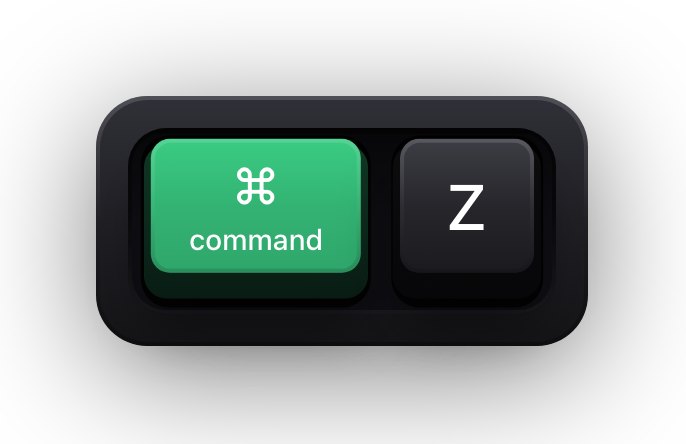
The style is a theme-wide default, and it is also one of the per-category overrides, so it does not have to be the same for every key. A two-cap chord like ⌘Z is the test of whichever you pick: one modifier, one letter, read at a glance at your recording size or not at all.
| Style | How it renders | Suits |
|---|---|---|
| Mechanical | Skeuomorphic 3D keycaps with depth, bevelled edges and shadows, and travel on press | The default look — reads as a real keyboard on video |
| Flat | Modern flat faces with a subtle shadow and a top highlight | Cleaner, UI-flavoured recordings and product demos |
| Minimal | Compact keys reduced close to plain labels, scaling rather than travelling on press | Small overlays and long stretches of continuous typing |
Frame, Overlay or frameless
Default
Frame
A 3D keyboard body around the keys, with its own material, well and drop shadow. The most physical of the three, and the one that survives being scaled down.
Lighter
Overlay
A simple semi-transparent background behind the keys. Keeps them grouped without adding a hardware object to the frame.
Bare
Frameless
No background at all — keys float directly over your content. The least intrusive option for busy screens and tight corners.
Per-category colour and shape overrides
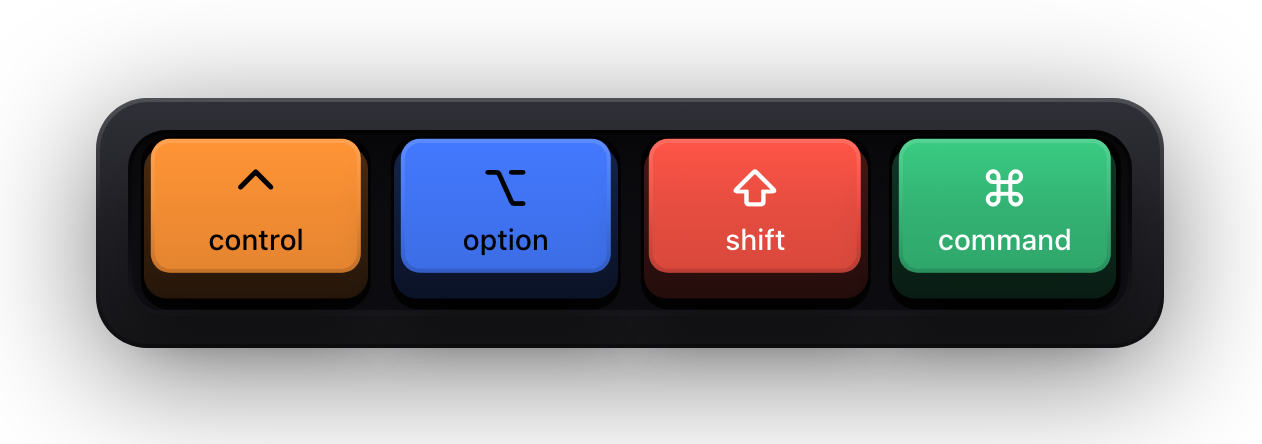
Inside the Custom theme, keys are grouped into ten categories — Letters & Digits, Command, Shift, Option, Control, Caps Lock, Escape, Function, Navigation and Editing. Each one has an Override switch, and only the categories you actually switch on are stored; the rest keep following the active theme, so changing family later does not strand a half-finished palette.
The practical use of this is colour-coding: give the four modifiers strong, distinct colours and leave letters neutral. A viewer then reads a shortcut by colour before they read the glyphs, which is exactly what you want in a fast demo.
- Colour — the base colour of the keycap for that category.
- Depth — how pronounced the 3D effect is, from flat to full.
- Corners — the corner radius, from sharp to fully rounded.
- Shadow — shadow intensity, from none to full.
- Style — Mechanical, Flat or Minimal for that category alone, so modifiers can stay mechanical while letters go minimal.
Type, spacing and edges
Labels use the System, Rounded or Monospaced presets, or any font installed on your Mac, at four weights from regular to bold with a size scale on top. That is what lets the overlay match the typeface of the app you are demonstrating instead of fighting it.
Key spacing sets how tightly the caps sit together — tighter for a compact strip in a corner, looser when the overlay is the subject of the shot. Text colour is its own control, and so are border colour and border width, up to six points; the border row appears only for the Flat and Minimal styles, where an outline is what separates a cap from the content behind it.
Sources and further reading
Product details and guidance were checked against these first-party pages on August 5, 2026. Re-check current listings before making an install or high-stakes decision.
- Show KeyPress on the Mac App Store
Apple
The listing, with the current price, system requirements and version history.
FAQ
Questions people ask
How many keyboard overlay themes does Show KeyPress include?
Nine built-in families for the keyboard — System, Dark, Light, Mono, Classic, Modern, Minimal, Gaming and Neon — and seven for the pointer, which drops System and Light and lists the Dark family as Default. Each gallery also carries one autosaved Custom theme.
Can I edit a built-in theme?
Not in place. Built-in themes are read-only. Press Edit Custom and the theme you are looking at is copied into your Custom theme, which you can then change freely — the original stays as it was.
How many custom themes can I have?
One for the keyboard and one for the pointer. Both are autosaved, so there is nothing to name and nothing to confirm, and both can be reset to defaults.
Can the keyboard and the cursor halo use different themes?
Yes — they are separate selections with separate galleries. A restrained keyboard can sit alongside a loud halo, or the reverse.
Can different keys look different?
Yes. Each key category can override colour, depth, corners, shadow and keycap style independently, and untouched categories keep following the active theme.
Can I remove the keyboard frame entirely?
Yes. Alongside Frame and Overlay there is a frameless background, so the keys float directly over whatever you are recording.
Can I use my own font for the keycaps?
Any font installed on your Mac, plus the System, Rounded and Monospaced presets, at four weights with a size scale on top.