
Pointer
Highlight the mouse cursor and clicks on a Mac
On a shared screen the pointer is four pixels of arrow that nobody can follow, and a click is nothing at all.
What the halo is for
Two questions come up on every shared screen. Where is your pointer, and did you just click? Neither is answered by the system cursor, which was designed to stay out of your way rather than to be read by an audience across a video call.
A halo answers both. It is a shape drawn around the pointer's real position, so it moves with your hand, and it reacts to clicks, drags and scrolling with distinct motion — a viewer can tell a right-click from a left-click without you narrating it.
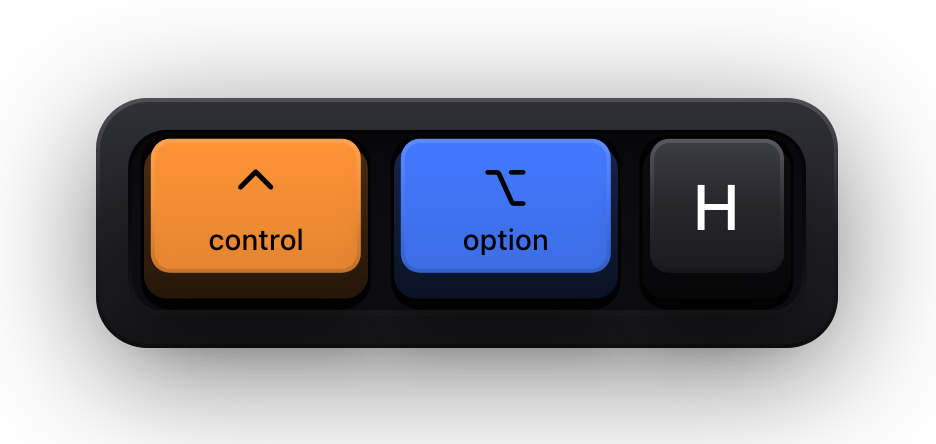
In Show KeyPress the halo is independent of the keycaps. It has its own switch in Settings under Pointer, its own theme gallery, and a global shortcut, ⌃⌥H, that turns it on and off with a short confirmation banner. Turn it on for a mouse-driven demo, off when the keys are the subject.
Shape, line and detail
Colour is split into Primary, Secondary and Core, and the settings pane shows only the ones your current combination actually uses — the secondary colour appears once a line style or detail draws with it, or once secondary clicks are switched on.
- Shape — Circle, Squircle, Square or Diamond. Squircle is the default and the most neutral against Mac UI.
- Line Style — Aura for a soft glow, Solid for a plain ring, Double for two concentric rings, Segmented for a dashed ring, and Neon Depth for a layered glow with a bright core.
- Detail — nothing, a Center Dot, an Inner Ring, a Crosshair, Corners that bracket the shape, or an Orbit that rides around it.
- Size from 24 to 160 points, stroke width from 1 to 16, and independent opacity for the whole halo.
- Glow Intensity, with a Glow Radius up to 40 points that only appears once there is glow to shape.
- Motion Intensity, which scales how far the halo stretches, compresses and tilts when you move, drag or scroll.
Showing clicks on screen
Each pointer event has its own switch, so the halo can be made to react to exactly as much as your demo needs. Primary, secondary and middle clicks are separate, and so are movement, dragging and scrolling.
Drags and scrolls are axis-aware: the halo stretches along the direction of travel rather than pulsing in place, which is what makes a horizontal scroll readable as a horizontal scroll. The character of that motion — springy, stepped, mechanical, electric — comes with the theme you pick rather than from a separate control.
| Visibility mode | When the halo is on screen | Use it when |
|---|---|---|
| Always | Permanently, whether or not you are doing anything | The pointer is the subject and an audience needs to track it continuously |
| On Activity | On any movement, click, drag or scroll, then hidden again after the idle delay | The default: present while you work, gone while you talk |
| Clicks & Actions | Only for clicks, drags and scrolling — plain movement is ignored | You want clicks marked without a halo trailing your cursor all day |
The details that matter on a call
- The halo is click-through. It draws above everything, including full-screen apps, and never intercepts a click meant for the window underneath.
- It follows the pointer across displays without any per-display setup, because it is positioned around the cursor rather than anchored to a screen.
- It clears itself during a Spaces swipe and comes back when the transition settles, instead of smearing across the animation.
- In Clicks & Actions and On Activity modes an idle delay controls how long it lingers; at least one event must stay switched on in those modes.
- Reduce Motion is respected — the halo falls back to a static presentation instead of springing.
- Input Monitoring is the only permission involved. Nothing about the halo needs Screen Recording, and pointer coordinates are never stored or sent anywhere.
Sources and further reading
Product details and guidance were checked against these first-party pages on August 5, 2026. Re-check current listings before making an install or high-stakes decision.
- Control access to input monitoring on Mac
Apple
Apple's guide to the Input Monitoring privacy permission and how to grant or revoke it.
- Show KeyPress on the Mac App Store
Apple
The listing, with the current price, system requirements and version history.
FAQ
Questions people ask
How do I highlight my mouse cursor on a Mac?
Run an app that draws a halo around it. Show KeyPress turns its cursor halo on from Settings under Pointer or with ⌃⌥H, and the halo is drawn on top of every window, so anything capturing that display captures it too.
How do I show mouse clicks on screen on macOS?
Enable the pointer overlay and leave the click events switched on. Primary, secondary and middle clicks each get their own reaction, and drags and scrolling get separate axis-aware motion.
Will the halo get in the way of clicking?
No. It is click-through, so every click passes straight to the app underneath it. It is drawn on your screen and interacts with nothing.
Can I have the halo without the keycaps?
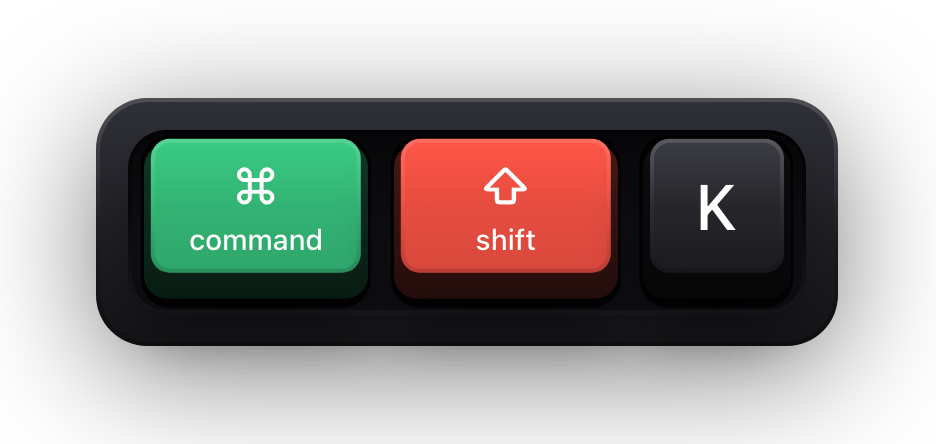
Yes. The pointer overlay and the keyboard overlay are separate switches. ⌃⌥H toggles the halo alone, while ⌘⇧K is the master switch that takes everything with it.