
App shortcuts
Safari keyboard shortcuts for Mac
Safari hides most of its keyboard surface behind menus nobody opens. The tab shortcuts alone are worth the ten minutes.
The shortcuts worth learning first
Safari's keyboard set is smaller than Chrome's, and that is mostly a good thing: there is less to learn and the shortcuts that exist are the ones you use constantly. Almost all of the value sits in two groups — moving between tabs, and moving through history.
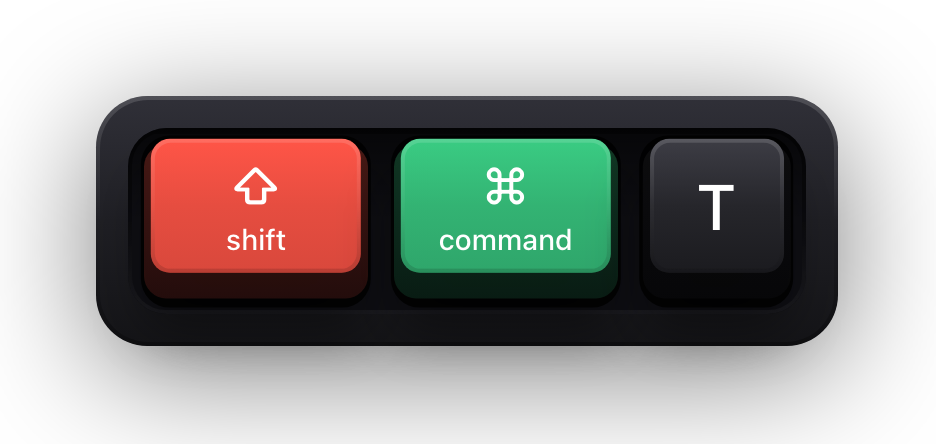
The one that changes a browsing day is ⇧⌘T. It reopens the last tab you closed, and it does the same for windows, so the accidental ⌘W that used to cost you a search now costs a keystroke.
A second thing worth knowing is that several Safari commands are not pure keyboard chords at all. Apple documents them as a modifier plus a click or a drag — ⌥-click to download a linked file, ⌘-click a link to open it in a background tab, ⇧-click to add a linked page to your Reading List. Those are listed here as Apple writes them.
Tabs
| Shortcut | What it does |
|---|---|
| ⇧⌘\ | Show tab overview |
| ⌘-click a link or bookmark, or ⌘Return | Open a webpage in a new tab |
| ⇧⌘-click a link or bookmark, or ⇧⌘Return | Open a webpage in a new tab and make it the active tab |
| ⌃Tab or ⇧⌘] | Go to the next tab |
| ⌃⇧Tab or ⇧⌘[ | Go to the previous tab |
| ⌘1 to ⌘8 | Select one of your first eight tabs |
| ⌘9 | Select your last tab |
| ⌘W | Close the active tab |
| ⌥-click the Close button | Close all tabs except for one |
| ⇧⌘T | Reopen the last tab you closed |
Scroll and read the current page
| Shortcut | What it does |
|---|---|
| Arrow keys | Scroll up, down, left or right |
| ⌥ + arrow key | Scroll in larger increments |
| Space or Page Down | Scroll down a screen |
| ⇧Space or Page Up | Scroll up a screen |
| ⌘↑ / ⌘↓ | Scroll to the top-left or bottom-left corner of the webpage |
| ⌘F | Search the current webpage |
| Tab | Highlight the next field or pop-up menu on a webpage |
| ⌥Tab | Highlight the next field, pop-up menu or clickable item on a webpage |
| ⌘P | Print the current webpage |
| ⌘C | Copy the selected item |
| ⌘V | Paste the most recently copied item |
| ⇧⌘R | Open Reader |
| Esc | Close Reader |
The Smart Search field, history and settings
| Shortcut | What it does |
|---|---|
| ⌘L | Select the Smart Search field |
| Esc | Restore the current webpage address while typing in the Smart Search field |
| ⌘[ | Go back to the previous webpage |
| ⌘] | Go forward to the next webpage |
| Press and hold the Back or Forward button | See a list of your recently visited webpages by name |
| ⌥, then press and hold the Back or Forward button | See recently visited webpages by web address |
| ⇧⌘H | Go to your homepage |
| ⌘, | Change Safari settings |
Bookmarks and the Favourites bar
The bookmarks sidebar is fully keyboard-navigable once it is open, which makes reorganising a few hundred bookmarks far less miserable than dragging them one at a time.
| Shortcut | What it does |
|---|---|
| ⌃⌘1 | Show or hide the Bookmarks sidebar |
| ⌘-click each bookmark and folder | Select bookmarks and folders in the sidebar |
| ⇧-click | Extend the selection |
| ↑ / ↓ | Select the next or previous bookmark or folder |
| Space | Open the selected bookmark |
| Space or → | Open the selected folder |
| Space or ← | Close the selected folder |
| Select the bookmark, then Return | Change the name or address of a bookmark |
| Return | Finish editing a bookmark name |
| Esc | Cancel editing a bookmark name in the sidebar |
| ⌘-click the folder in the Favorites bar | Open all bookmarks from a folder in the Favorites bar |
| ⌥-click the New Folder button | Create a folder containing the selected bookmarks and folders |
| ⌃-click the bookmark, then choose Delete | Delete a bookmark |
Reading List, zoom, windows and downloads
| Shortcut | What it does |
|---|---|
| ⌃⌘2 | Show or hide the Reading List sidebar |
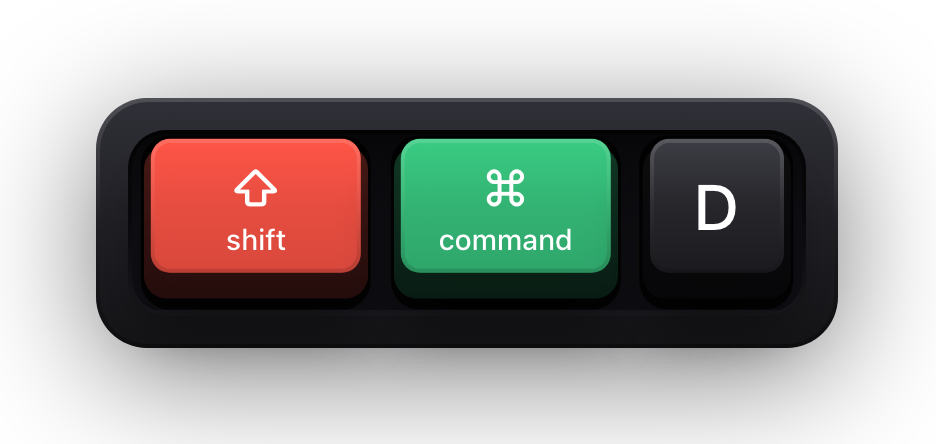
| ⇧⌘D | Add the current webpage to Reading List |
| ⇧-click a link to the webpage | Add a linked webpage to Reading List |
| ⌃-click the summary in the sidebar, then choose Delete | Remove a webpage from Reading List |
| ⌘+ / ⌘- | Zoom website content |
| ⌥, then View > Make Text Bigger or Make Text Smaller | Zoom website text only |
| Esc | Exit full-screen view |
| ⌘` (above the Tab key) | Switch to another Safari window |
| ⇧⌘T | Reopen the last window you closed |
| ⌥-click a link to the file | Download a linked file |
| Double-click the file in the downloads list | Open a downloaded file |
Showing browser shortcuts on screen with Show KeyPress
Browser demos are the hardest kind to follow, because the browser looks the same after almost every shortcut. A tab changes, the sidebar appears, the page scrolls — and none of it tells a viewer which keys caused it.
Show KeyPress is a paid macOS menu bar app from the Mac App Store, for macOS 14 or later. It draws each key you press as a keycap on top of everything else on screen. It is not a browser extension and does not integrate with Safari, or with any other application: it draws an always-on-top window, which is why a screen recorder or a whole-screen share captures the keycaps along with the page.
- Shortcuts Only shows the combinations and leaves plain typing alone, so a URL or a search query does not fill the overlay.
- Standalone modifiers have their own switch, which stops a bare ⌘ tap from flashing a keycap while you hover over links.
- ⌘⇧K toggles all the visualization, and ⌃⌥P opens the position editor so you can move the overlay off a page element mid-demo.
- Each physical display keeps its own saved placement, with Follow Pointer, One Display and Selected Displays targeting.
- Input Monitoring is the only privacy permission requested — not Accessibility, not Screen Recording.
- While macOS Secure Input is active, the keycaps are cleared and a Keyboard hidden — Secure Input banner appears instead, so a login form produces no keystrokes on screen.
Sources and further reading
Product details and guidance were checked against these first-party pages on August 5, 2026. Re-check current listings before making an install or high-stakes decision.
- Keyboard and other shortcuts in Safari on Mac
Apple
Apple's Safari user guide chapter covering tabs, history, Reading List and bookmark shortcuts.
- Control access to input monitoring on Mac
Apple
Apple's guide to the Input Monitoring privacy permission and how to grant or revoke it.
- Secure Keyboard Entry
Apple
How macOS Secure Keyboard Entry stops other apps from receiving key events.
FAQ
Questions people ask
How do I reopen a tab I closed by accident in Safari?
⇧⌘T reopens the last tab you closed. The same chord also reopens the last window you closed, so it covers both kinds of accident.
How do I switch between Safari tabs with the keyboard?
⌃Tab or ⇧⌘] goes to the next tab, and ⌃⇧Tab or ⇧⌘[ goes to the previous one. ⌘1 through ⌘8 select one of the first eight tabs directly, and ⌘9 selects the last tab regardless of how many are open.
Why do some Safari shortcuts involve clicking?
Because Apple documents them that way. Several commands are a modifier plus a click or a drag rather than a pure chord — ⌥-click downloads a linked file, ⌘-click opens a link in a new tab, and ⇧-click adds a linked page to Reading List.
Does the overlay appear if I share only the Safari window?
Usually not. The overlay is a separate always-on-top window, so a share or capture scoped to one application window carries that window's content without it. Share the whole screen or the display instead.
Is Show KeyPress a Safari extension?
No. It is a standalone menu bar app with no browser integration of any kind. Nothing is installed into Safari, and the overlay behaves identically whichever application is in front.