
Onboarding
Onboarding a remote engineer by showing, not telling
In an office, most of onboarding happens by accident. Remotely, nothing happens by accident.
What a remote hire never gets
In an office, a new engineer absorbs an enormous amount without anyone deciding to teach it. They overhear the argument about the deploy. They watch someone next to them debug for ten minutes and pick up the tool they use. They see which questions get asked out loud and which get looked up quietly. None of it is in the onboarding document and all of it is onboarding.
Remote deletes that channel completely. What is left is exactly what someone decided to write down or say, which makes the quality of a remote onboarding entirely a function of how deliberate it is. It is also why a remote onboarding that copies the in-office one always feels thin: the in-office version was never the document.
The replacement is not more documents. It is showing: sessions where the new engineer watches real work happen, and recordings of the ones you would otherwise repeat.
Week one is about context, not access
Access is a ticket. Somebody adds an account, grants a role, sends an invite, and it is done. Teams that treat onboarding as an access checklist finish week one with a fully provisioned engineer who has no idea what the system does.
Context is the scarce thing, and it is specific: what this system is for, which parts are load-bearing, which parts everyone knows are bad and why nobody has fixed them, where a deploy can bite, and who to ask about what. Almost none of that is derivable from the repository, which is why reading the code alone produces an engineer who can change files and cannot change behaviour.
- Name the two or three subsystems that matter, and be explicit that the rest can wait.
- Say out loud which parts of the codebase are known bad. A new hire who discovers it alone assumes nobody noticed, and stops asking.
- Give them one small, real ticket in week one — not a starter task invented for them, which teaches nothing about how work actually arrives.
- Tell them who to interrupt. Remotely, an unnamed permission to ask questions is not usable.
The environment setup runs on their screen, not yours
The instinct is to share your screen and show them how it works. Invert it: have them share, and you watch. It is slower, it is uncomfortable for both of you, and it is the single most valuable hour of the first week.
You will find out within twenty minutes which parts of the setup document are wrong, because they will fail in front of you rather than silently at 11pm. You will find out which assumptions your README makes about a machine that has been running this project for three years. And the new engineer fixes their own environment rather than watching somebody else operate a working one.
Then have them commit the corrections to the setup document as their first pull request. It is the only moment in their tenure when they will be able to see those errors clearly.
Tour the system, not the repository
A directory-by-directory tour of a repository is the default and the least useful thing you can do with an hour. It teaches file locations, which an editor's search would have taught in ten seconds, and it teaches nothing about how anything works.
Trace a path instead. Take one real request from the moment it arrives to the moment something is written to a database and returned, through every service and queue it touches. Then trace a deploy, from a merged pull request to production. Then trace an incident: what alerts, who sees it, what they look at first.
Those three traces teach more than a week of reading, because they are the shape of the system rather than its contents — and because they are the same three traces every new hire needs, which is what makes them worth recording once.
Trace one
A request end to end
From the edge to the database and back. Show the actual logs, the actual dashboard, the actual code the request runs through.
Trace two
A change reaching production
Merge, pipeline, environments, migrations, feature flags, and what a rollback looks like when it is needed at 2am.
Trace three
An incident from alert to resolution
Pull a real one from last quarter. Which alert fired, who was paged, what they checked first, and what turned out to be wrong.
Decide what is live and what is recorded
Time zones make this decision for you more often than not, and a team that treats every piece of onboarding as a meeting will schedule the same three tours every quarter, each one slightly worse than the last as the person giving it gets bored of it.
Recording changes the economics. A tour recorded once can be watched at double speed, paused, rewatched in month three when it finally makes sense, and handed to the next hire without a calendar invite. It also has no bad days.
| What | Live or recorded | Why |
|---|---|---|
| Environment setup | Live, on their screen | The whole value is watching it break on a machine that is not yours |
| The three system traces | Recorded, watched before a live question session | Identical for every hire, and better in a version you made once with care |
| The team's tooling and shortcuts | Live, while doing real work | The point is the order you reach for things, which a scripted recording flattens |
| The first code review | Live, then written into the pull request | It is a conversation, and the record belongs in the review rather than in a video |
| Domain and product context | Recorded, but re-recorded yearly | It dates faster than the code, and a stale version is worse than none |
Running a show-me session so it lands
- 01
Do real work, not a curated tour
Pick a ticket you were going to do anyway. A tour of your setup teaches your setup; doing the work teaches the order you reach for things, which is the part nobody writes down.
- 02
Share the whole screen
You will move between the editor, the terminal, the browser and a dashboard within the first two minutes. A share scoped to one application window carries only that window — and an always-on-top overlay drawn above it is not part of that window either, so the keys go missing too.
- 03
Put your keyboard on screen
Show KeyPress draws each press as a keycap on your display, so the new engineer sees the chord and its effect in the same frame instead of a file changing for no visible reason. Grant Input Monitoring before the session — it is the only privacy permission the app asks for, and the prompt drops you into System Settings.
- 04
Stay in Shortcuts Only
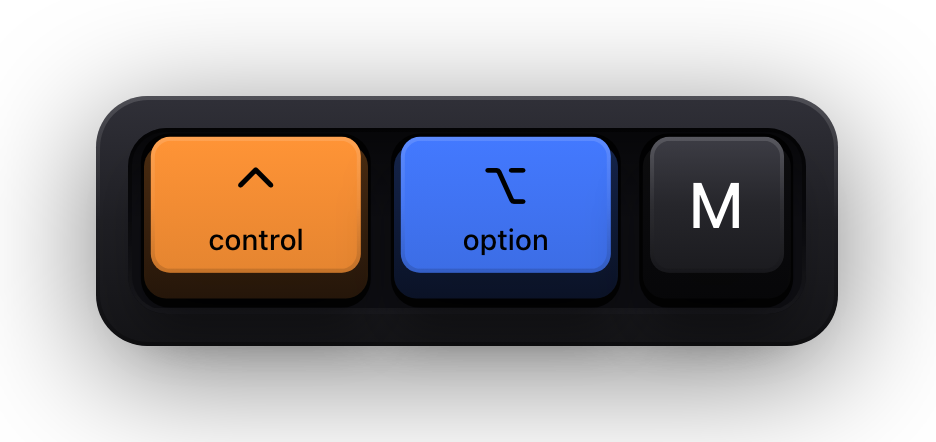
Nobody needs a keycap per character of a commit message. Shortcuts Only draws combinations and skips plain typing, and ⌃⌥M switches to All Keys for the stretch where the exact command is the point.
- 05
Narrate the why and let the screen carry the what
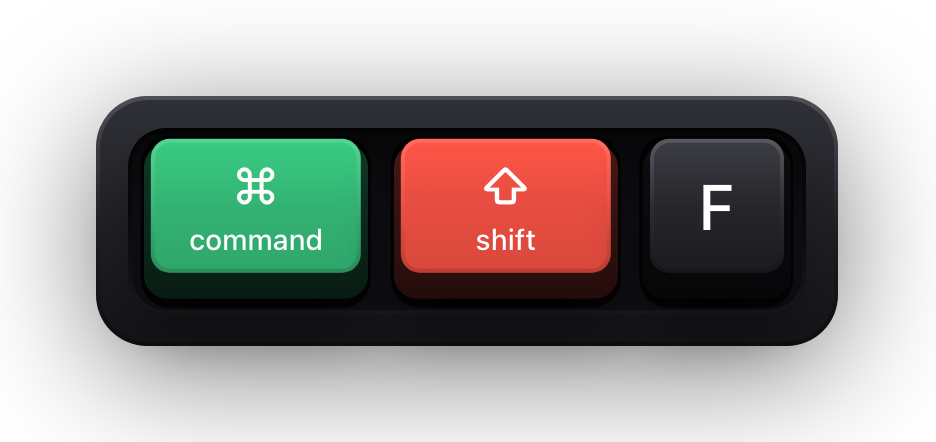
Stop reading key names out loud. The screen already says ⌘⇧F; your sentence should be about why you searched the whole project rather than the file.
- 06
Then swap and watch them drive
Have them share their screen and do the next similar task. You will see immediately what has not landed — it will be the step they do with three menu clicks — and you can correct it in the moment rather than in a review comment a week later.
The first pull request is the real onboarding
Everything before this is preparation. The first change a new engineer ships is where they find out what the team actually values, how much detail a review goes into, whether a question gets answered in an hour or a day, and whether the tests they were told about actually run.
Ship it small and ship it early — day three is not too soon. A first pull request in week three has had two weeks to accumulate anxiety and is usually too large to review properly, which makes the feedback both slower and vaguer.
Review it on a call the first time. Not because the change needs it, but because a first review is a context transfer wearing a review's clothes, and the new engineer learns more from watching you navigate their change than from the comments themselves.
Being careful about what is on your screen
Onboarding sessions involve logging into a lot of things while somebody watches, often somebody who has been at the company for four days. macOS covers the worst of it below the level of any app: while Secure Input is active — a password field, an unlock dialog, a terminal with Secure Keyboard Entry — applications stop receiving key events entirely, so the keyboard visualization is cleared and no keycap is drawn. A short banner reading Keyboard hidden — Secure Input appears in its place, so the session sees the overlay stand down rather than freeze. Turn off Show Status HUD under General if you would rather it showed nothing.
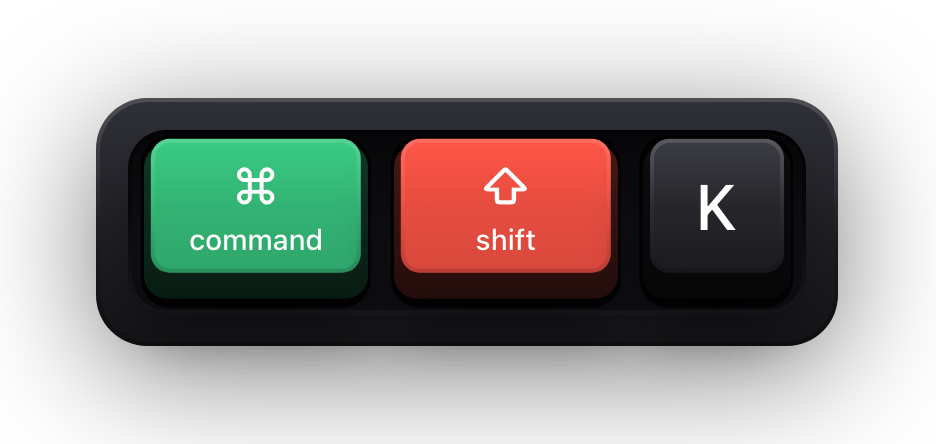
The rest is your judgement, and it is broader than passwords. Staging credentials in a config file, a customer's name in a support tool, an internal hostname in a terminal. ⌘⇧K turns the whole visualization off in one keystroke, and closing the window is still the more reliable move.
Nothing about the session is recorded by the overlay itself. Key events are processed on device, keystrokes and typed fragments are never persisted, and the app has no network entitlement at all — worth being able to say plainly when you ask a new employee to grant a privacy permission in their first week.
What this does not fix
- It does not replace documentation. A recording answers what and how; a document is what someone searches at 3am, and only one of them is greppable.
- It does not close a twelve-hour time zone gap. It makes the gap survivable by moving work out of meetings, which is not the same thing.
- It shows your keys only. Each Mac draws its own input, so a new hire who wants to show you theirs needs the app on their machine — and it runs on macOS 14 or later and nowhere else.
- It has no integration with any conferencing or recording tool, and there is nothing to install on the other side of the call.
- It will not tell you whether onboarding worked. The signal is whether their questions get more specific in week two, and nothing on a screen measures that.
Sources and further reading
Product details and guidance were checked against these first-party pages on August 5, 2026. Re-check current listings before making an install or high-stakes decision.
- Take a screenshot or record your screen on Mac
Apple
Apple's instructions for the built-in screenshot and screen recording tools.
- Control access to input monitoring on Mac
Apple
Apple's guide to the Input Monitoring privacy permission and how to grant or revoke it.
- Secure Keyboard Entry
Apple
How macOS Secure Keyboard Entry stops other apps from receiving key events.
- Show KeyPress on the Mac App Store
Apple
The listing, with the current price, system requirements and version history.
FAQ
Questions people ask
How much of remote onboarding should be recorded rather than live?
Anything identical for every hire — the system traces, the domain background, the deploy walkthrough. Keep live the things that depend on this specific person: their environment failing on their machine, their first review, and watching them drive.
Does the new engineer need the overlay app too?
Not for your sessions. They are watching a video stream of your screen, so there is nothing to install on their side. It becomes useful when they share their screen back and you want to see how they navigate.
Is this not just the shortcuts wiki page in video form?
The opposite, and that is why it works. A list teaches chords with no context; a session teaches when somebody who is good at this reaches for one, which is the part that actually transfers.
What happens if I log into something during an onboarding call?
While macOS Secure Input is active the keyboard visualization is cleared, so a password field draws no keycaps at all. A brief Keyboard hidden — Secure Input banner appears instead, and that banner can be switched off in Settings under General.